1.1 When setting up WhatsApp within a subaccount, you will need a Facebook Meta business account and a WhatsApp Business profile. Follow the instructions to link accounts and fill in business information.
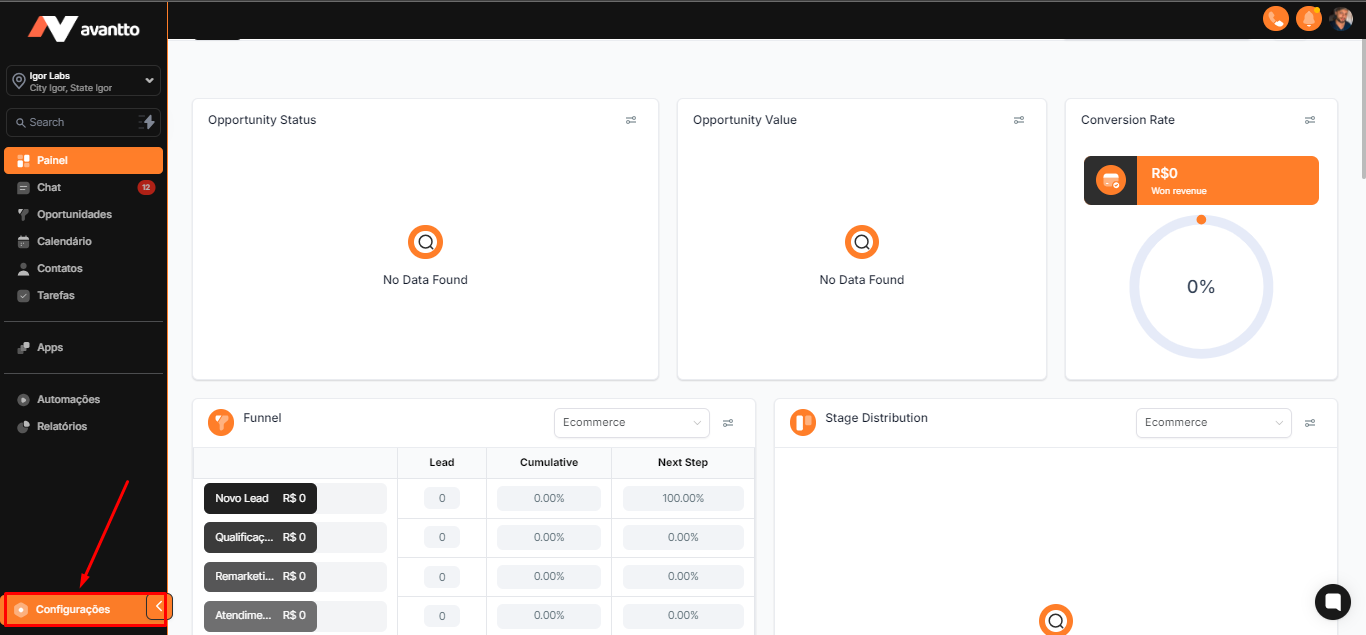
In the left side menu of the screen, Click on Settings
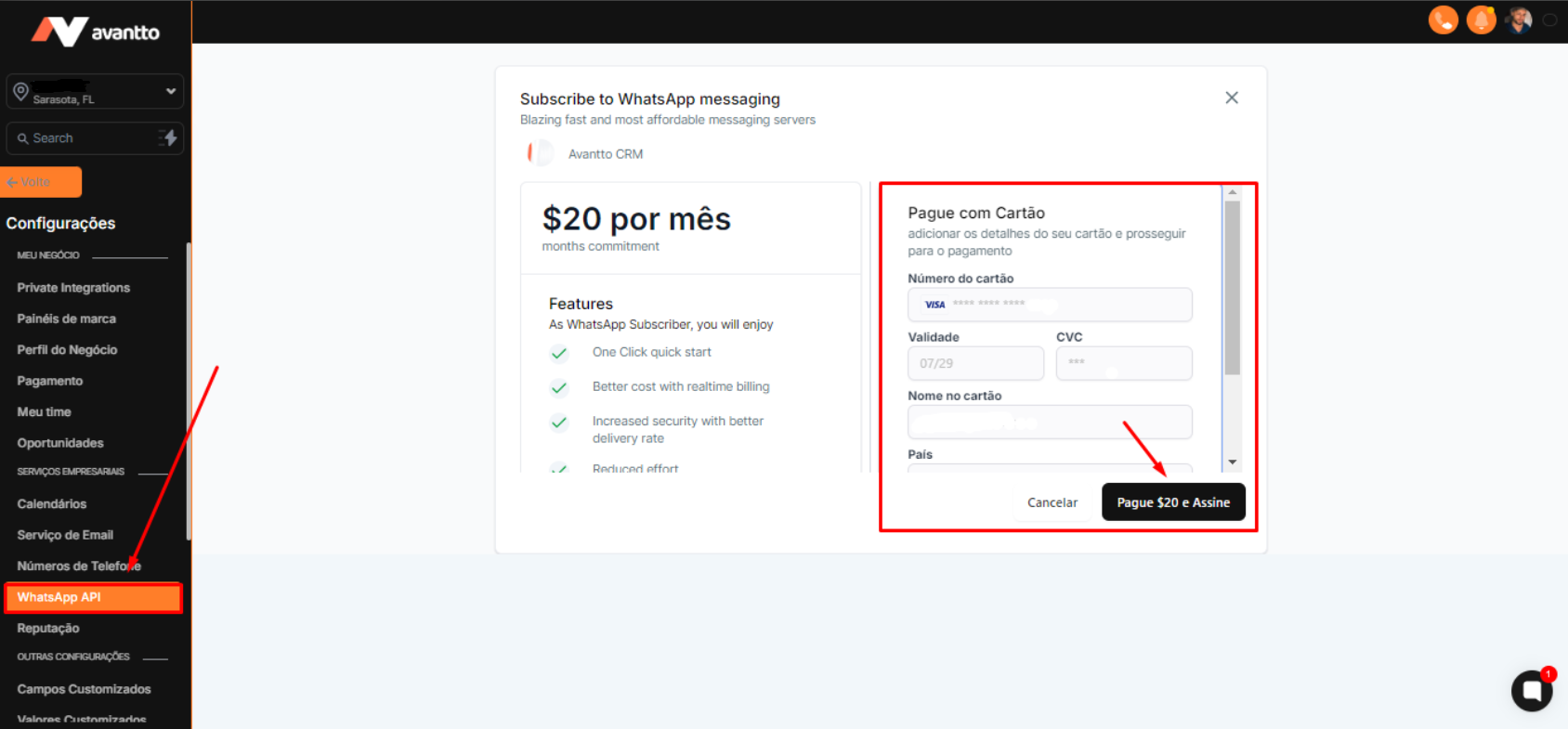
1.2 Then click on WhatsApp API and enter the credit card details to activate the use of the official API which will have a monthly cost of $20/month.
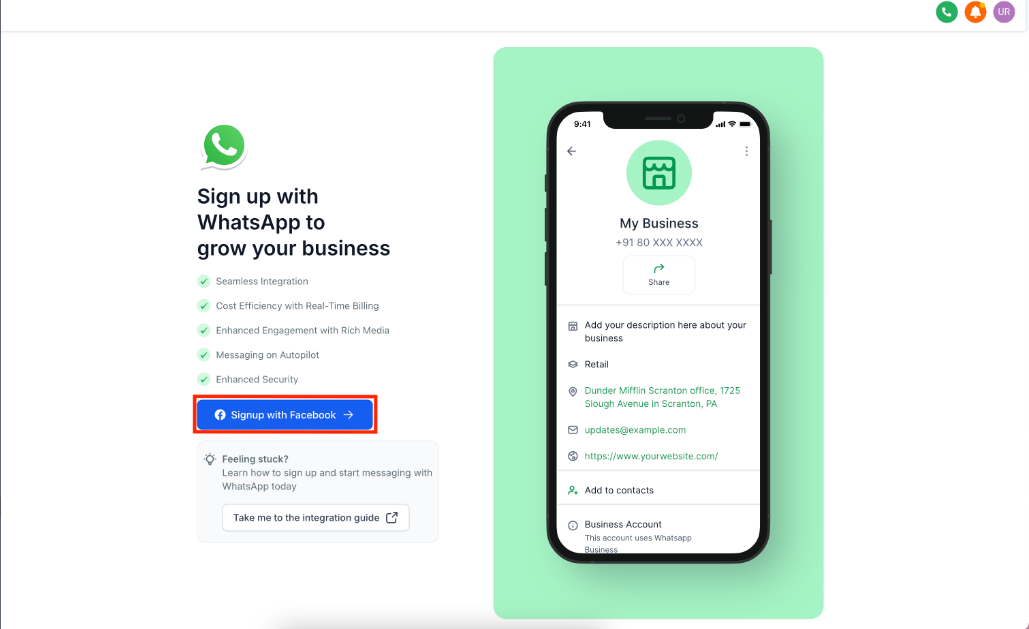
1.3 Click on the sign-up button: "Sign up with Facebook"
1.4 You will need to log in with an existing Facebook account. Click to continue with the connected account.
.png)
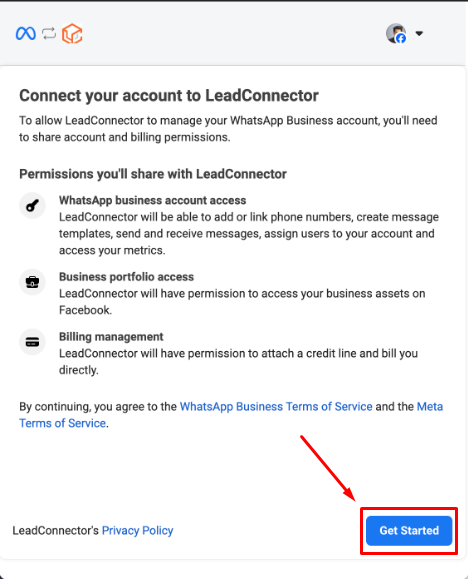
1.5 Connect your account to LeadConnector.
1.6 Fill in your company information, such as Business Name, website or business page, and Country. Then click Next.
.png)
1.7 Create or select your WhatsApp Business account.
.png)
1.8 Review and accept all permissions. Click Save.
.png)
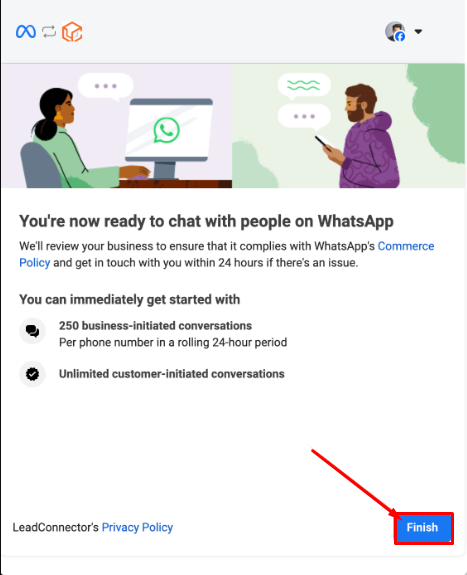
1.9 Click on finish.
2.1 Here you can add numbers purchased within Avantto or external numbers. One point to note is that once connected to the WhatsApp API, this number cannot use WhatsApp on the mobile app, it will only be used for the API. Therefore, we recommend not adding numbers that the company already uses for communication via the mobile app, and instead purchasing a new number for it.
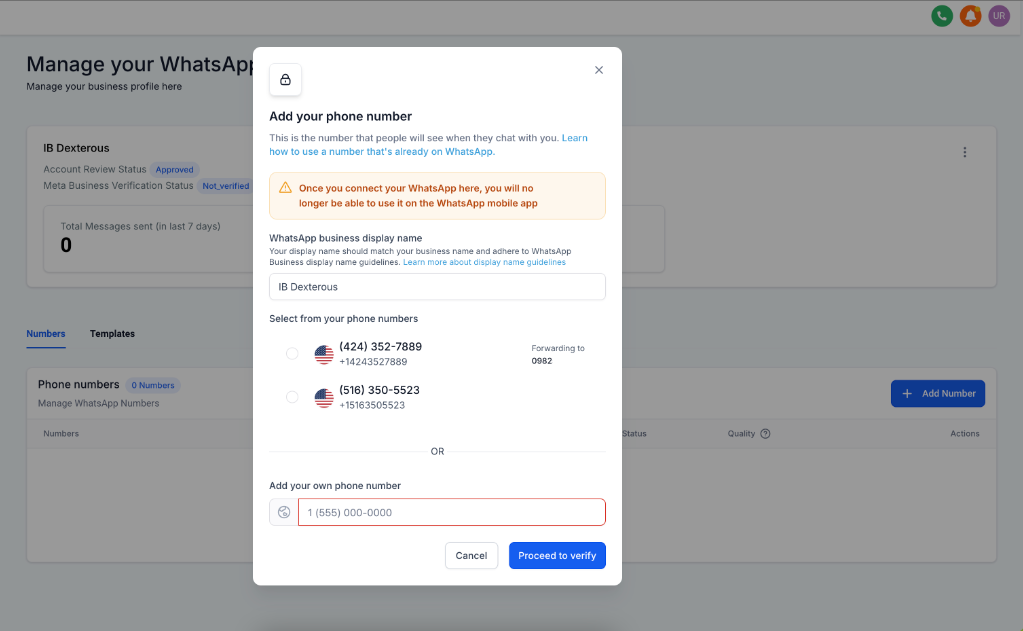
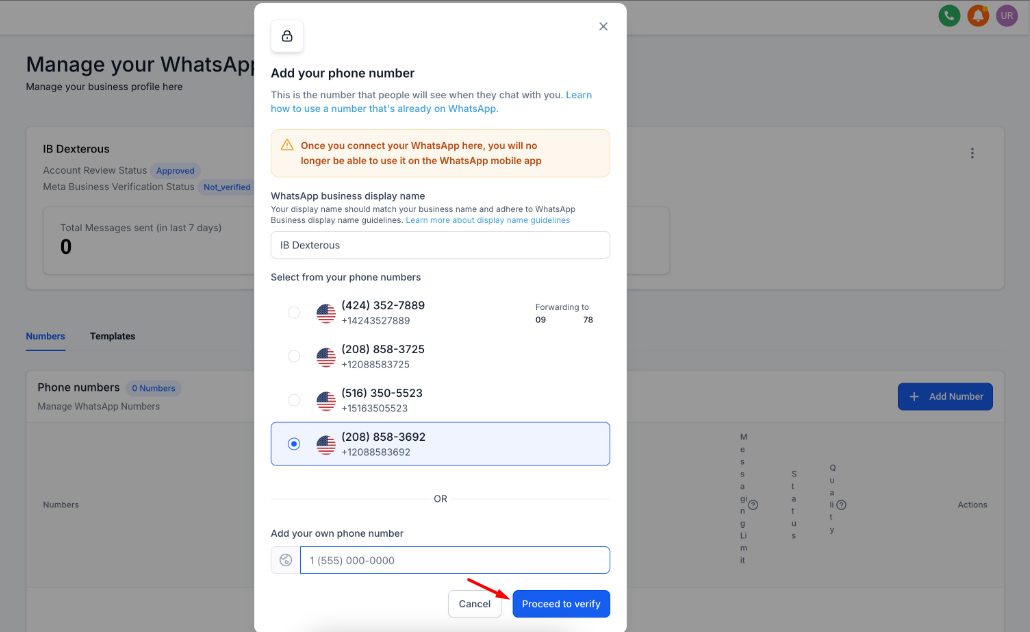
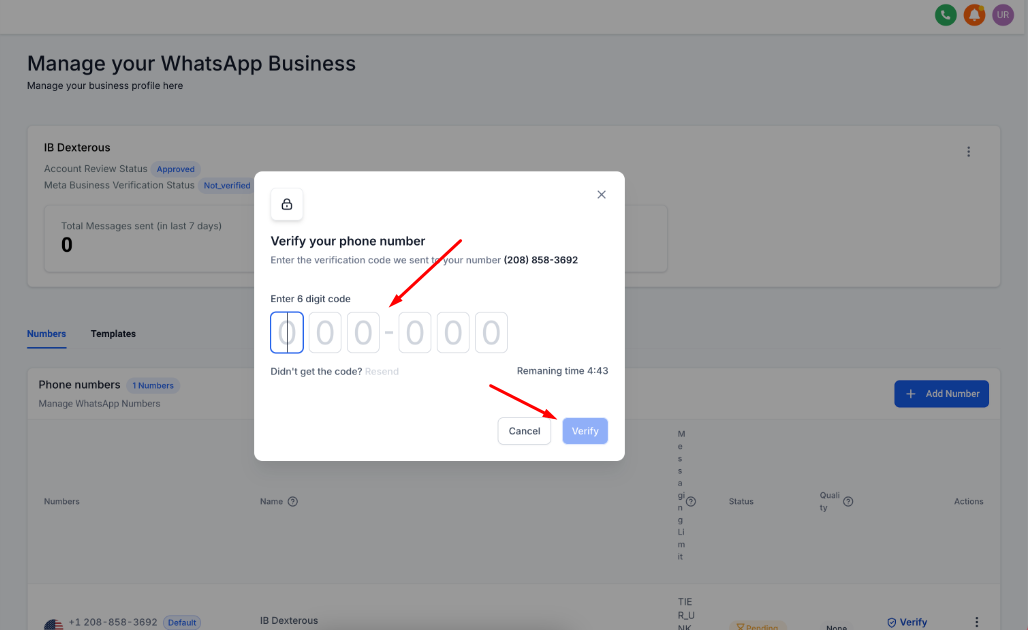
2.2 Choose the number and click Proceed or add your own number and click verify.
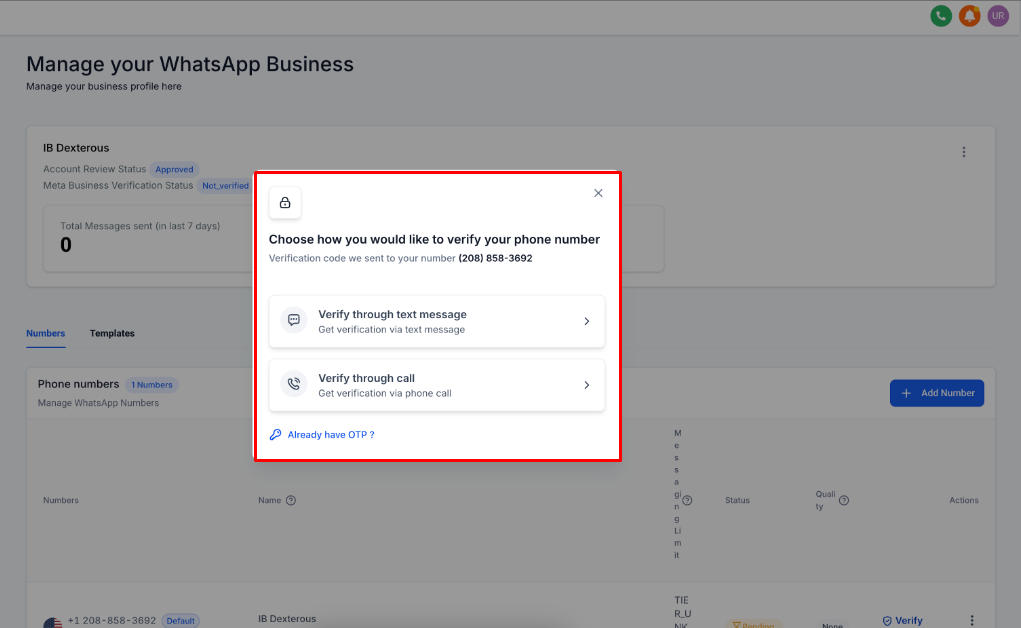
2.3 Choose whether you want to verify your number by text message or call.
2.4 Enter the received code and click Verify.
Keep in mind the sending limit of 250 conversations initiated by businesses every 24 consecutive hours until Facebook Meta verification is completed. After verification, the sending limit increases to 1,000. From here, your limit will increase or decrease depending on your rating and sending habits, as determined by Facebook Meta's policy and rating practices.
Unless a customer sends you a message, you must use a Template to send a new message to a customer. In general, there are two ways to open a WhatsApp conversation (1) when a customer sends you a message or (2) when you send a template to a customer.
Business-initiated: Messages sent by businesses to customers using a template. There are four categories of templates, and the templates are created and reviewed by Facebook Meta before they can be used. You can only send templates to customers until they respond; if they do not respond, you can only send templates.
Customer-initiated: messages initiated by customers who send a message to the business. When a customer sends a message to you, a 24-hour window opens where you can send any template or free-form message to them.
Free entry conversations: initiated when customers interact with a WhatsApp ad or a WhatsApp action button from the Facebook business page, allowing a 72-hour window for businesses to respond. The company must respond within 24 hours of the customer's free entry point; after the company responds, the 72-hour timer starts.
When opening a new Business-initiated conversation, you must use a Template. First, you create a WhatsApp template. The template will be reviewed and approved (or denied) by Facebook Meta. Click here to see the explanation of how to register templates for the WhatsApp API.
