Auto Follow-Up is an intelligent automation tool within Avantto Conversation AI that detects when a contact drops off, becomes inactive, or requests a future follow-up, and then schedules and sends follow-up messages automatically. By leveraging AI, the system recognizes common drop-off scenarios—such as a user saying they’re busy, asking for a specific follow-up time, or simply not replying—and ensures that your leads remain engaged without requiring manual intervention.
Auto Follow-Up delivers several user-focused advantages designed to streamline communication and maximize results.
Reduces manual workload by automating follow-up messages, freeing up your team’s time.
Boosts engagement with timely, personalized outreach that keeps conversations alive.
Minimizes lead leakage by ensuring no contact is forgotten or left unengaged.
Supports custom messaging so you can use AI-generated follow-ups or craft your own.
Integrates with workflows to tag contacts, assign conversations, or notify users as needed.
Respects business hours by only sending follow-ups during your defined working hours.
Switches channels dynamically to maximize deliverability (e.g., from Live Chat to SMS).
Provides full visibility with all scheduled follow-ups displayed in the Response Info panel.
Proper setup of Auto Follow-Up ensures your Conversation AI bot can re-engage leads effectively and in alignment with your business needs. Follow these steps to enable and configure Auto Follow-Up:
Note: Do not trigger another followup through a workflow—this breaks the follow-up logic.Log in to your Avantto account.
From the left-hand menu, click on AI Agents.
Select Conversation AI.
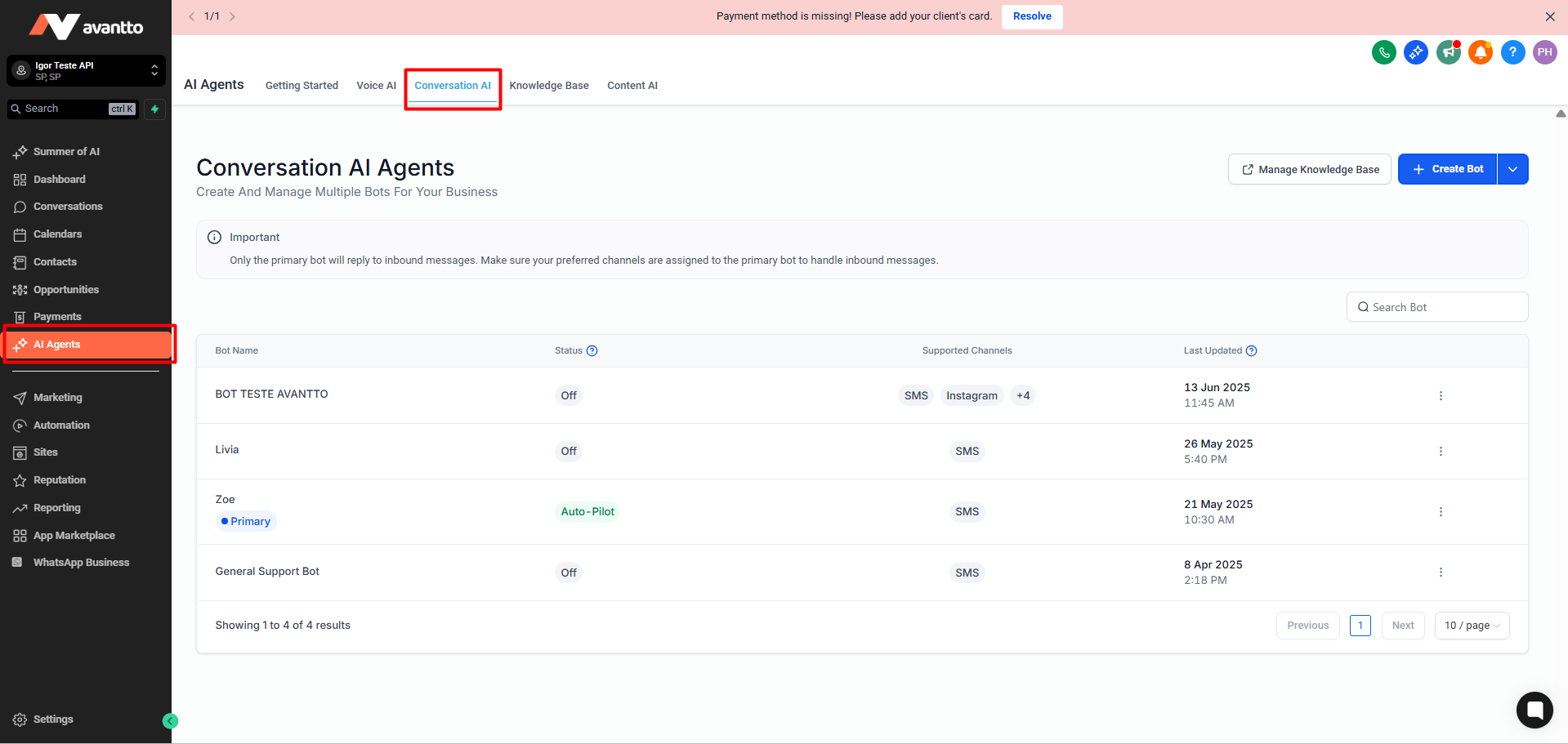
Choose one of the following:
Create a new bot. (Follow this guide to setup a new bot: Setting Up Conversation AI)
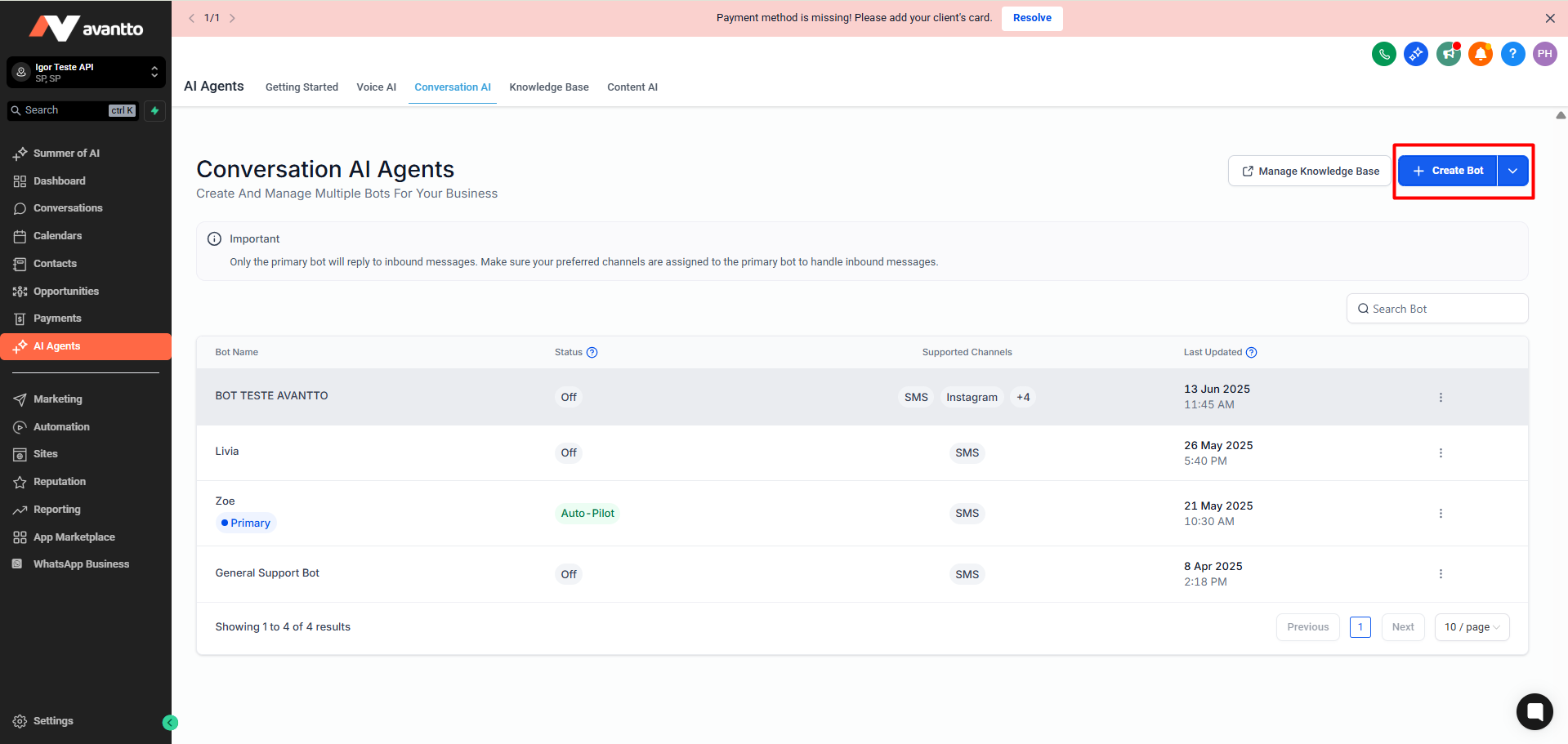
Click on the three dots beside the name of an existing bot and then on Edit.
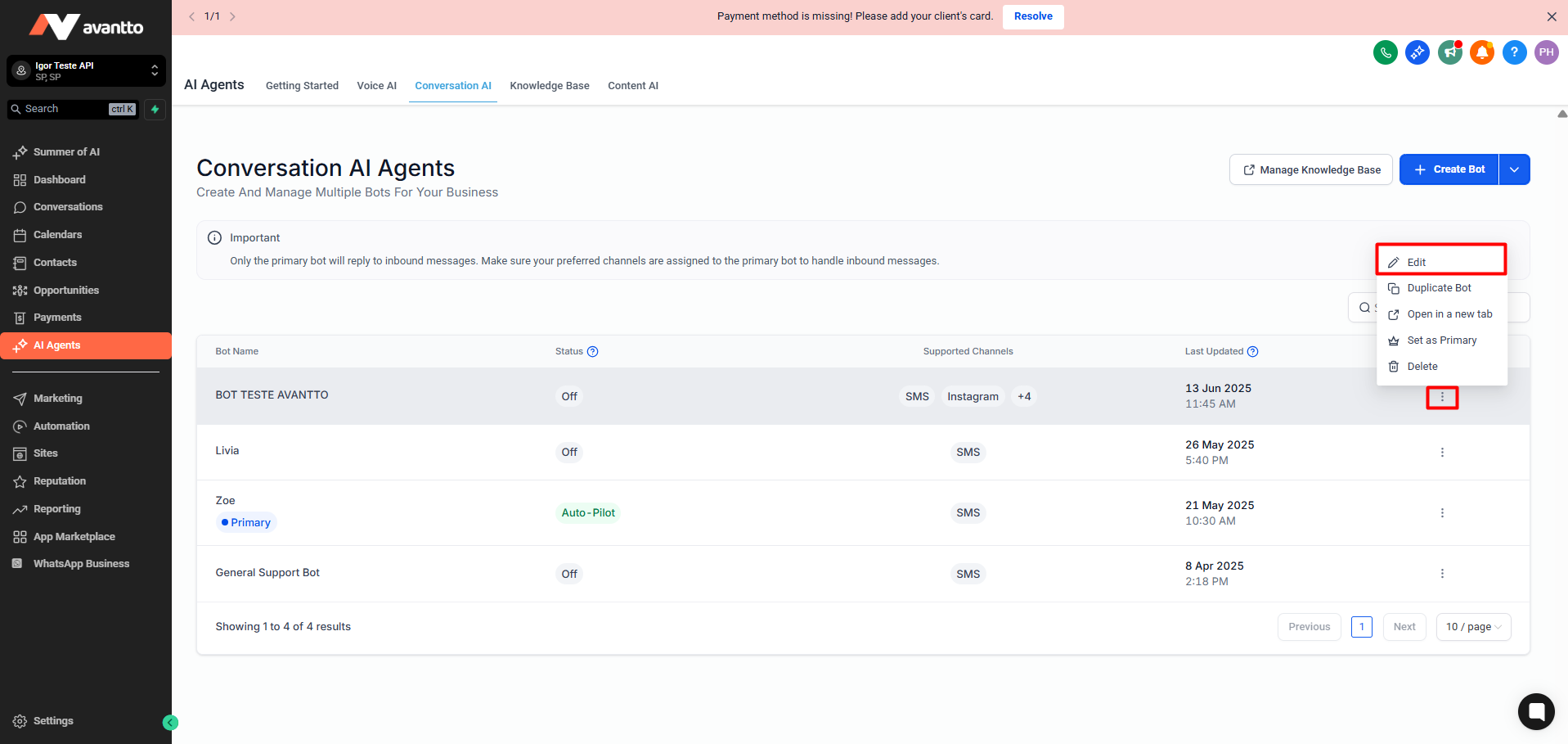
Inside the selected bot, click on Bot Goals in the top navigat
Scroll down until you find Set Up Your Actions.
Under this section, click on Auto Followup.
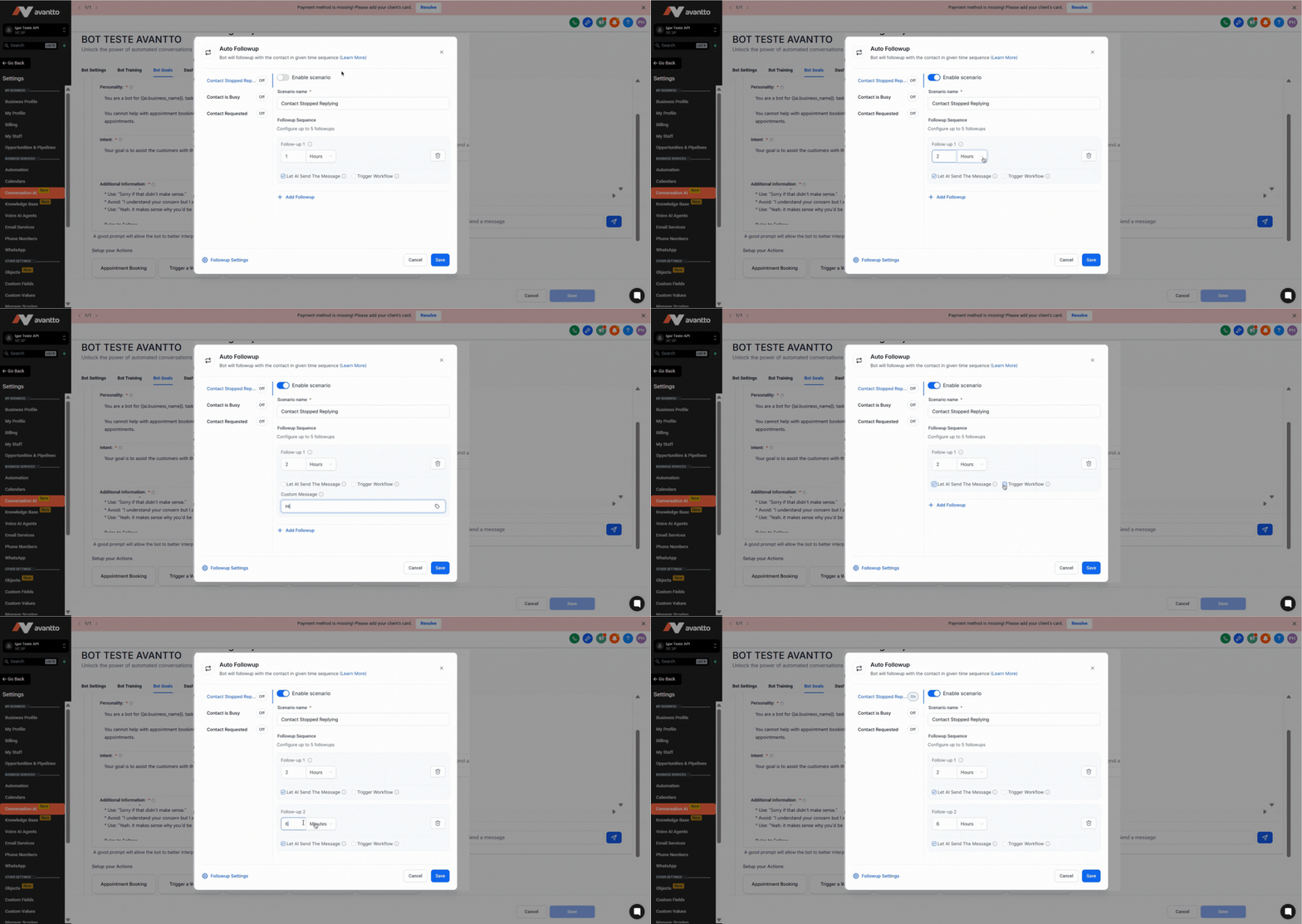
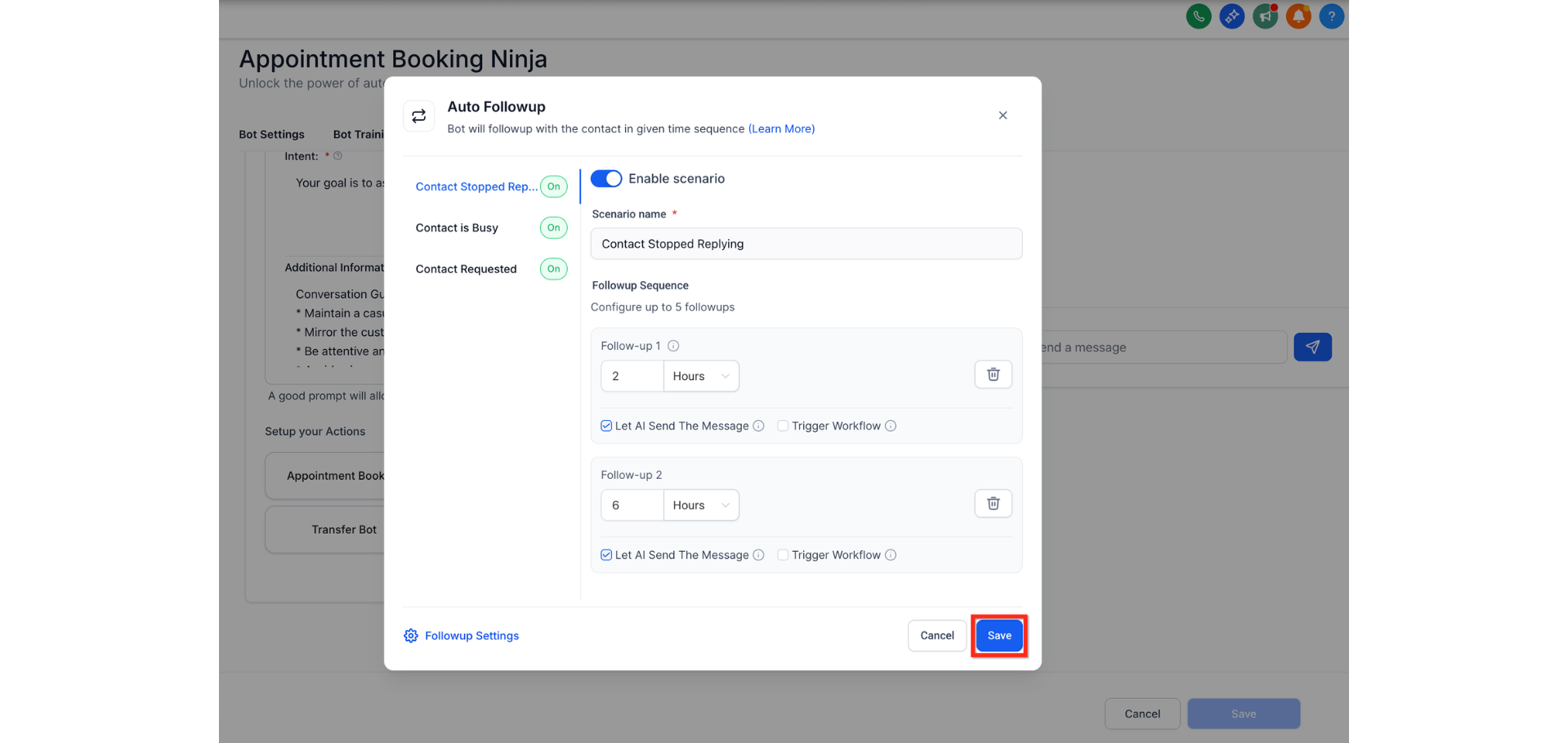
Each follow-up scenario defines when the bot should send follow-ups. Avantto currently supports 3 main scenarios:
Toggle ON the Enable scenario button.
You can now add up to 5 follow-up sequences for this condition.
For each sequence:
Set the delay time in hours, days, or minutes.
Choose Let AI Send the Message (Auto-generate contextual messages based on the conversation).
Or, turn OFF and enter a Custom message manually.
Trigger a Workflow (Optional) : Toggle ON if you want to trigger an existing workflow and select it from the list.
Click on the + Add Followup button to add a new sequence.
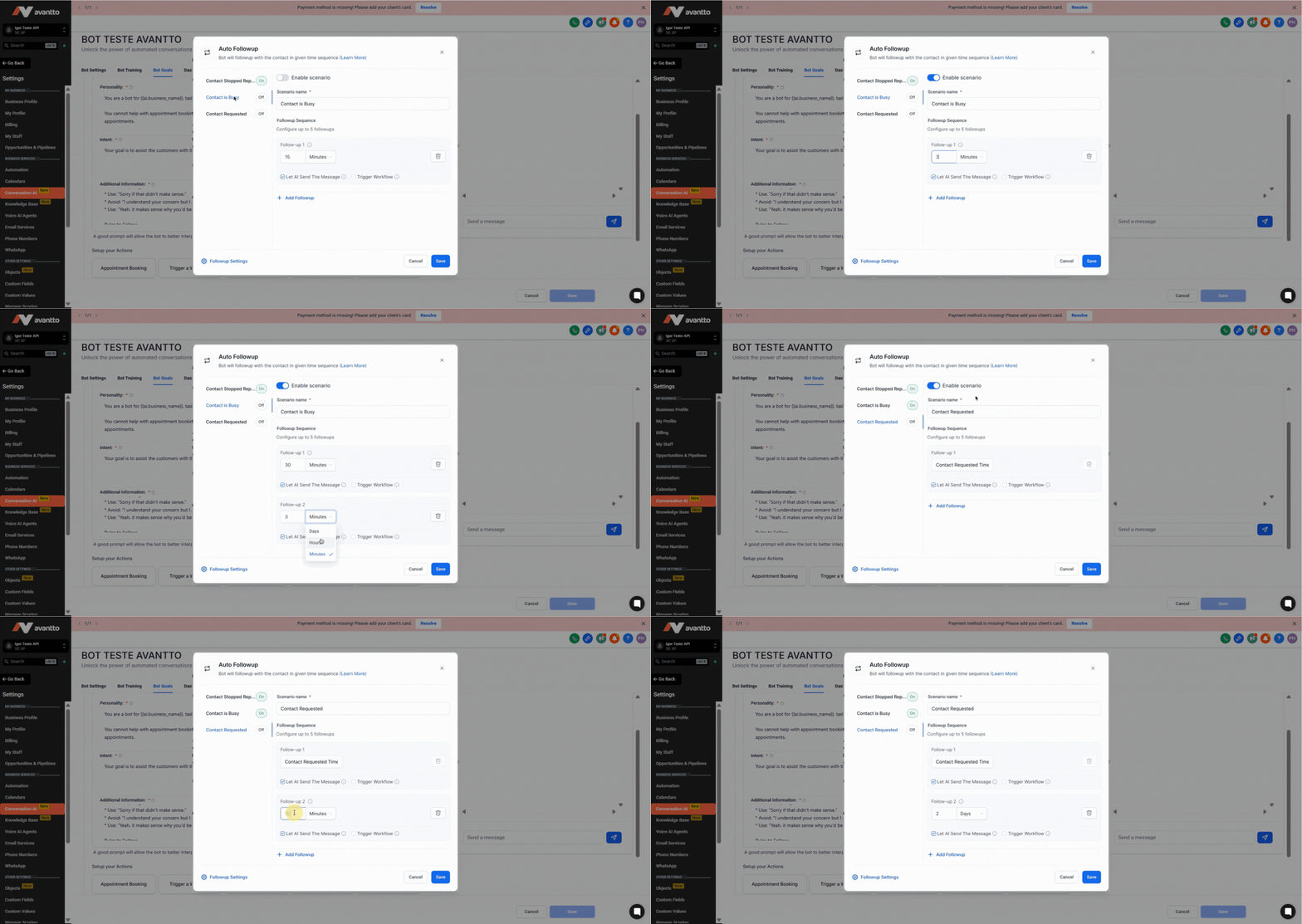
Toggle ON the Enable scenario button.
You can now add up to 5 follow-up sequences for this condition.
Repeat the same configuration steps as above:
Set delay time
Choose AI-generated or Custom message
Assign a Trigger Workflow (optional)
Toggle ON the Enable scenario button.
You can now add up to 5 follow-up sequences for this condition.
Repeat the same process:
Set delay time (The first sequence for this scenario will be pre-set as per the contact's request)
Choose AI-generated or Custom message
Assign a Trigger Workflow (optional)
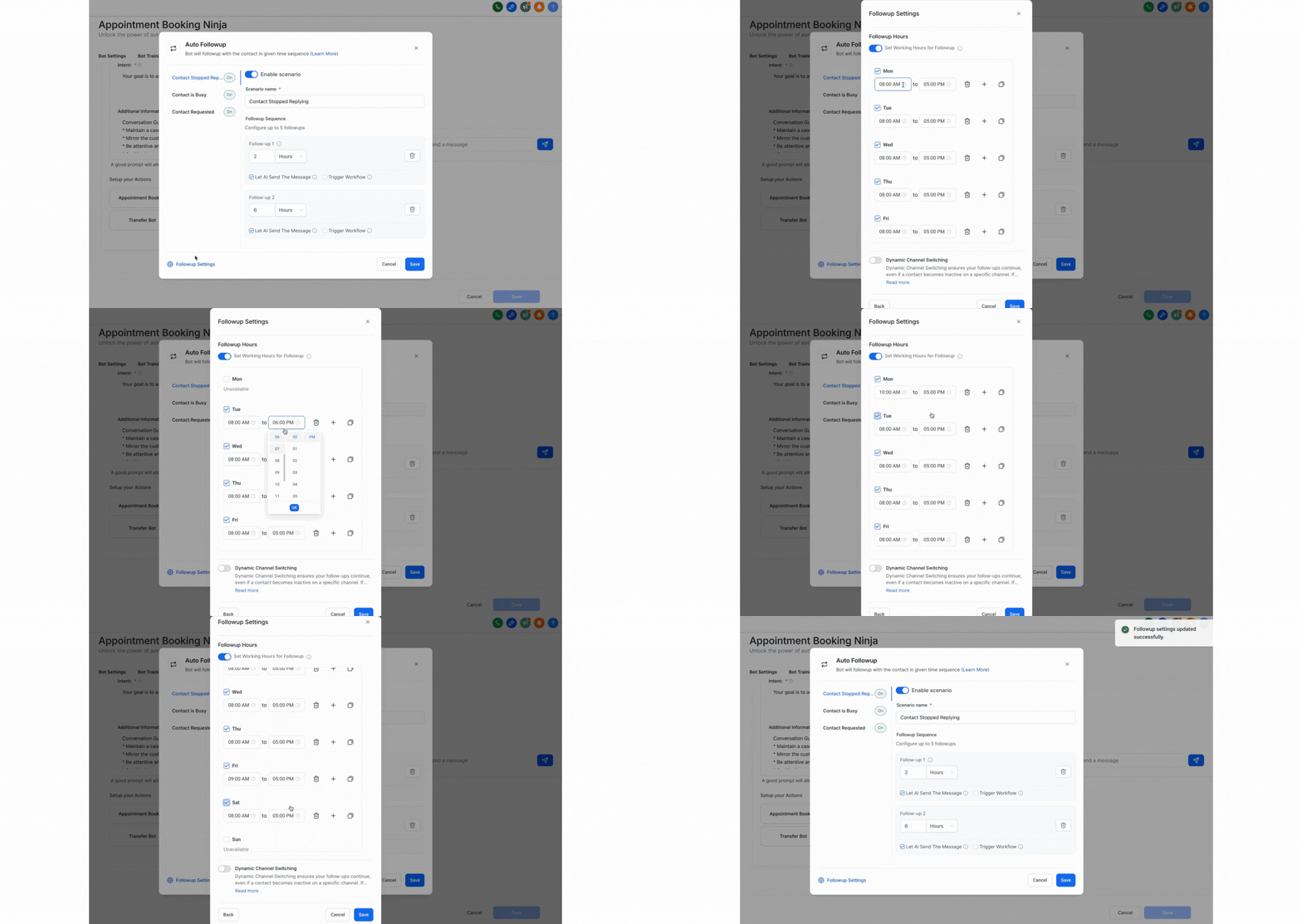
To improve engagement and respect timing preferences, configure these advanced options:
Click on Follow-Up Settings.
Enable Working Hours toggle.
Set the specific hours when follow-up messages should be sent (e.g., 9 AM – 6 PM).
If disabled, messages will send regardless of time.
Click on Save.
Note: This setting ONLY applies to follow-up messages, not to the main AI agent conversations.
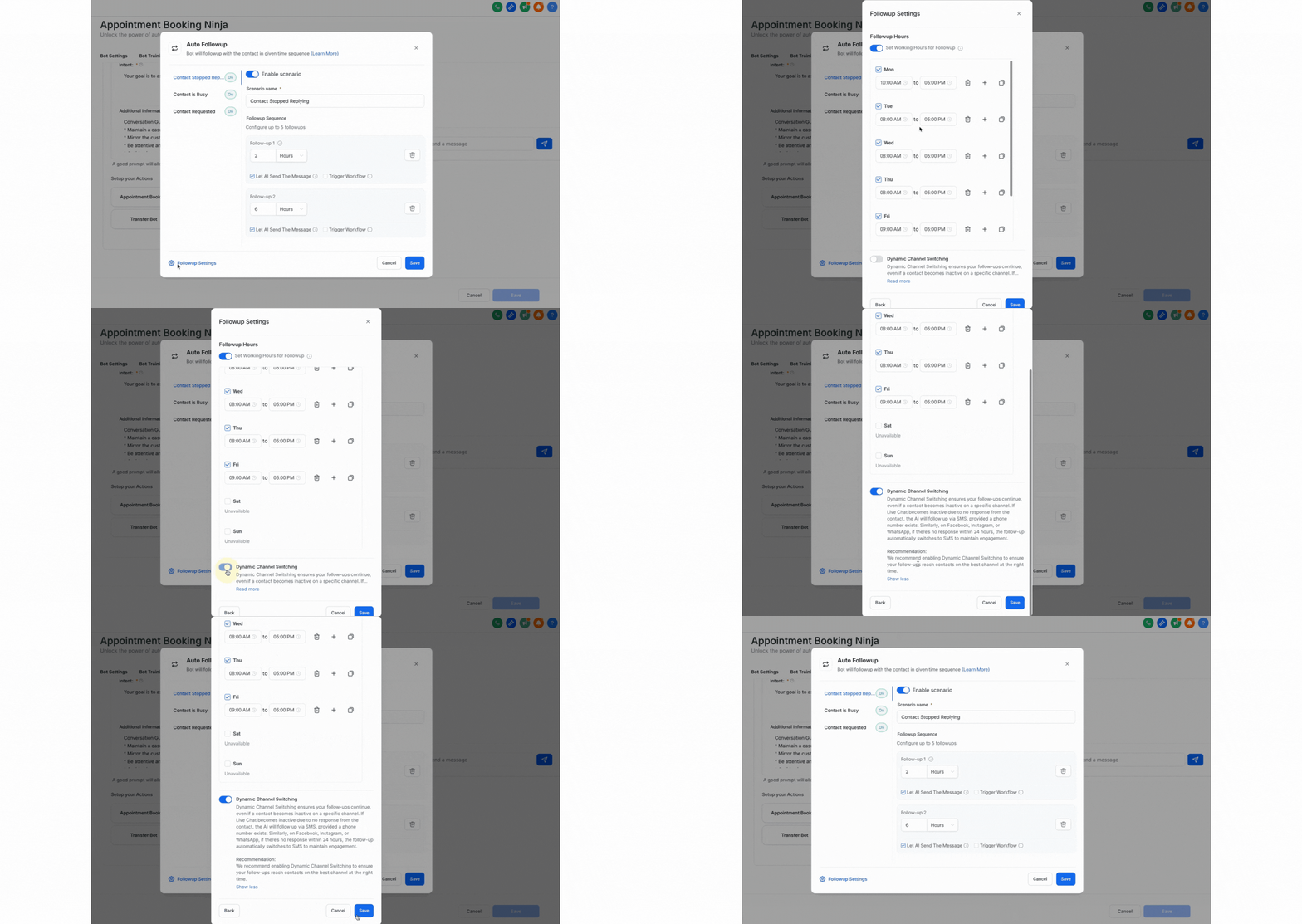
Click on Follow-Up Settings.
Enable Dynamic Channel Switching.
This allows the AI to automatically switch to another available channel if the original one becomes inactive.
For example, if the contact doesn’t respond on Live Chat, the bot may follow up via SMS, Facebook Messenger, Instagram, or WhatsApp, depending on available channels.
Click on Save.
Finally, click the global Save button to confirm and activate the Follow-Up Actions for the bot.
Auto Follow-Up uses AI to recognize when a contact has disengaged, is busy, or requests a later follow-up, ensuring no opportunity slips through the cracks.
Detects when a contact stops replying after a set interval.
Identifies “busy” responses (e.g., “I’m driving”).
Recognizes requests for follow-up at a specific time and schedules accordingly.
To maximize engagement, Auto Follow-Up can switch channels if a contact is unresponsive, helping you reach contacts where they’re most likely to reply.
Switches from Live Chat to SMS if chat is inactive and a phone number is available.
On platforms like Facebook, Instagram, or WhatsApp, switches to SMS if no response within 24 hours.
This feature is optional and can be disabled.
All scheduled follow-ups are displayed in the Response Info panel, giving you complete transparency and control over your automated outreach.
Easily track which follow-ups are pending and why.
Maintain oversight of all automated communication.
Q: What happens if a contact replies before the scheduled follow-up?
The follow-up schedule is automatically reset and no further follow-up messages are sent for that conversation.
Q: Can I customize the follow-up messages sent by the bot?
Yes, you can use AI-generated messages or write your own custom follow-up messages.
Q: What channels does Auto Follow-Up support for messaging?
Auto Follow-Up works across Live Chat, SMS, Facebook, Instagram, and WhatsApp, with dynamic channel switching available as needed.
Q: How do I prevent my contacts from being overwhelmed by follow-ups?
Use realistic delay intervals and avoid sending too many follow-ups in a short period to maintain a positive user experience.
Q: Where can I see all scheduled follow-ups?
All scheduled follow-ups are visible in the Response Info panel for full transparency.
Q: What happens if the bot is inactive?
No follow-up messages will be sent if the bot is inactive.
