Access the Integration Settings:
Woocommerce integration can be found within a sub-account at:
Settings > Integration > Woocommerce
.
Connect the WooCommerce Store:
Users can click on “connect” button to begin the setup. A modal will appear where users must enter a valid WooCommerce store URL (e.g.,
without a trailing slash) as the first step.
Select Data to Import:
In the second step, users will be directed to the Import Elements screen, where they can select which data to import from their WooCommerce store. The available options for import are: Contacts, Orders, Transactions.
Configure Syncing Settings:
The third and final step takes users to the Sync Settings screen, where users can choose which data to continuously sync from WooCommerce to Avantto in future. The options for syncing include: Contacts, Orders, Transactions, Order submitted trigger, Payment received trigger.
Completing the Setup:
After selecting the desired elements to import and sync, click Save. The import and sync process may take some time to complete.
Manage Settings:
Once the WooCommerce integration is successfully connected, users can enable or disable the elements they want to sync for future orders from the WooCommerce store.
Reimporting Data:
If users wish to reimport data, they can disconnect and reconnect the integration, allowing them to reimport any data they may have missed during the initial import.
Customer Type Import:
Customers with role “customers” & “subscribers” will be imported.
Contact Creation with Disabled Customer Sync:
Even if Contact sync is disabled and the Order sync is enabled, contacts will be created related to the order.
Guest Checkout Handling:
Guest checkout customers will be created as contacts, but no updates or future syncs will occur for these guest accounts.
WooCommerce Status Mappings:
The following mappings will apply for syncing order statuses from WooCommerce to Avantto:
Completed or Refunded in WooCommerce → Completed in Avantto
Cancelled or Failed in WooCommerce → Cancelled in Avantto
All other statuses in WooCommerce → Pending in Avantto
Woocommerce Integration:
Woocommerce link:
Import Elements:
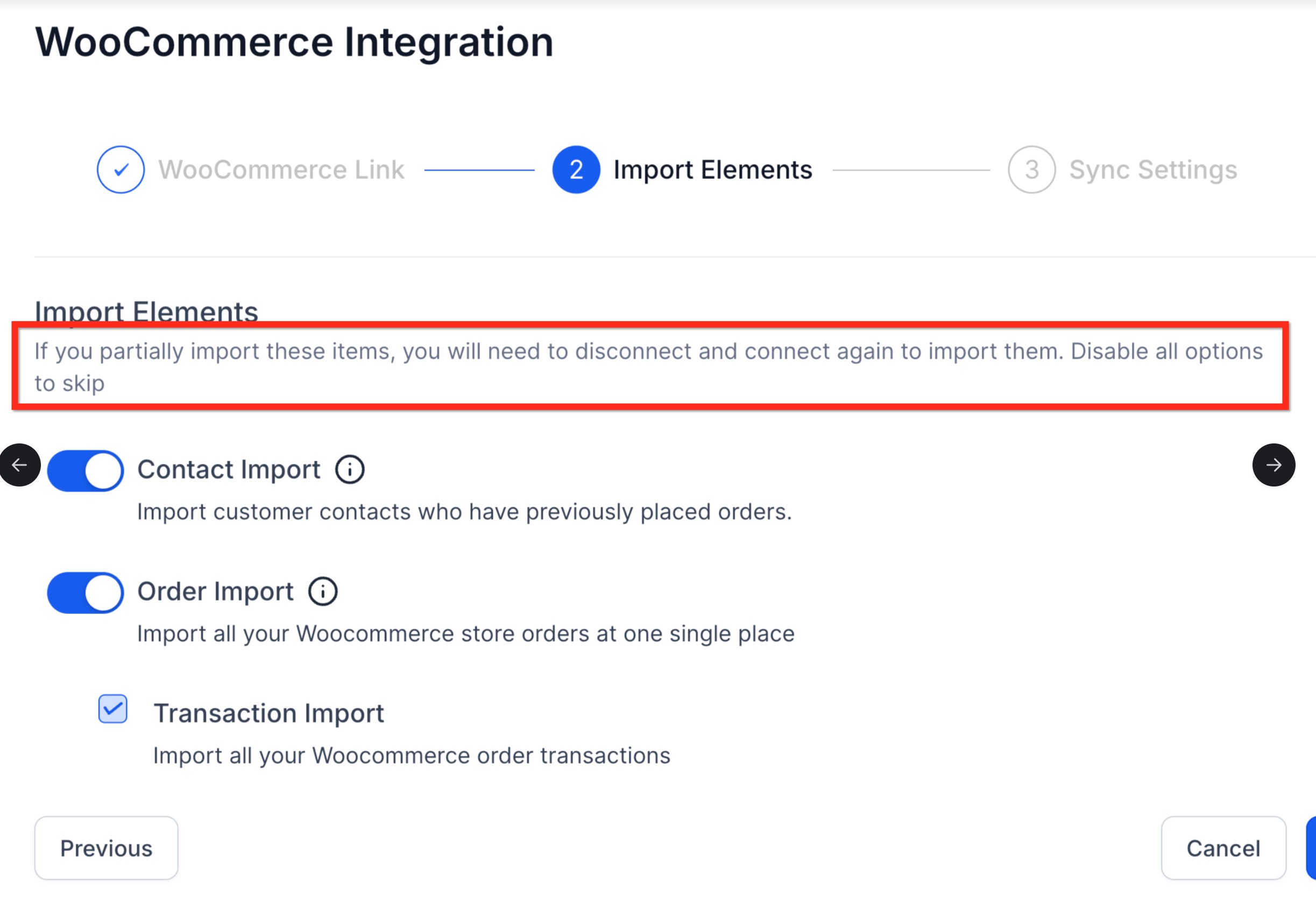
Approve Woocommerce permissions:
Modify sync options in Settings:
Orders page has Subtype of Woocommerce:
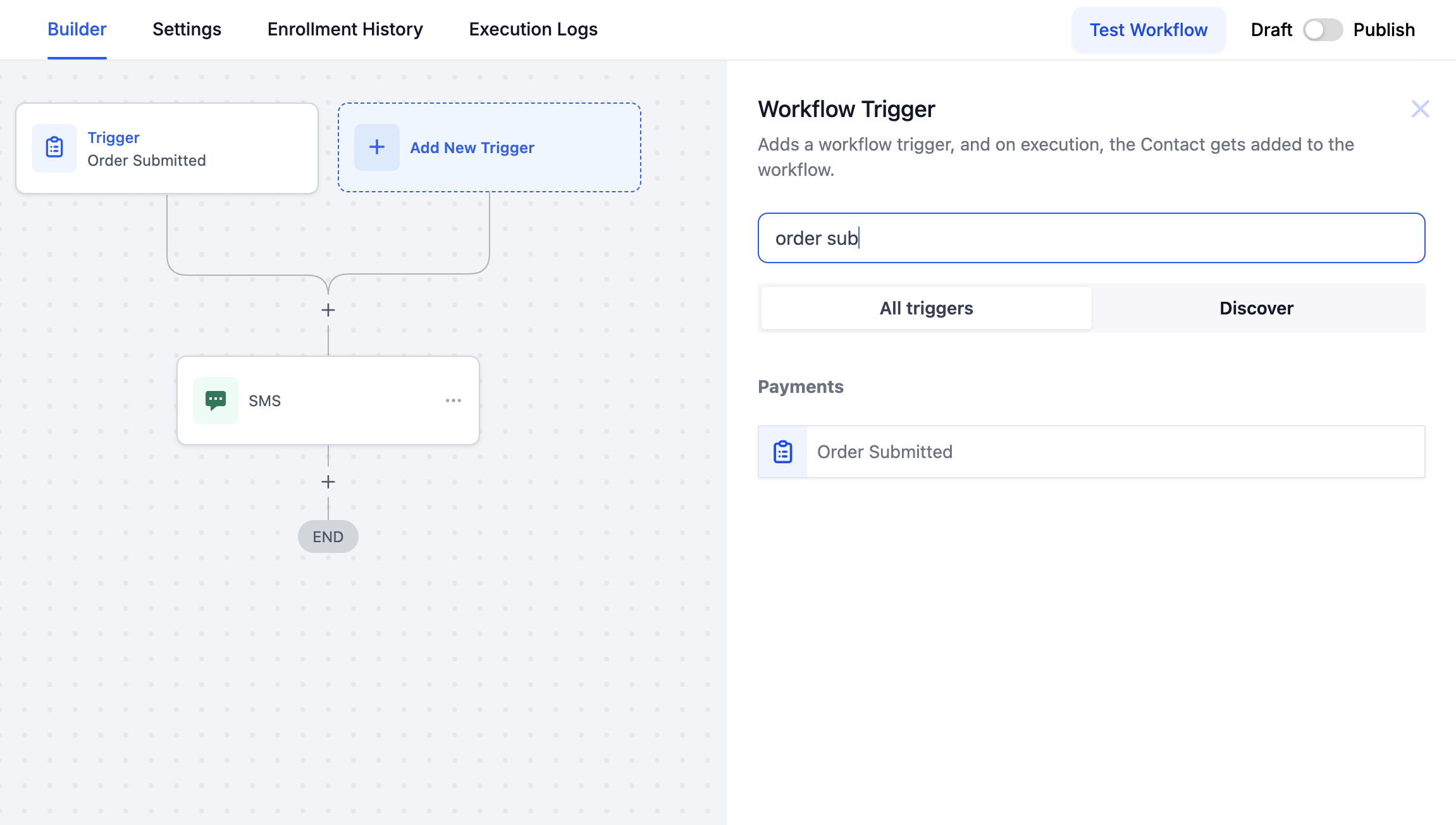
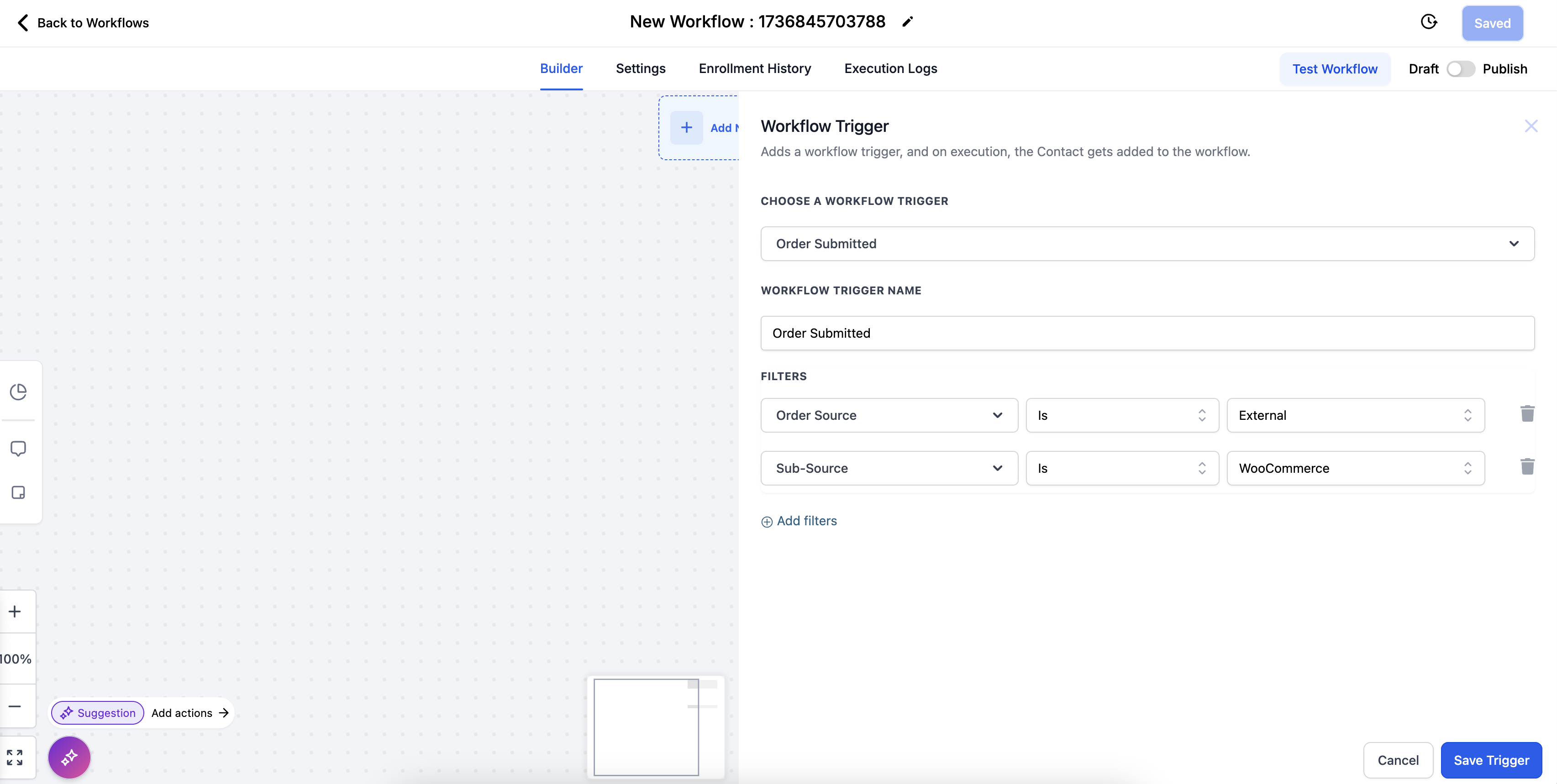
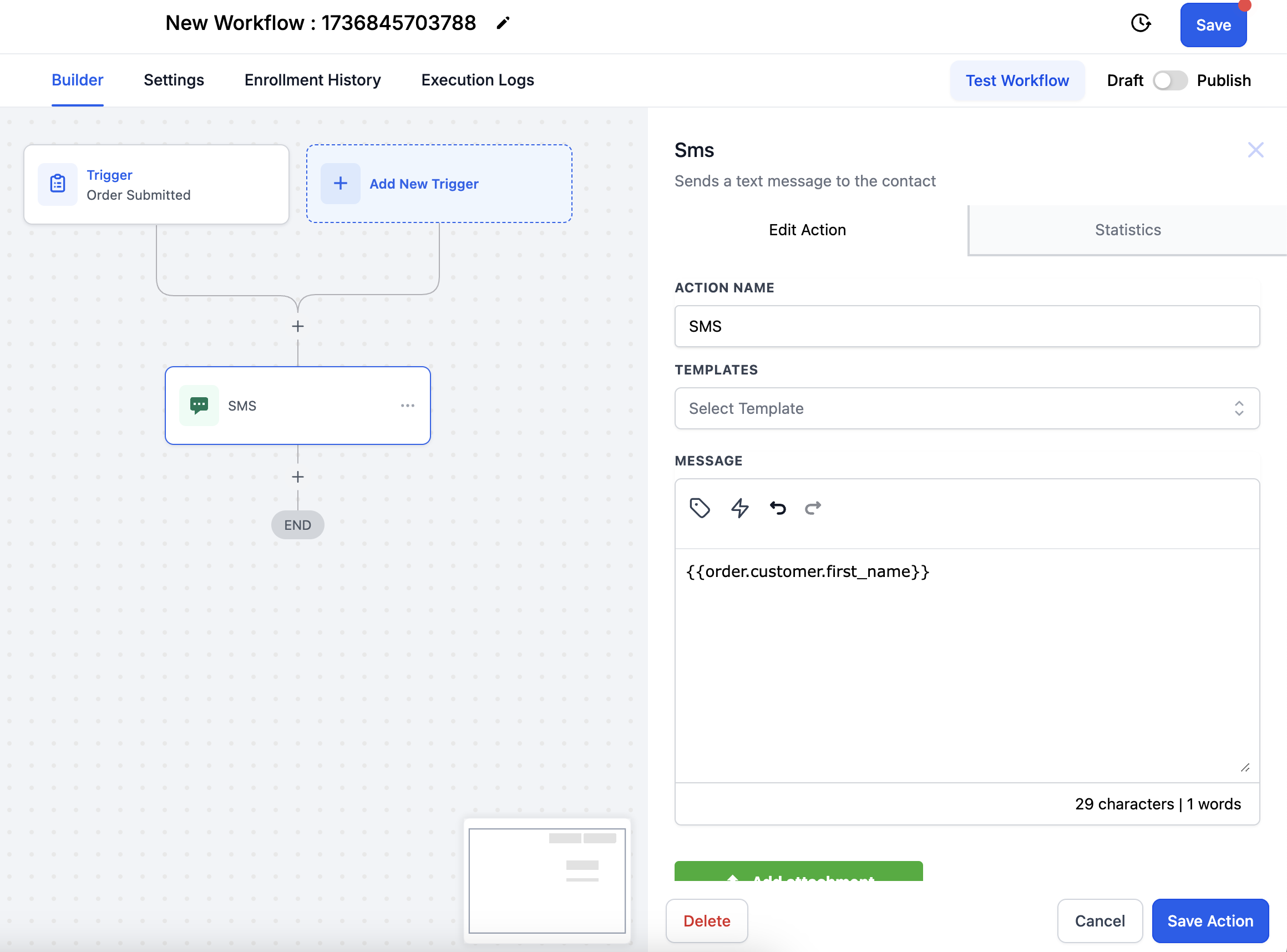
Order Submitted Trigger:
Order Submitted trigger can be setup for Woocommerce Orders in Avantto by searching "Order Submitted" trigger in workflow trigger list:
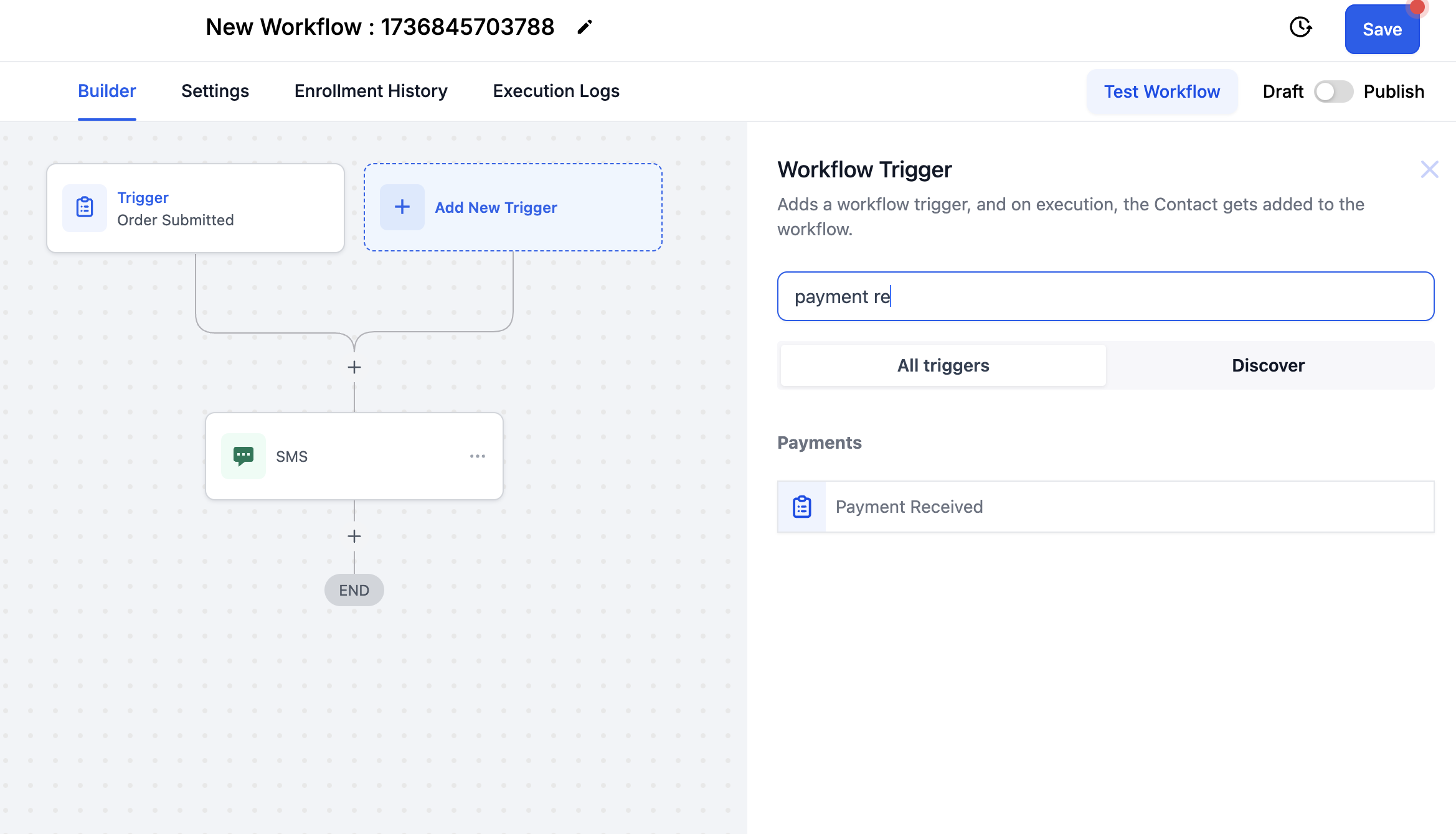
Payment Received Trigger:
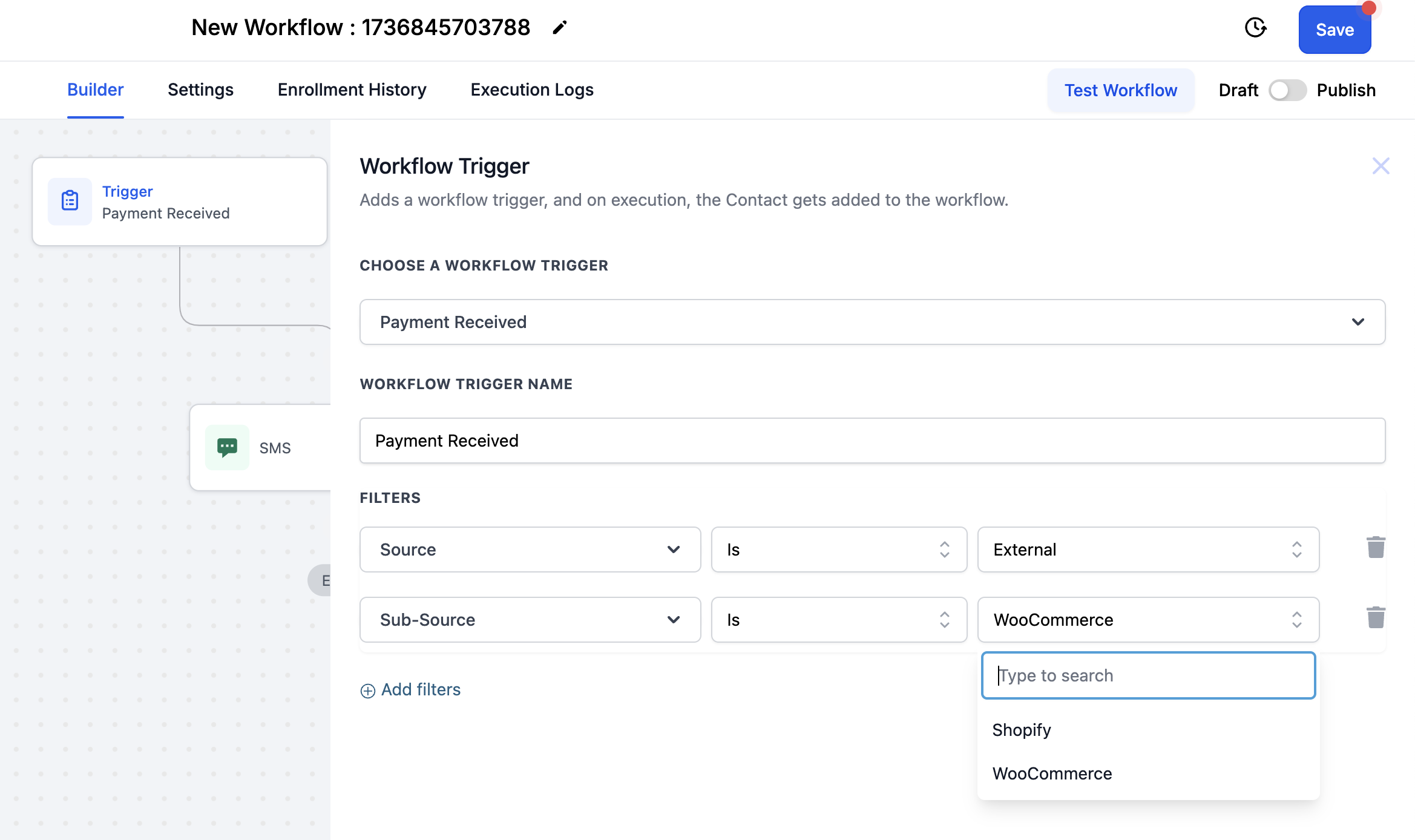
Payment Received trigger can be setup for Woocommerce Orders in Avantto by searching "Payment Received" trigger in workflow trigger list: