Access the Quiz Builder: Navigate to the Quiz Builder in the Forms tab.
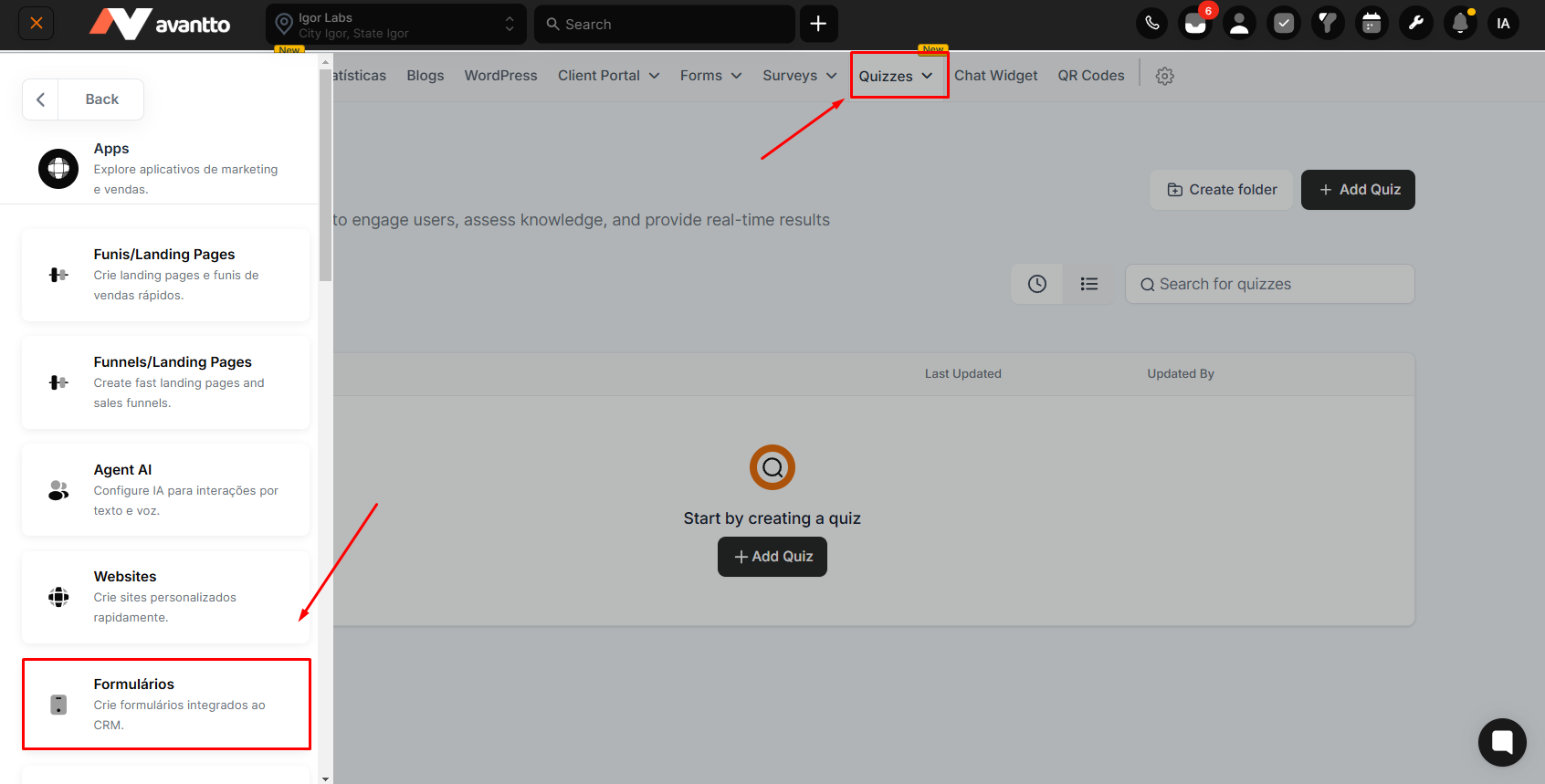
Create a New Quiz: Click Create Quiz and enter a name.
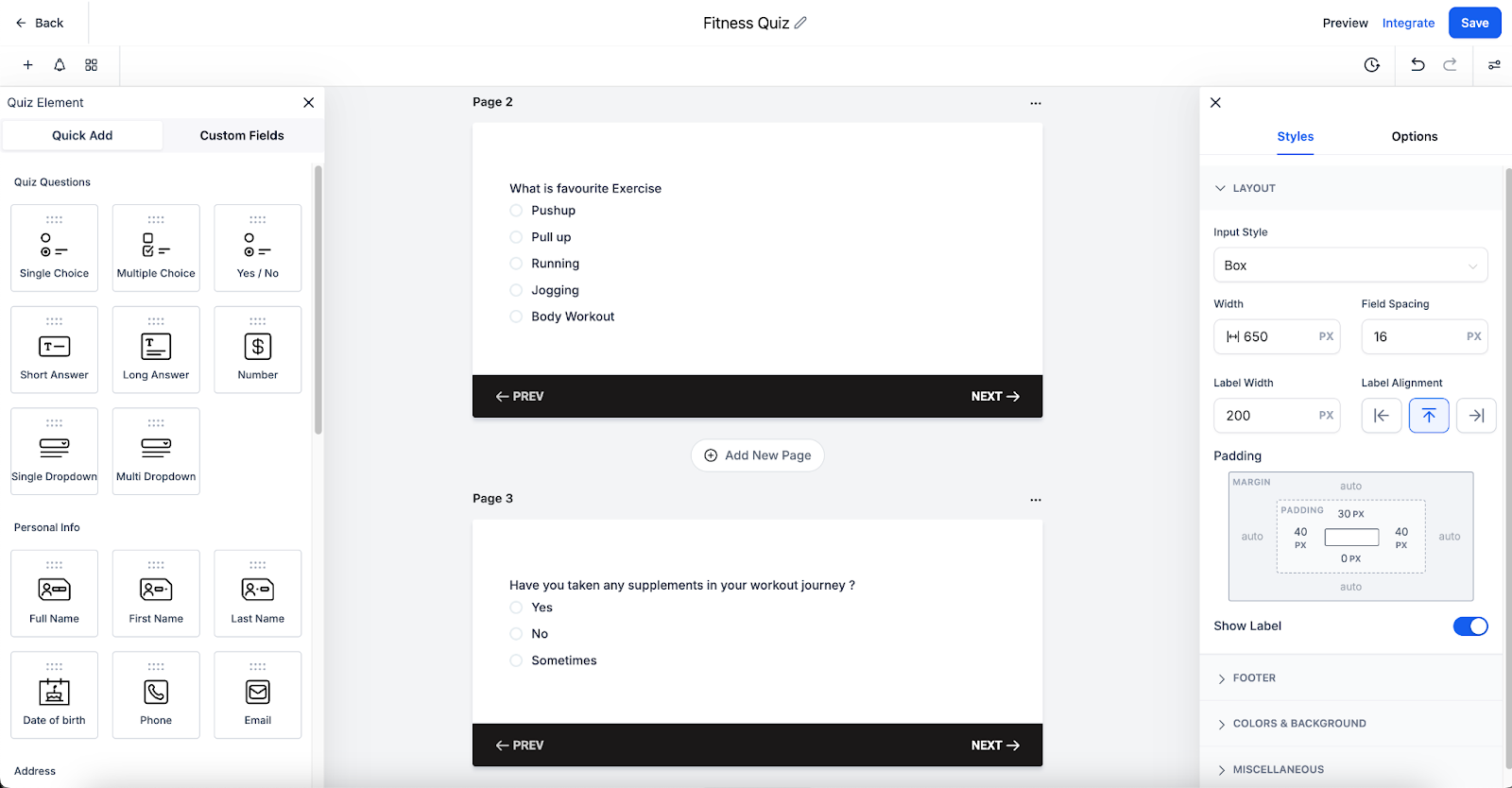
Add Questions: Use the left sidebar to drag and drop question types onto slides.
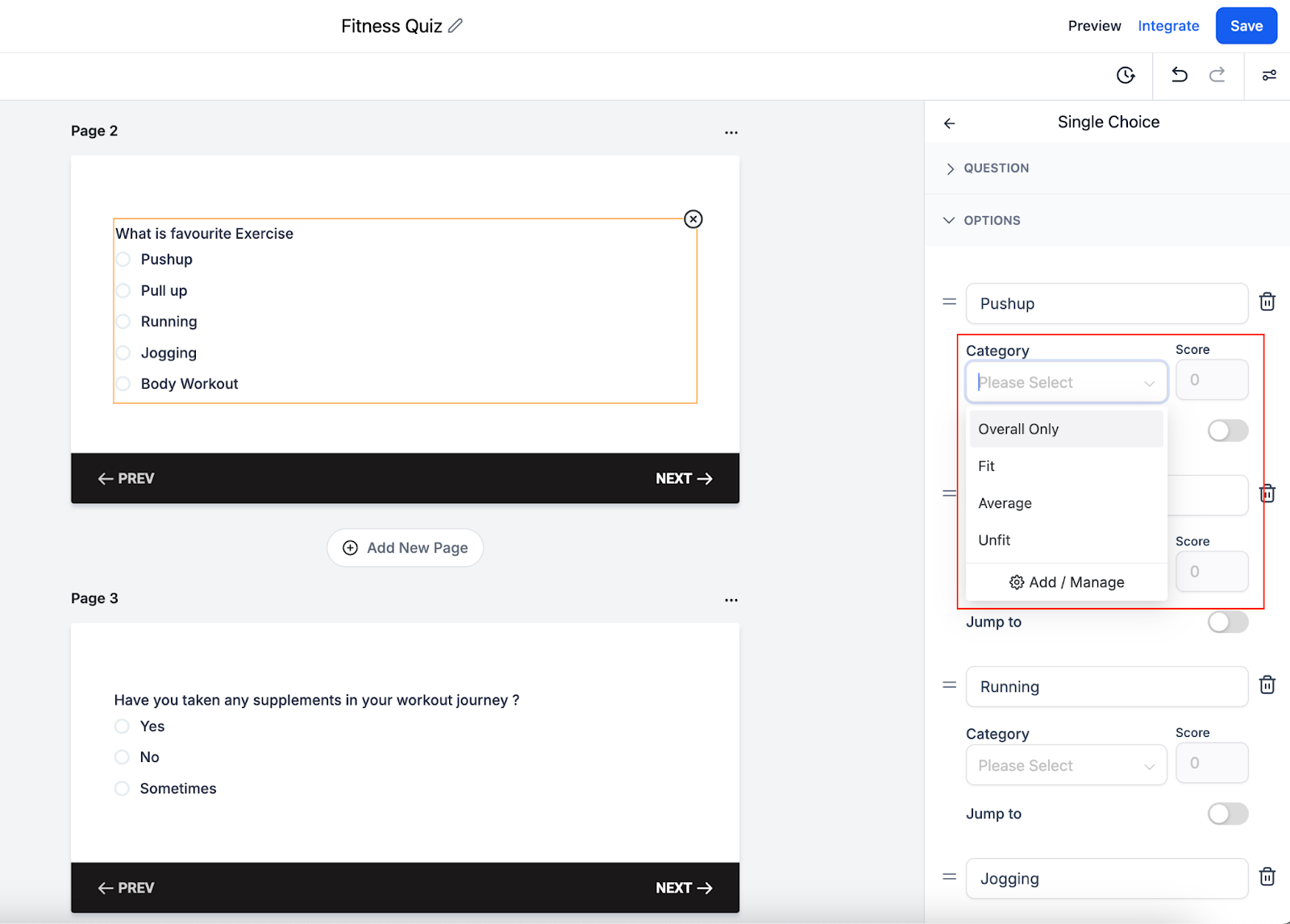
Assign Categories & Scores: Define scoring for each question to determine the final result.
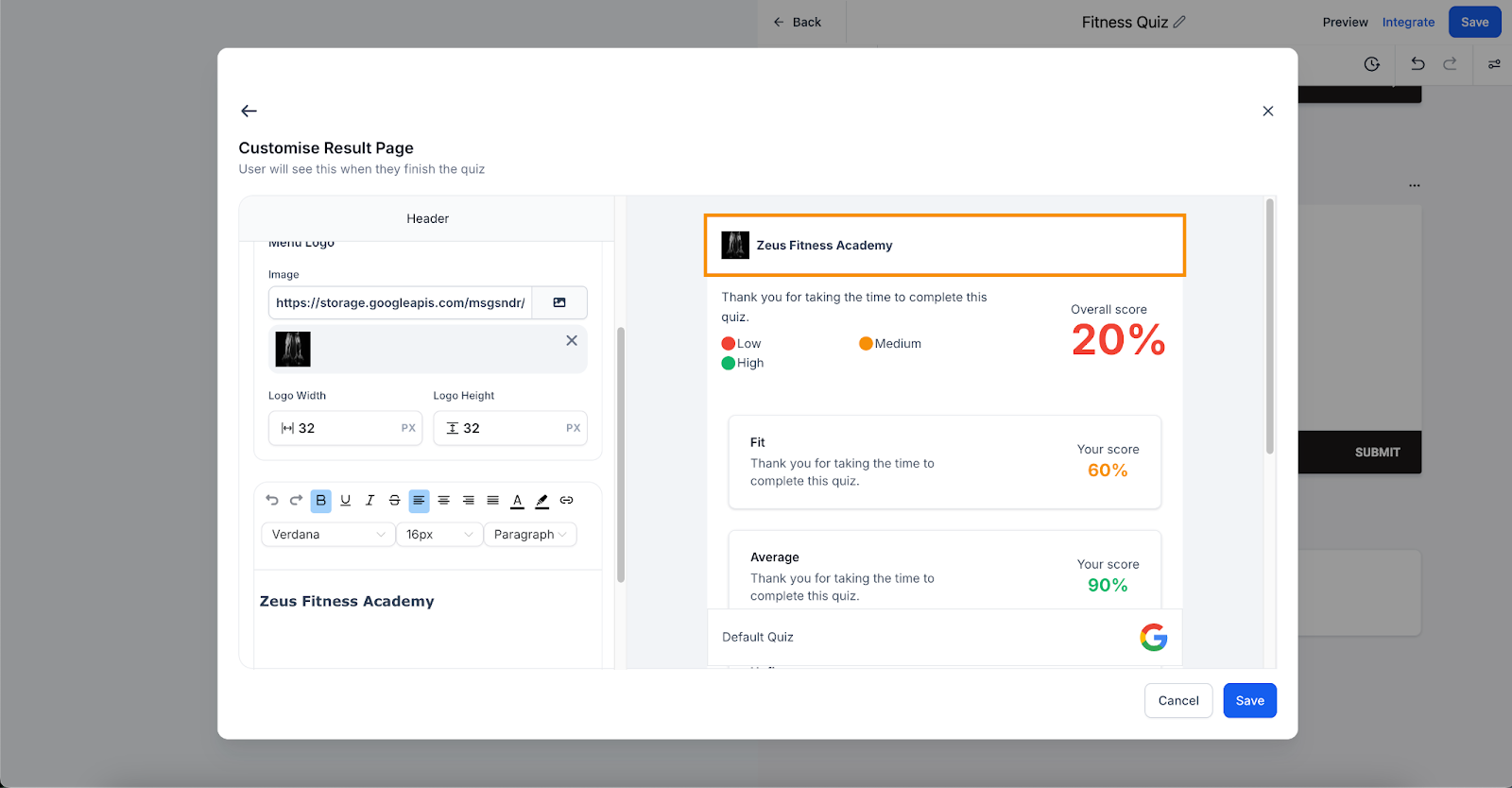
Customize the Result Page: Use the Quiz Result Builder to personalize the results display.
Save & Preview: Test the quiz before publishing.
Publish & Share: Distribute the quiz using direct links, embedding options, or automated workflows.
Drag-and-Drop Interface: Easily create quizzes by dragging and dropping different question types, multimedia, and answer options.
Multiple Question Formats: Supports multiple-choice, true/false, short answers, and essay questions.
Scoring System: Customize scoring methods for individual questions and quiz sections.
Tiers and Categorization: Organize quiz results into categories and assign different score levels.
Branching Logic: Design quizzes that adapt dynamically based on user responses.
Quiz Sharing: Share quizzes via direct links or embed them on websites and funnels.
Result Template Customization: Personalize the results page using the quiz result builder.
Question-wise Feedback: Provide specific feedback based on individual responses.
Dynamic Content for Categories: Tailor content recommendations based on score tiers.
Additional Result Summary Templates: Expand customization options for quiz results.
Multiple Questions per Slide: Enable users to answer multiple questions on a single slide.
With these upcoming improvements, Quiz Builder will continue evolving to meet the needs of educators, marketers, and businesses. Stay tuned for updates.
1. Can I integrate Quiz Builder with my website?
Yes, you can embed quizzes on your website using the provided embed code or direct links.
2. Can I customize the scoring system?
Yes, Quiz Builder allows you to assign different points to each question and set up category-based scoring.
3. Does Quiz Builder support branching logic?
Yes, you can create quizzes that adapt dynamically based on user responses.
4. How can I analyze quiz results?
You can view detailed analytics and insights within Quiz Builder to track performance and engagement.
5. Can I automate follow-ups based on quiz scores?
Yes, using the Quiz Submitted Trigger in workflows, you can set up automated follow-ups like emails and SMS messages.
6. Is Quiz Builder suitable for certification exams?
Yes, you can create quizzes for certifications, assign pass/fail criteria, and generate certificates accordingly.
