Users get instant answers to their questions, reducing wait times and improving the overall customer experience.
Issues can be resolved immediately, enhancing customer satisfaction and loyalty.
Chat widgets encourage interaction by offering help when customers need it, helping to prevent cart abandonment and increase conversion rates.
They can proactively engage users based on behavior, such as spending a long time on a product page.
Automating responses to common questions through a chatbot reduces the volume of queries that need human support, saving on labor costs.
By handling multiple conversations at once, chat widgets improve support efficiency.
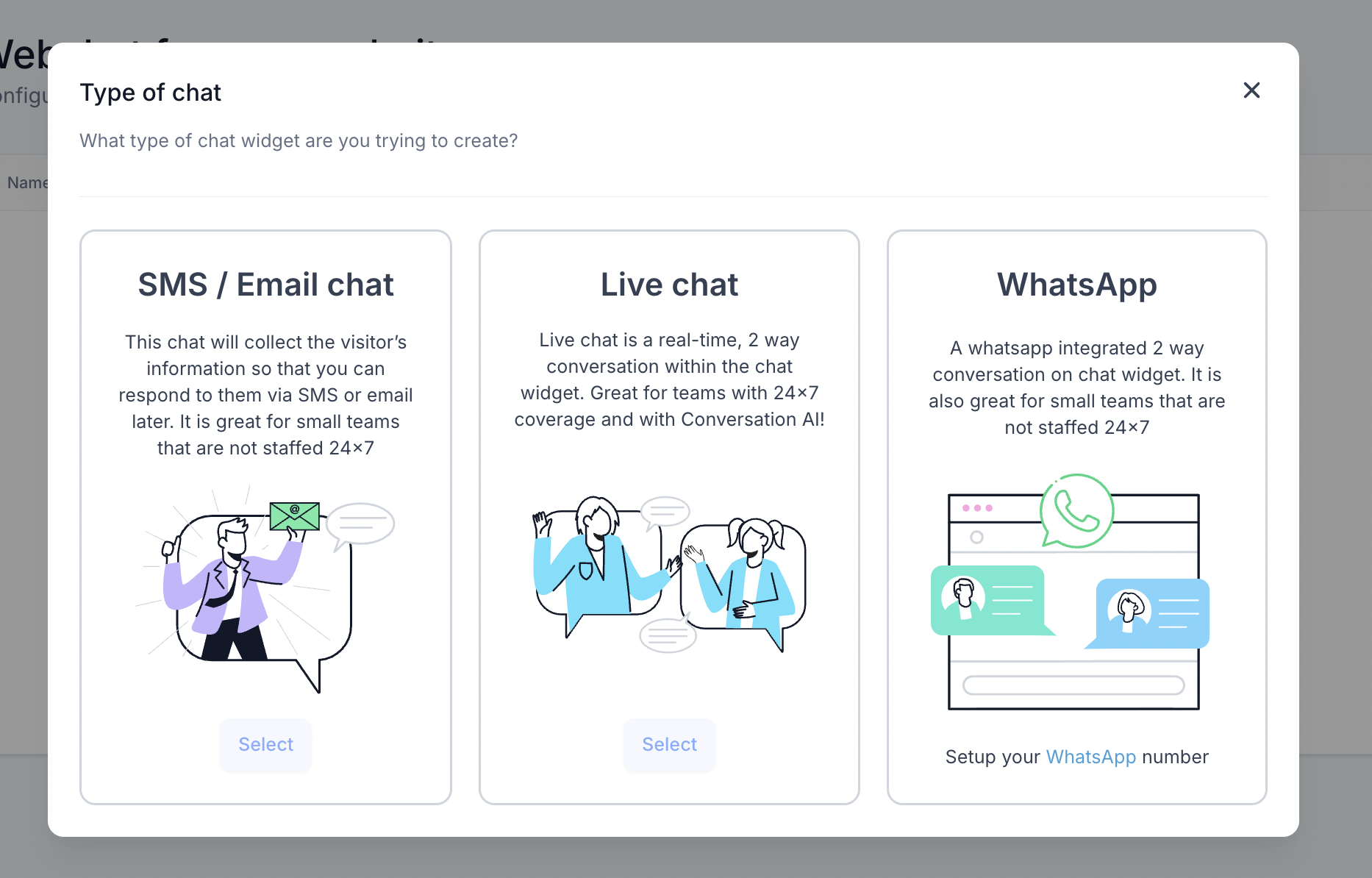
Chat Widget is provided in three options -
1. Forms Chat - This chat will collect the visitor’s information so that you can respond to them via SMS, WhatsApp or email later.
2. Live Chat - Live chat is a real-time, 2 way conversation within the chat widget. Great for teams with 24x7 coverage.
3. Whatsapp Chat - A whatsapp integrated 2 way conversation on chat widget. The user needs a whatsapp approved number. It is also great for small teams that are not staffed 24x7
How to install Chat Widget?
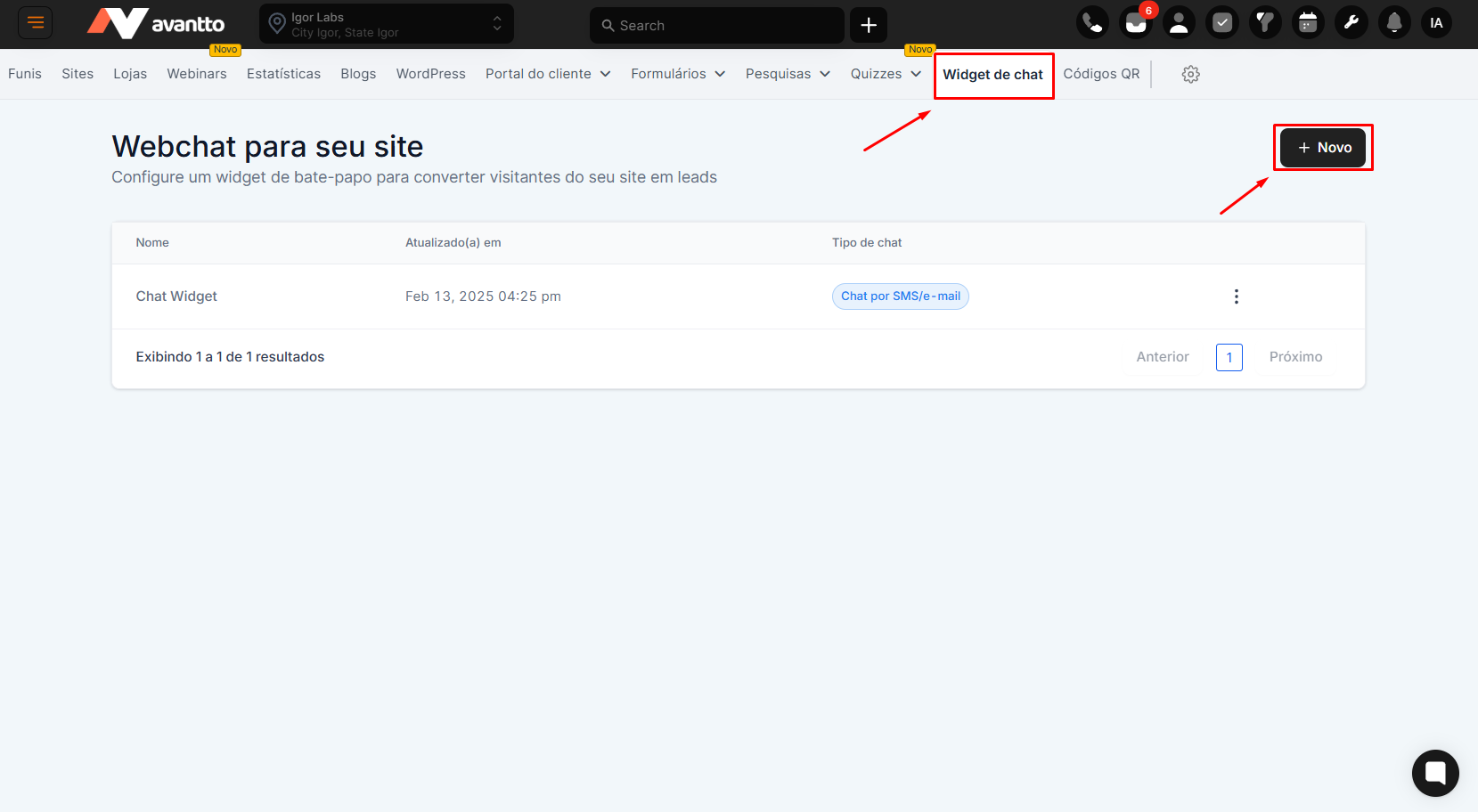
1. Go to Sites > Chat Widget
2. Click on the New button to start the chat widget.
3. Select the type of the chat widget, the user wants to add on landing page.
4. Once you select the chat widget type, there will three settings to deploy the chat widget
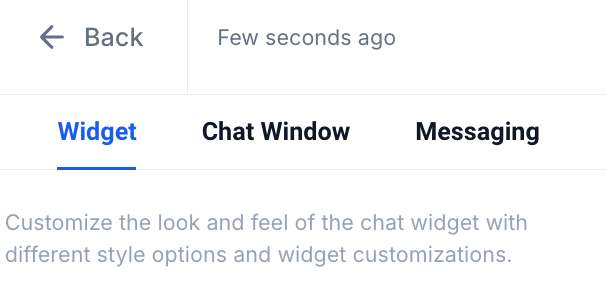
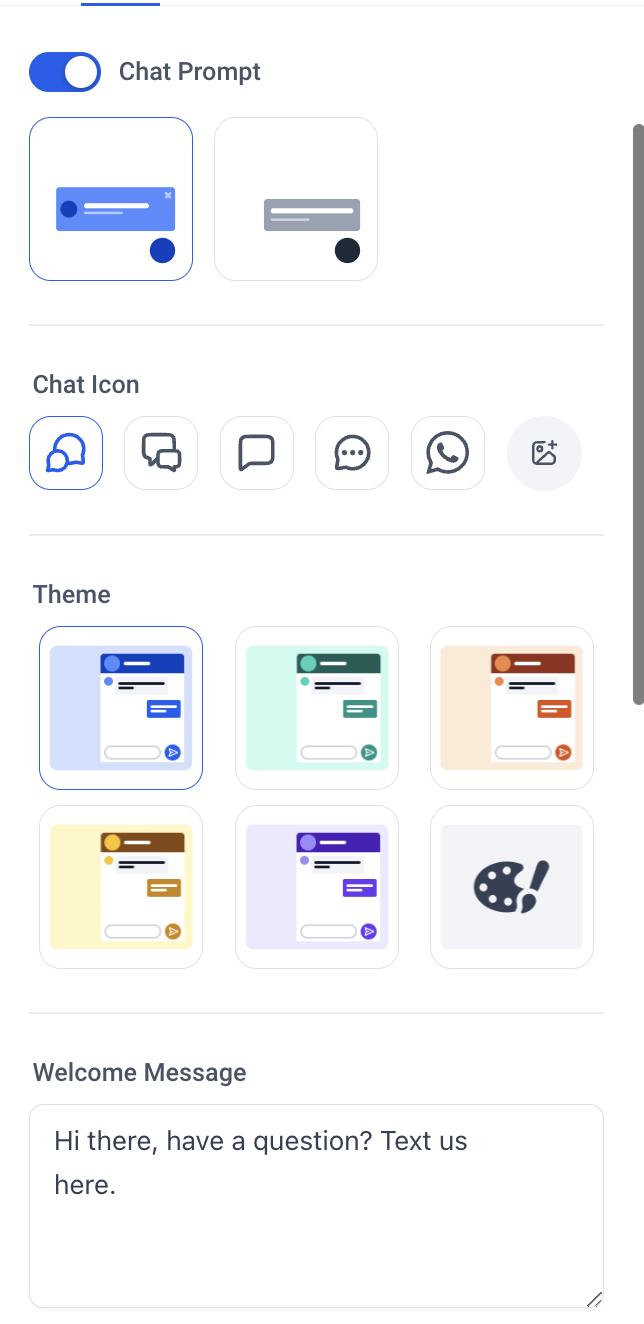
- Widget - User selects the themes, icons and welcome messages. User can also select the avatar and placement of chat widget. User can configure different sizes of chat widget.
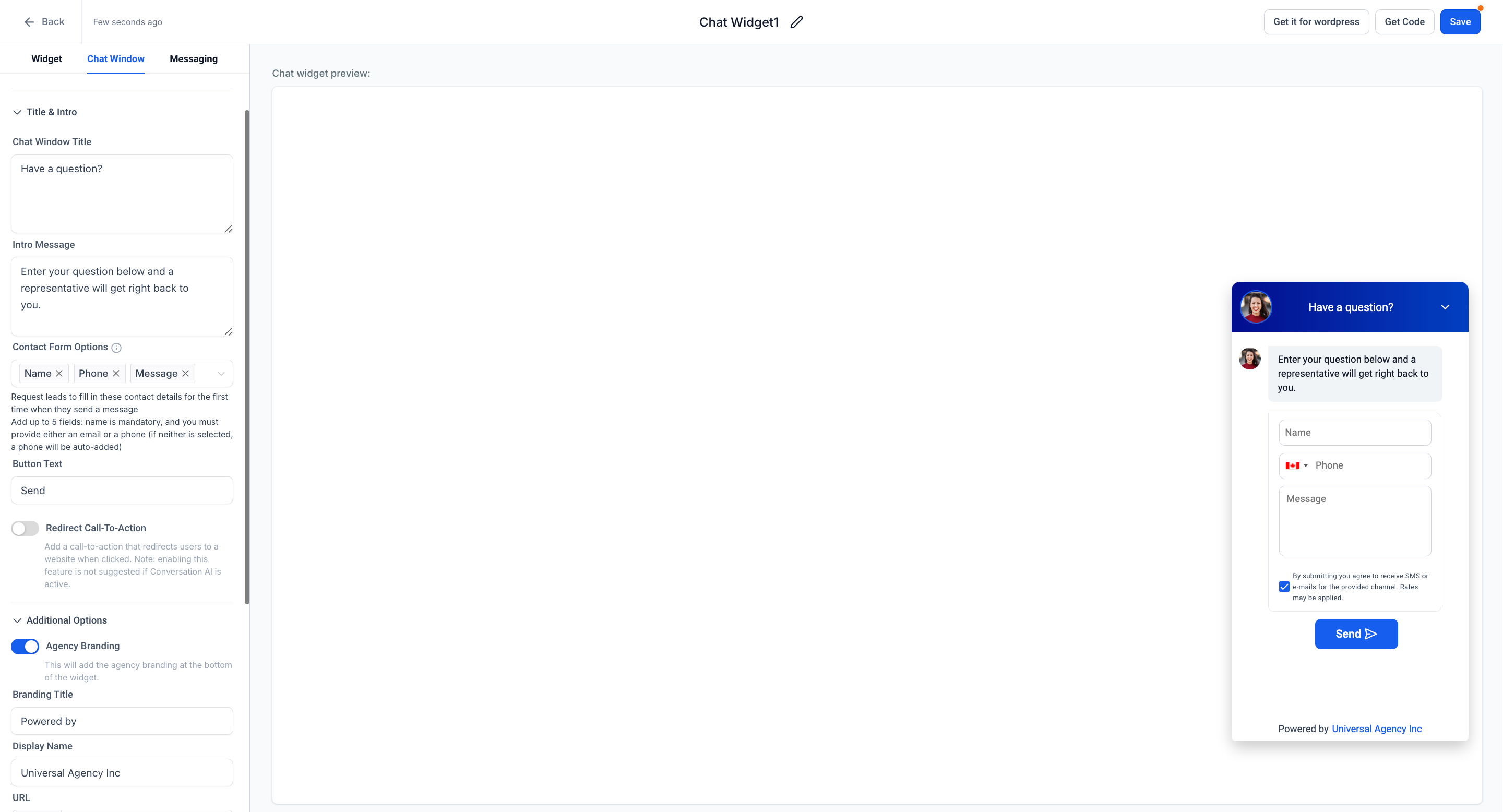
- Chat Window - Chat window allows user to customise the title, intro message and contact form customisations. It also allows business to add their own brand url in the chat widget for more visibility and meet any compliance regulations with checkboxes.
Note - Based on the type of chat widget the options get added in the configuration.
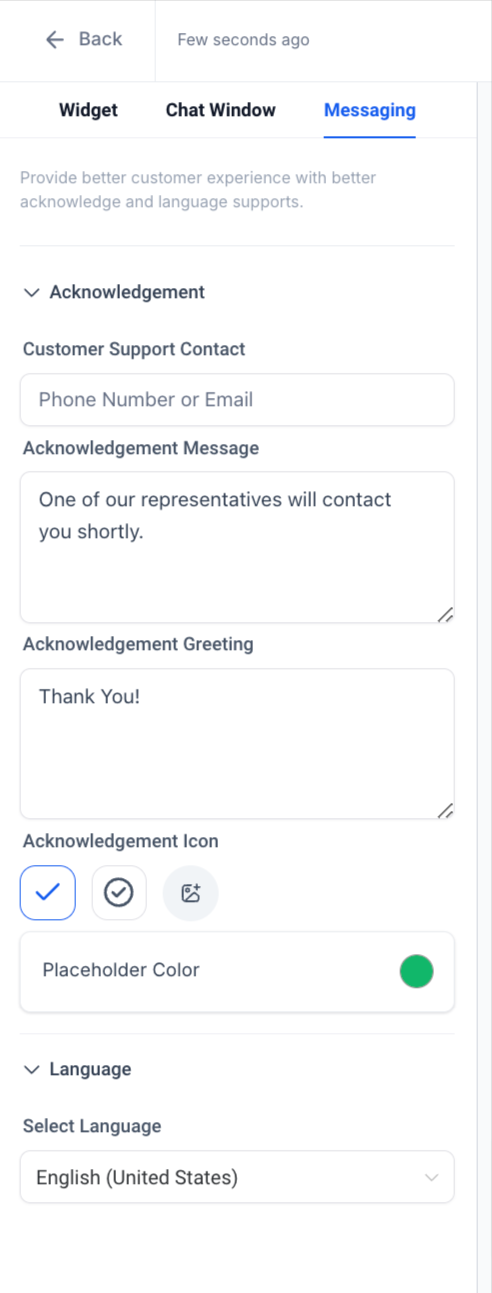
- Messaging -Here the user configure the acknowledgement of message and icons. They can also configure the language of chat widget.
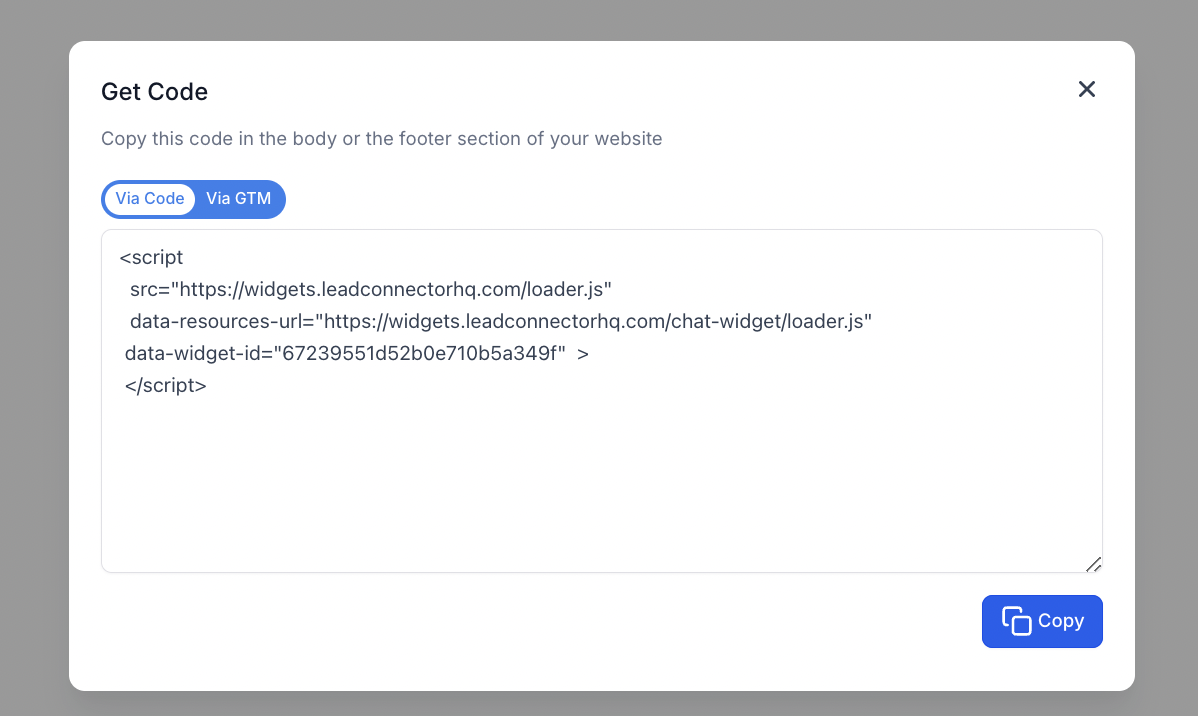
Once the Chat widget is configured, the user can copy the code for landing page or Google tag manager and add it in wordpress. User can go to Funnels, Websites, Blogs to select the chat widget type to directly get added