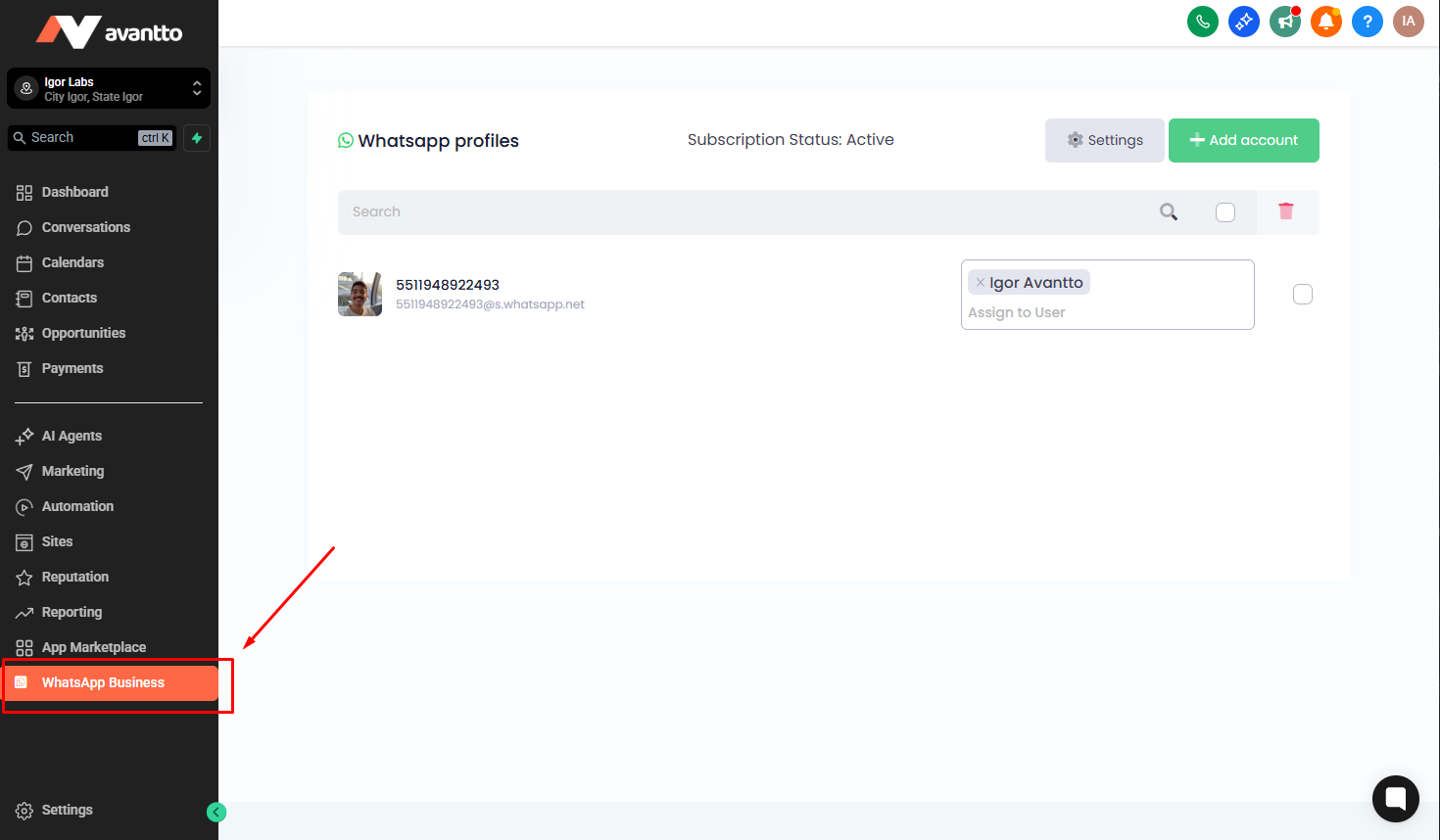
1.1 To get started, click on “WhatsApp Business” on the left side on the menu bar.
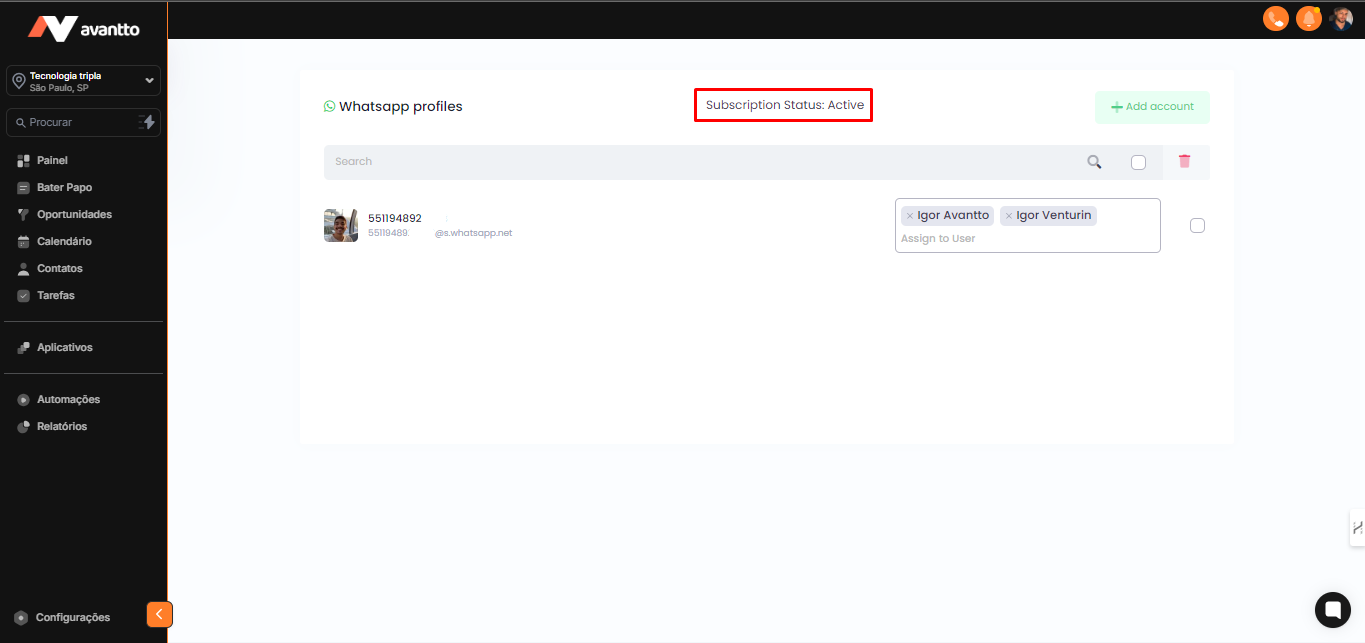
1.2 In this field, you can check if WhatsApp is active.
2.1 Click on the support icon, represented by a speech balloon, located at the lower right corner of the screen.
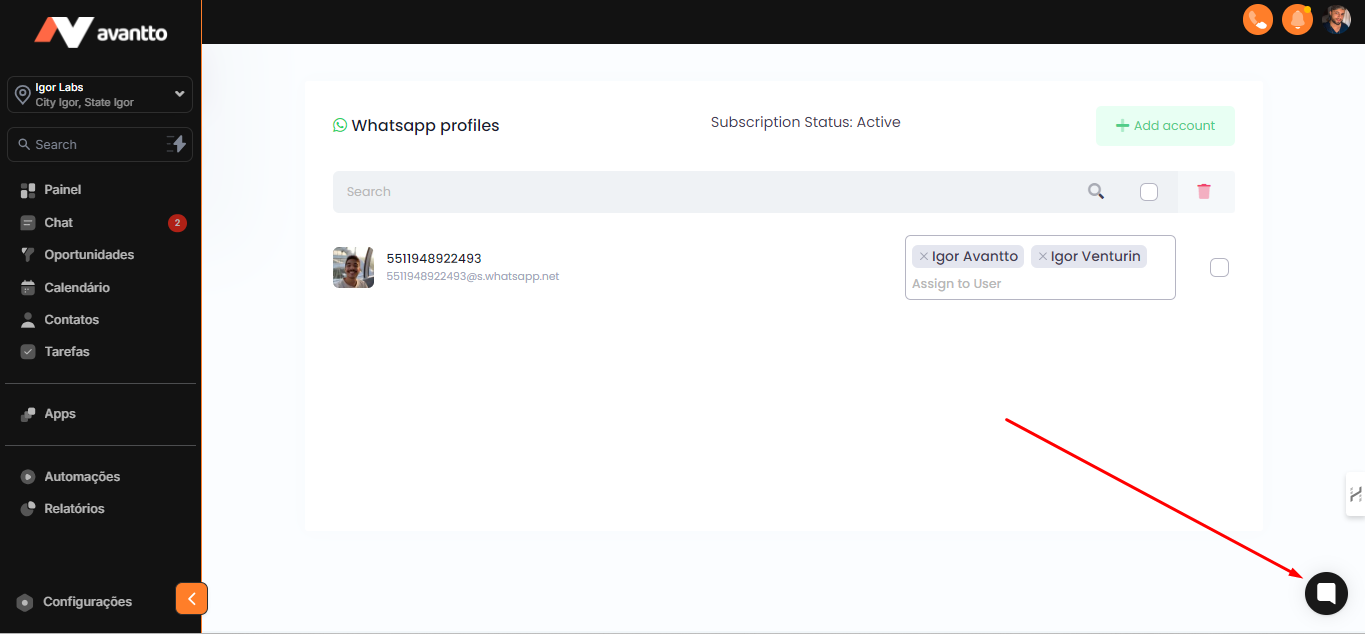
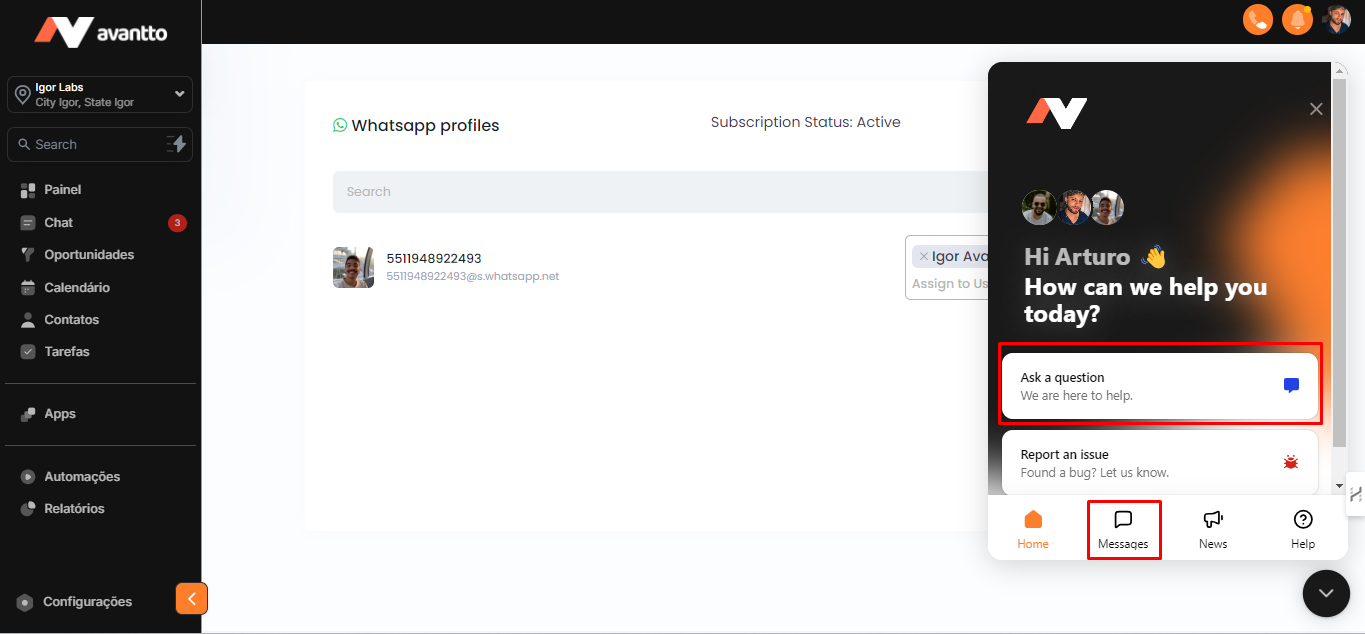
2.2 When opening support, you’ll have the option to send a question or a message; both options are valid, and you can choose either one.
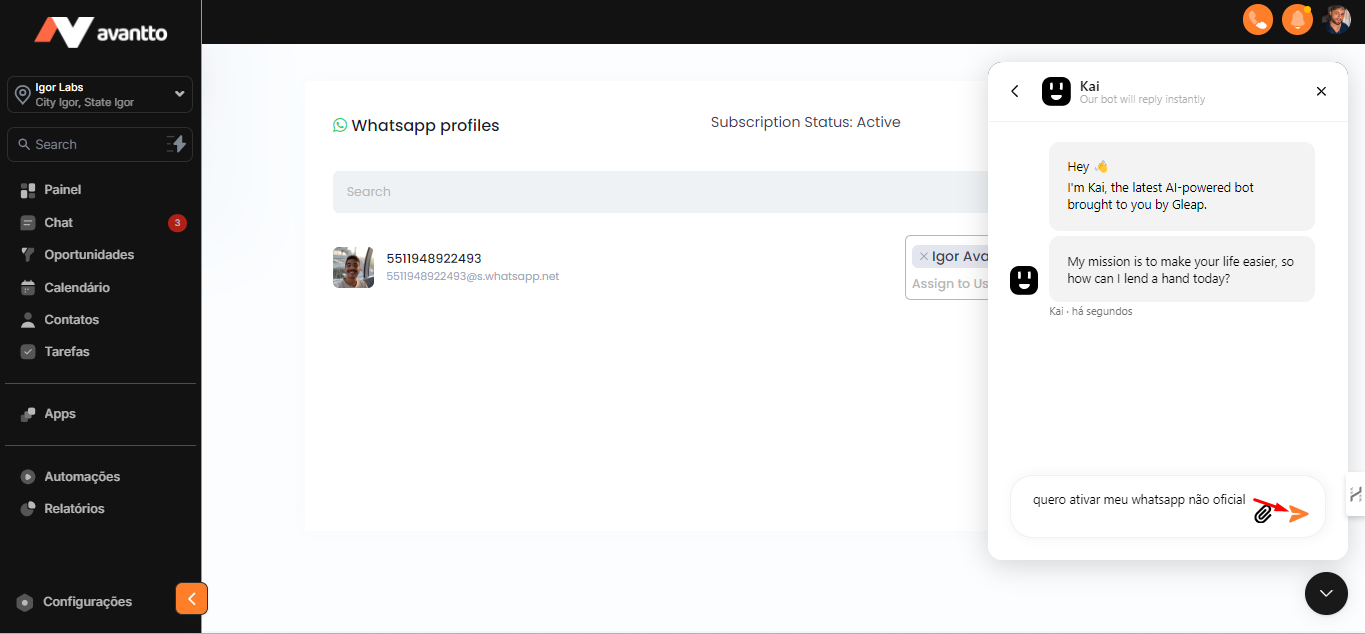
2.3 Type "I want to activate my unofficial WhatsApp" and send the message.
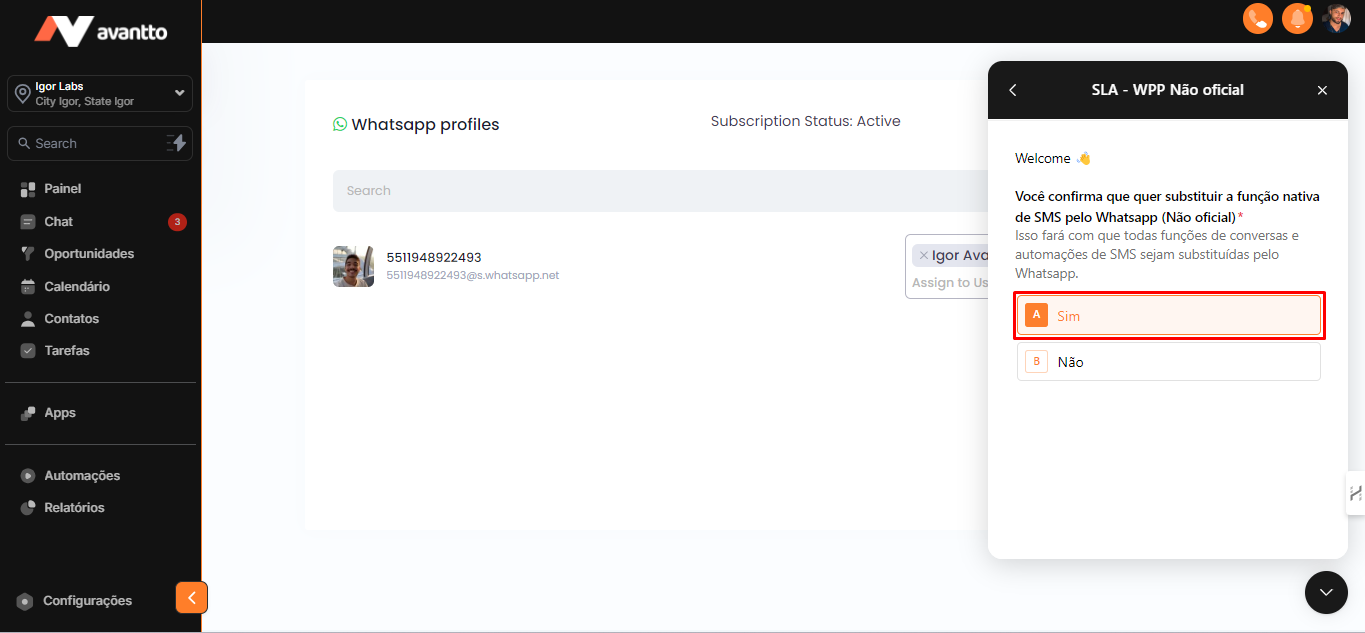
2.4 You will be automatically redirected to a form.
Click on "Yes" to accept the terms, taking responsibility for using the unofficial WhatsApp, and click proceed.
2.5 Enter the account ID.
To get the ID, go to Settings in the left-hand menu of the screen.
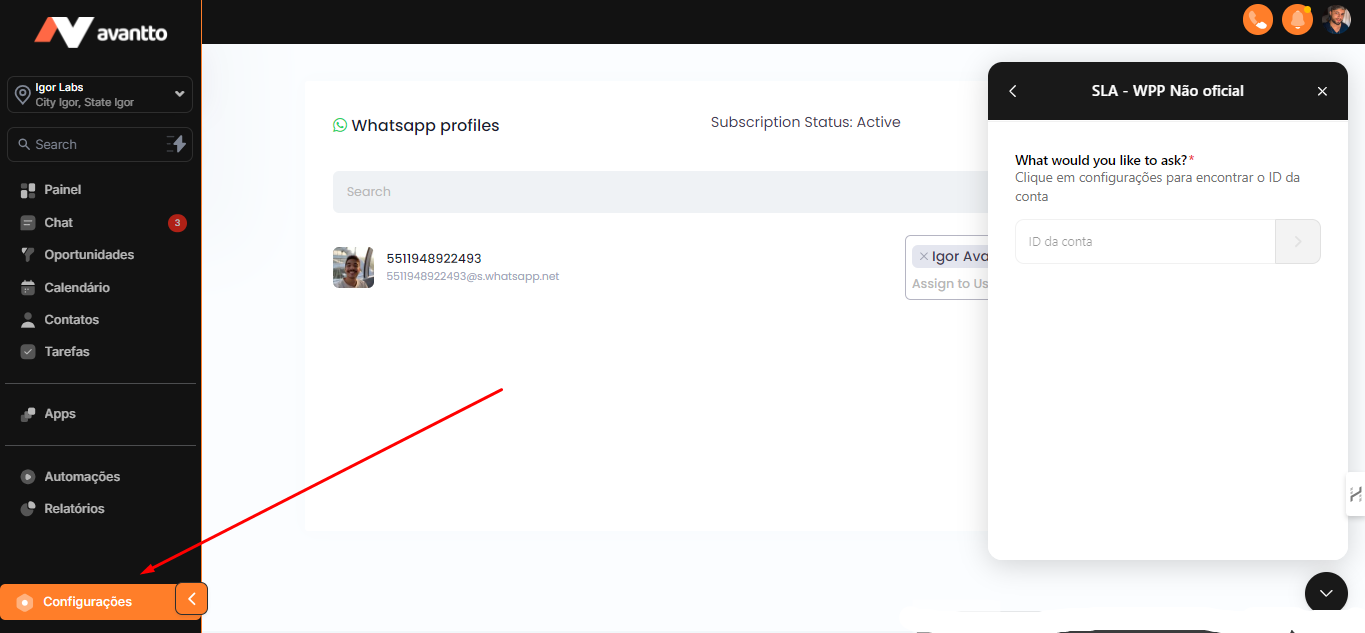
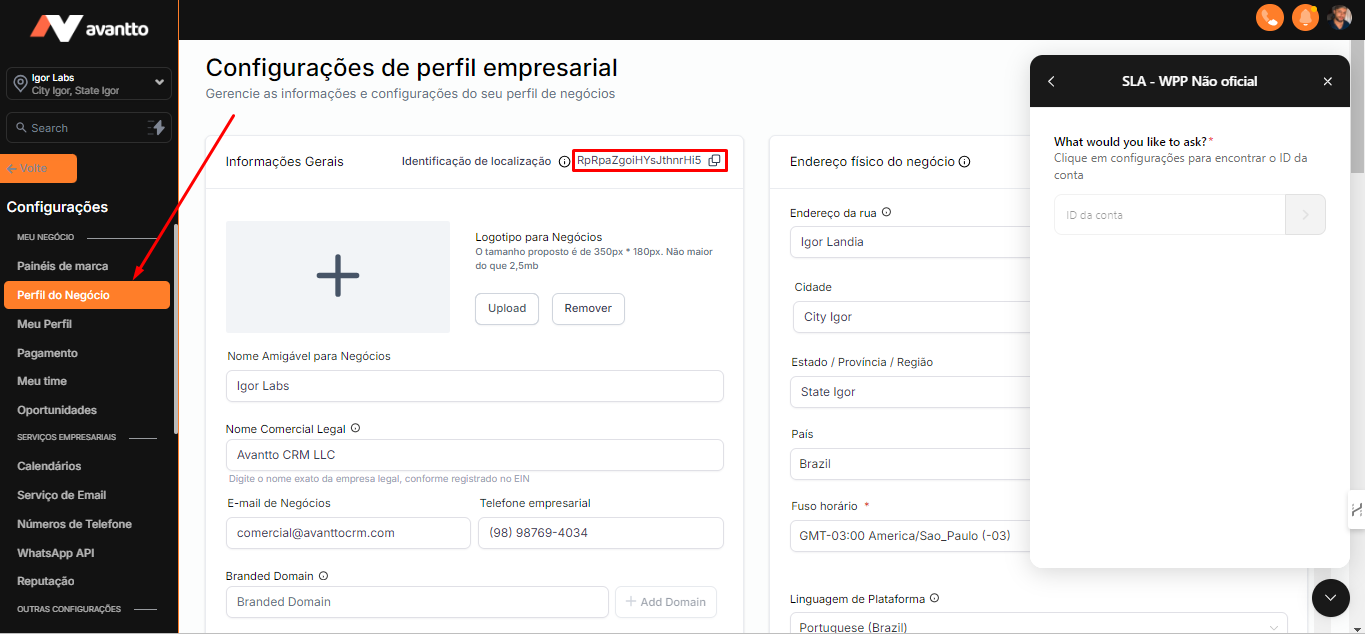
Still in the side menu, select "Business Profile" and copy the Location ID code.
(the image shows where to find it).
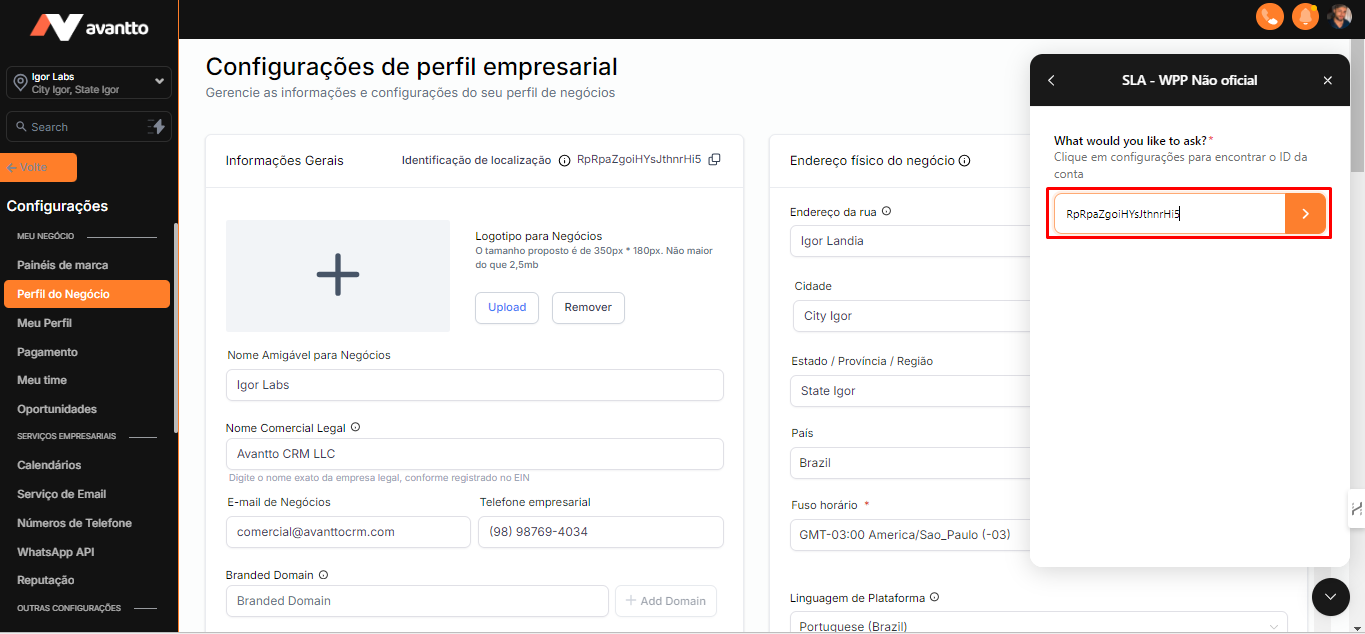
Paste the code in the designated field and click ">" to submit
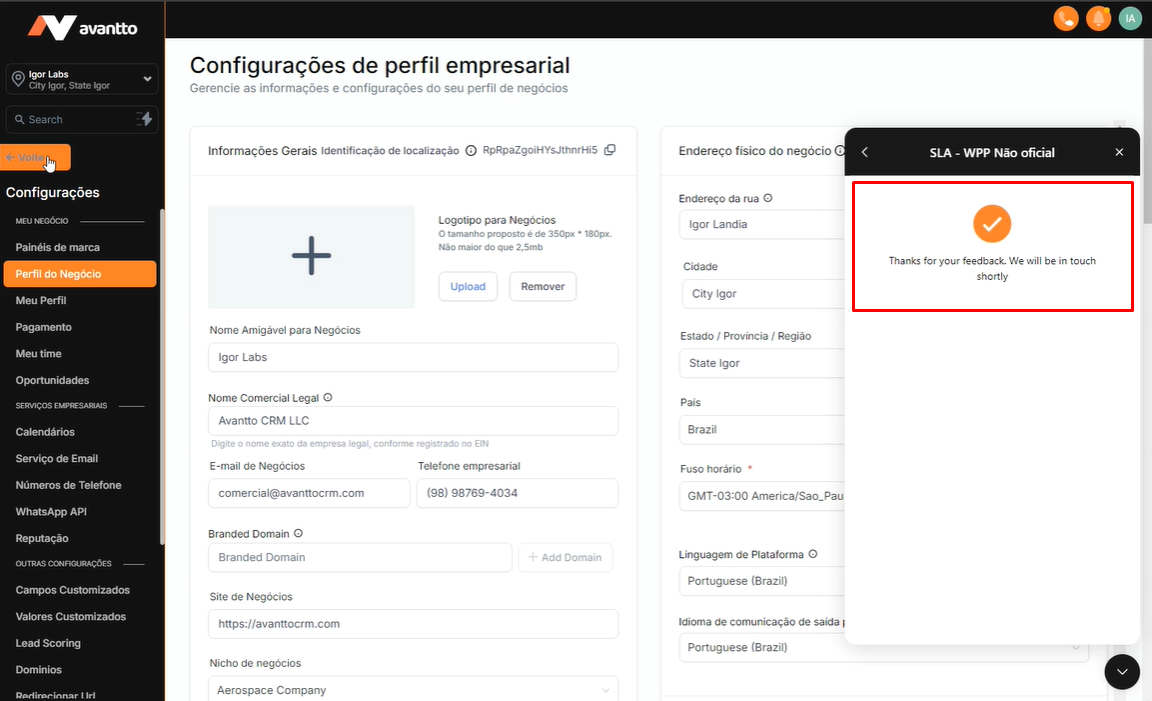
2.6 with the sent ID, the activation timeframe is 24h.
Important: If the status is active but you're facing any error or issue, contact support. Our team will switch SMS to unofficial WhatsApp.
Keep in mind that making this switch means the SMS channel will no longer be available, as it will be replaced by WhatsApp. All messages previously sent via SMS will now be sent via unofficial WhatsApp.
3.1 If the status is active, you can add your number by clicking on "+ Add Account".
On this page, you can add as many WhatsApp numbers as you want.
(To get to this page, follow Step 1.)
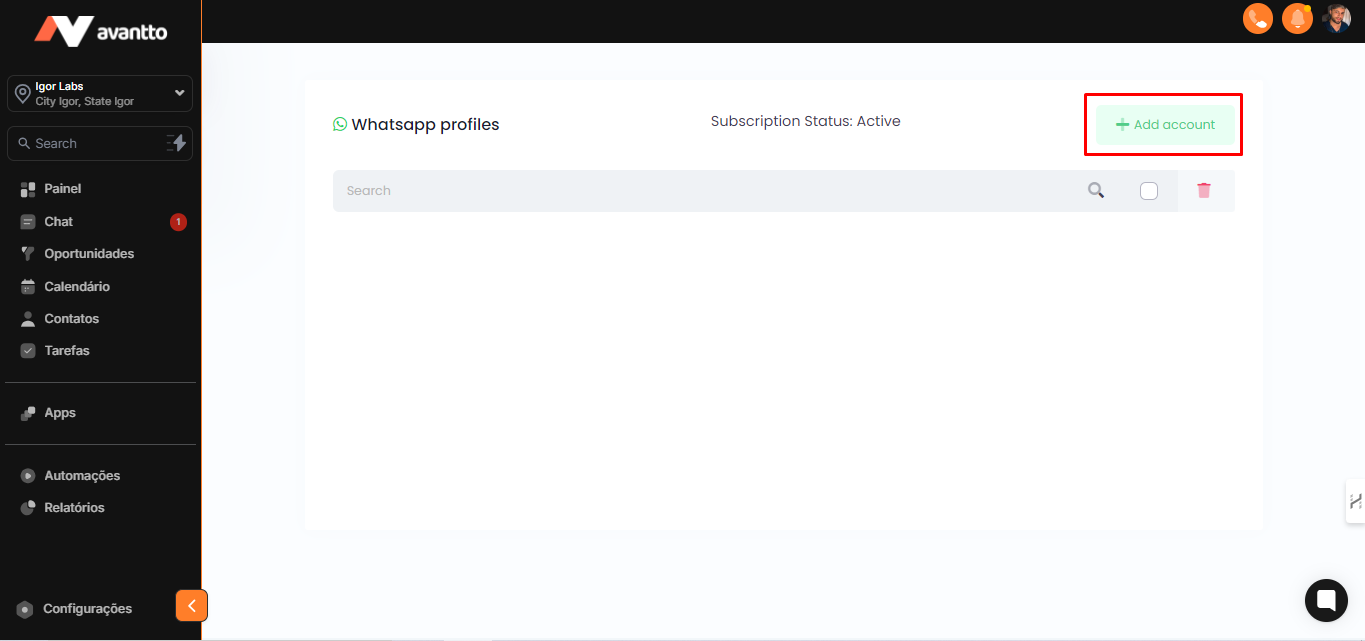
3.2 When adding a WhatsApp account, you have two options:
Integration via ID: If the number was acquired on external websites and cannot be scanned with a QR Code (like in cases of virtual numbers), the system offers the functionality to integrate WhatsApp using an ID. For this, copy the ID and integrate it with WhatsApp.
Integration via QR Code: If you prefer, you can also choose to integrate using the QR Code.
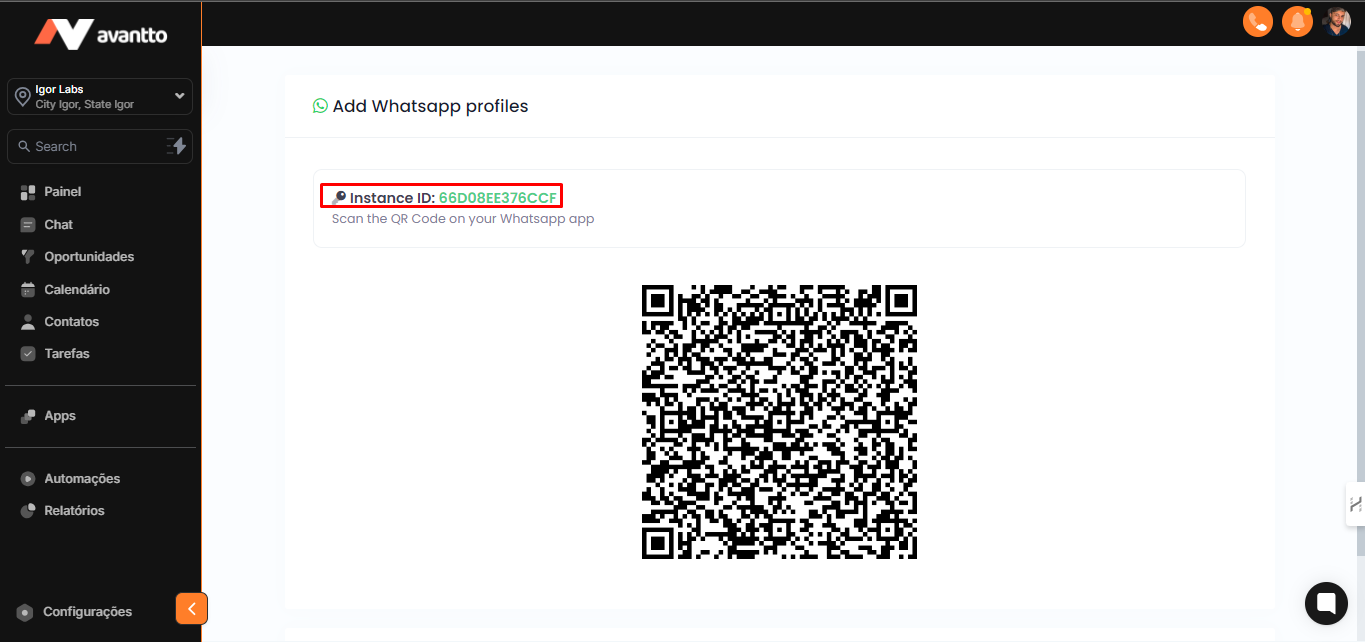
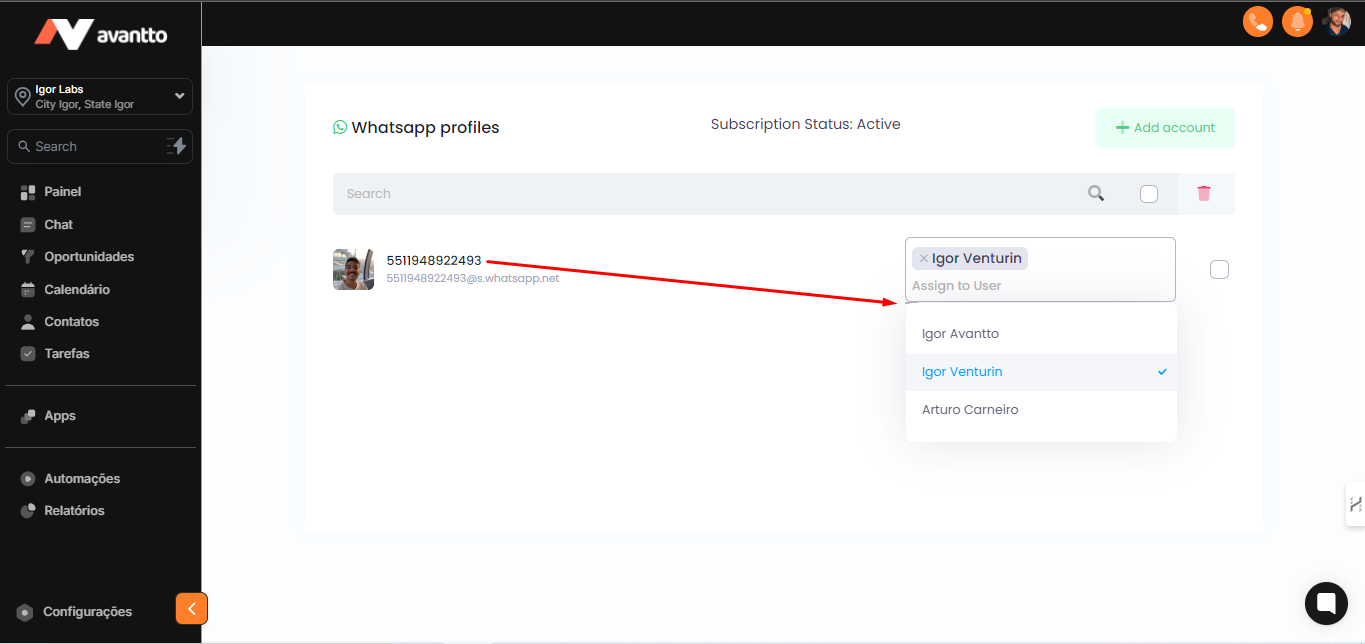
3.3 User distribution for each registered number
For each registered number, you can select which users registered in Avantto will be linked to it. In the image, only one registered number is shown; however, if there are more numbers, you'll have the option to choose which number each user will be linked to.


3.4 Necessary Settings in Chat and Differences Between Each Element
In the left sidebar of the screen, click on "Chat"
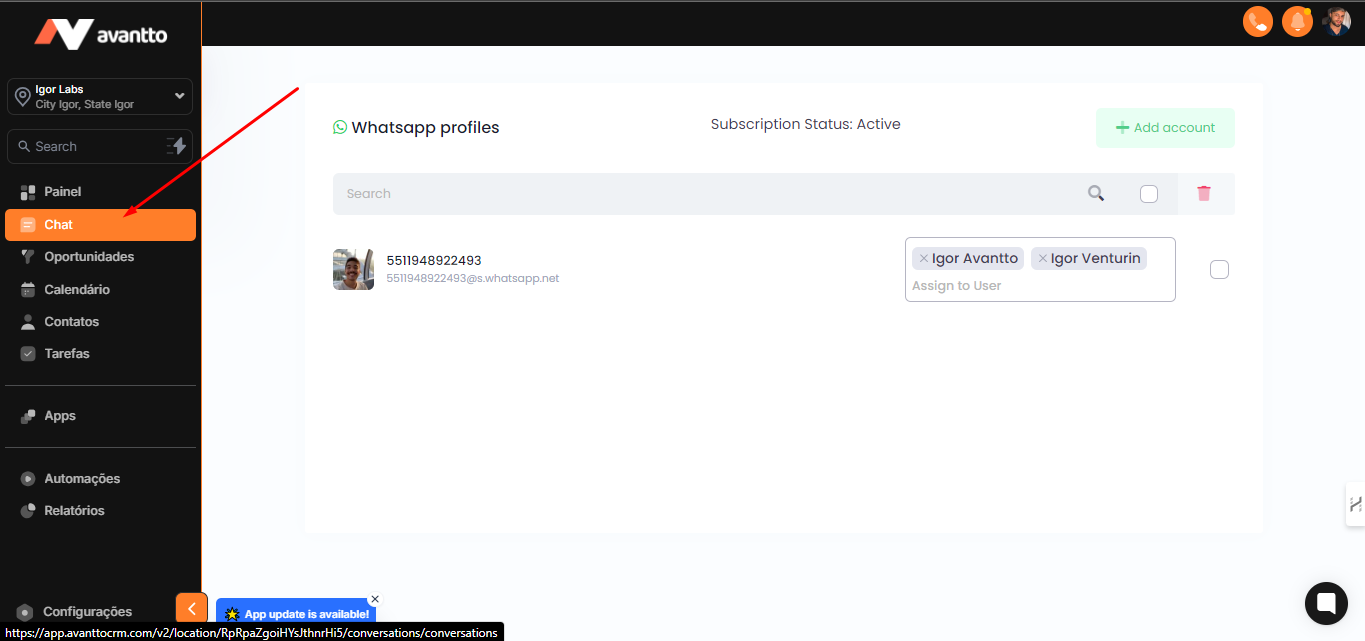
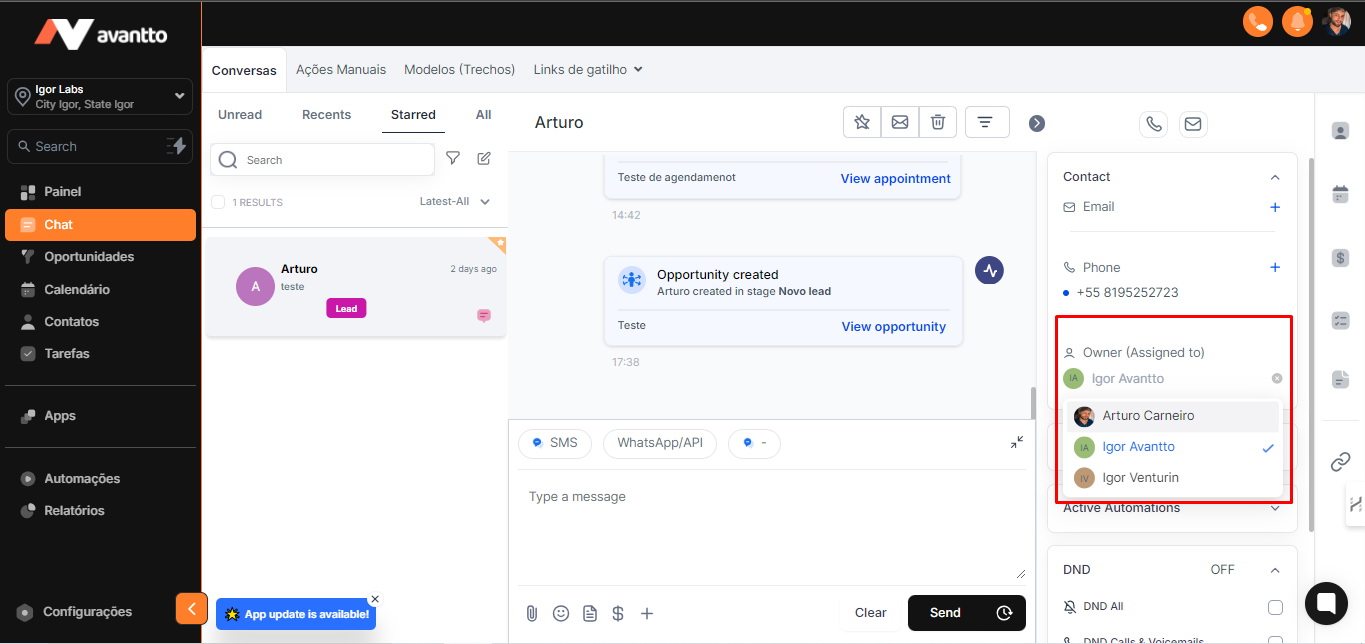
3.5 It's essential to check if the opportunity in the section "Owner/Proprietário" is assigned to someone; otherwise, the message might fail to send.
Additionally, the person sending the message through your user in Avantto also needs to be linked to a registered number on unofficial WhatsApp. If this doesn't happen, the message will not be sent. So, whenever there’s an error in sending, check if the opportunity is assigned to someone and if the user is linked to an active number within Avantto, as shown in step 3.3.
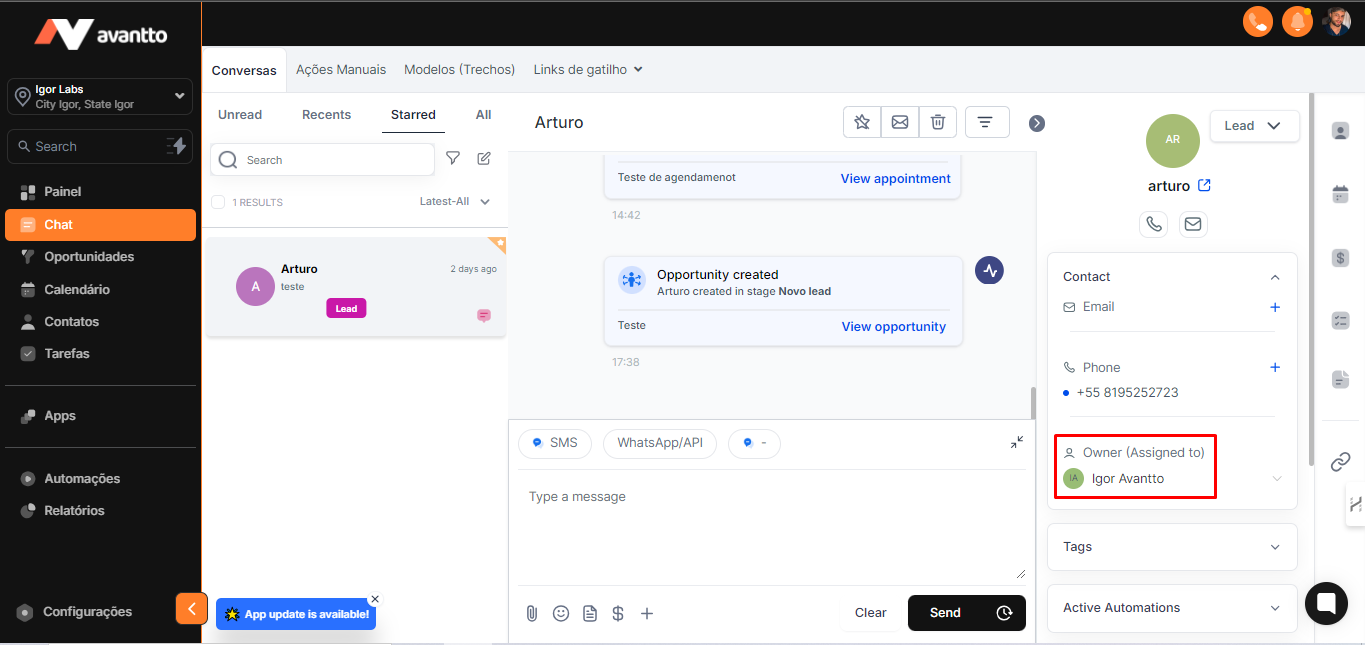
3.6 If you send a message to a contact who has another user assigned as the owner, the message will still be sent from the number your user is assigned to, not from the owner's assigned number.
For example: in step 3.5, the registered number has Igor's user as the owner. If he assigns Arturo as the owner, but Arturo doesn’t have a number registered on the unofficial WhatsApp, it won’t make a difference, because the message will still be sent from Igor's number since Igor's user is the one sending the message.