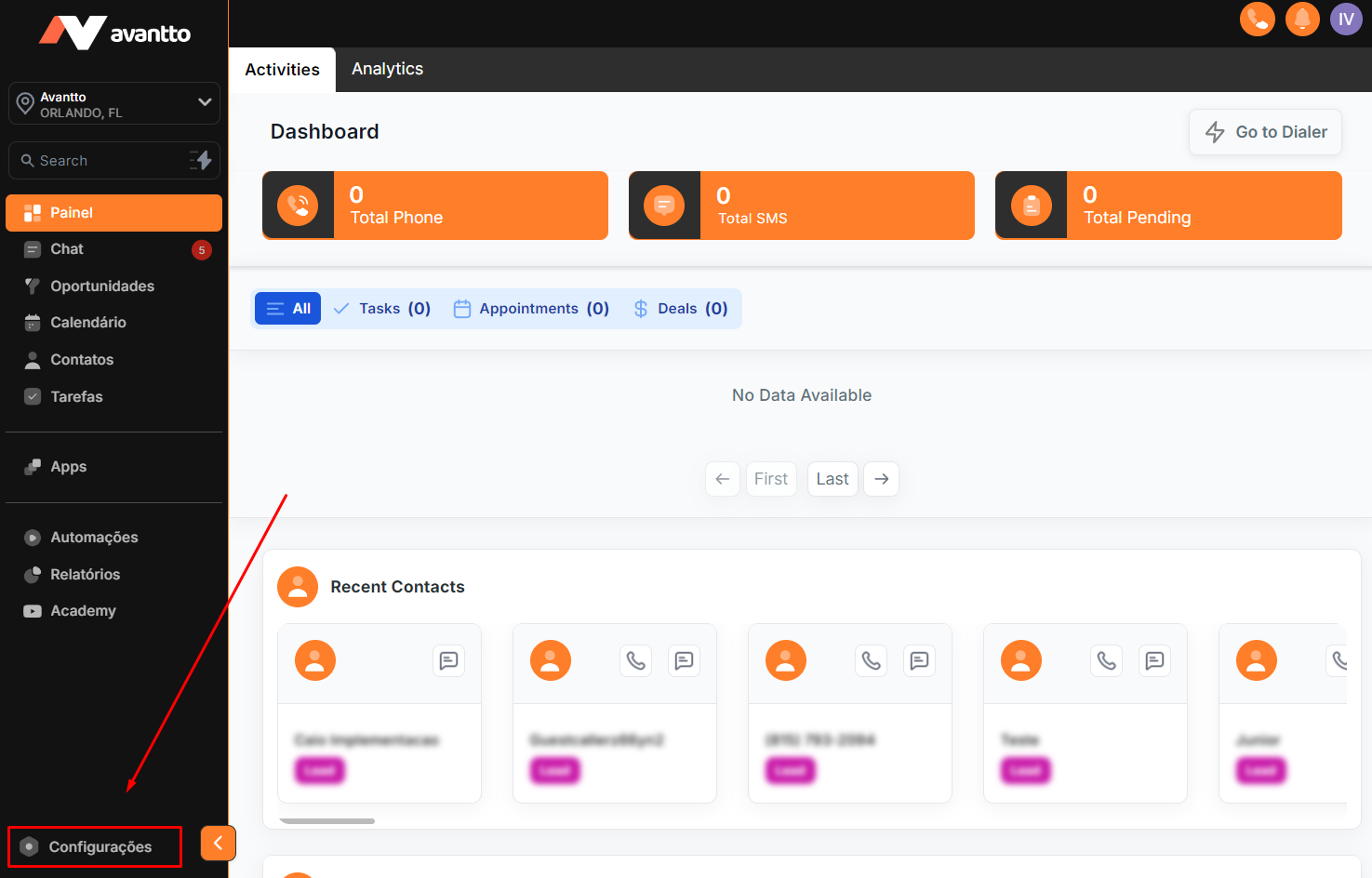
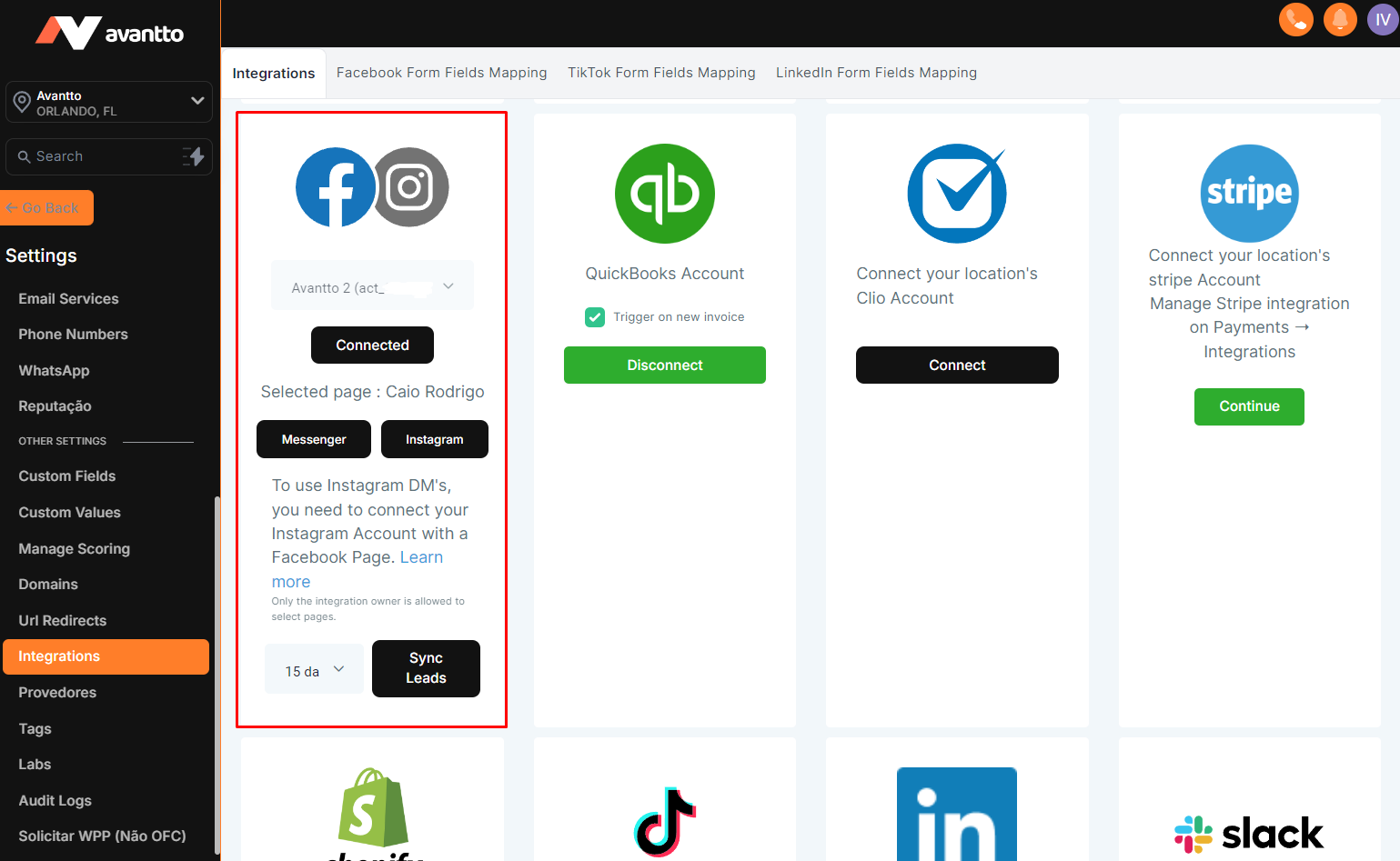
1.1 Click on Settings in the menu on the left side.
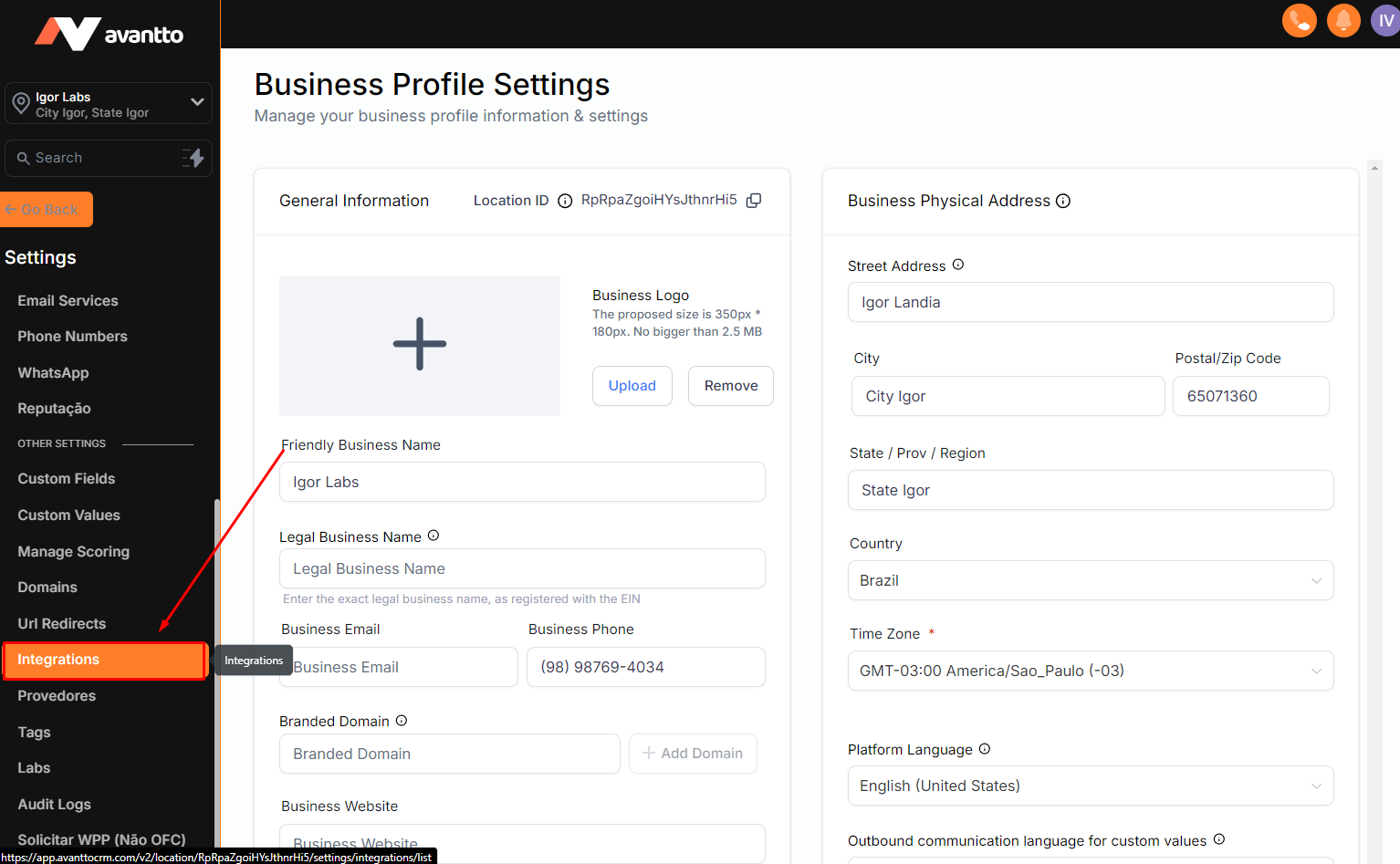
1.2 In the left side menu, scroll down and look for Integrations.
1.3 Check if the integration with Facebook/Instagram is correctly configured. It is essential that this connection is active for the forms to appear in Avantto.
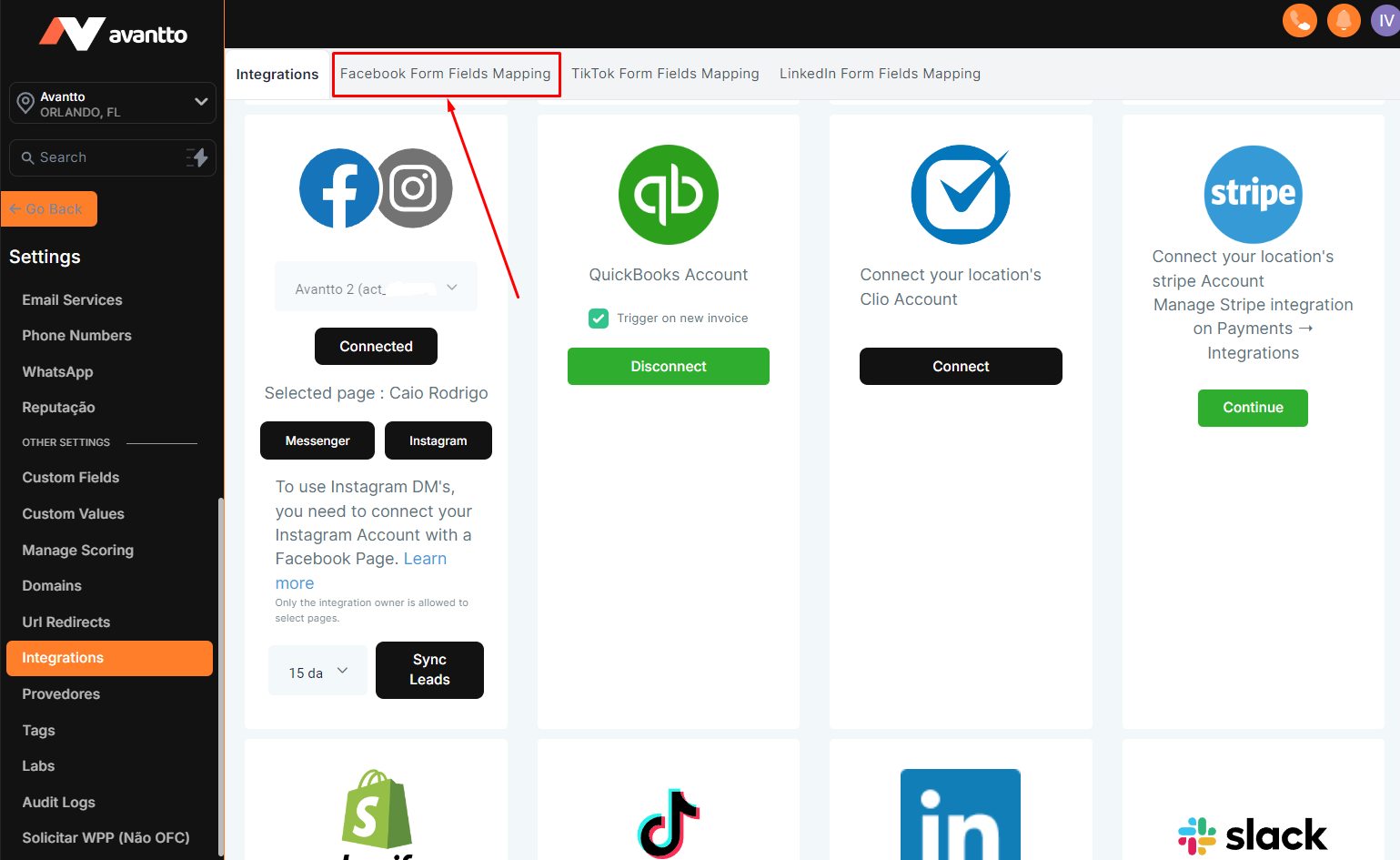
2.1 Click on Facebook Form Fields Mapping, which is located in Integrations at the top corner.
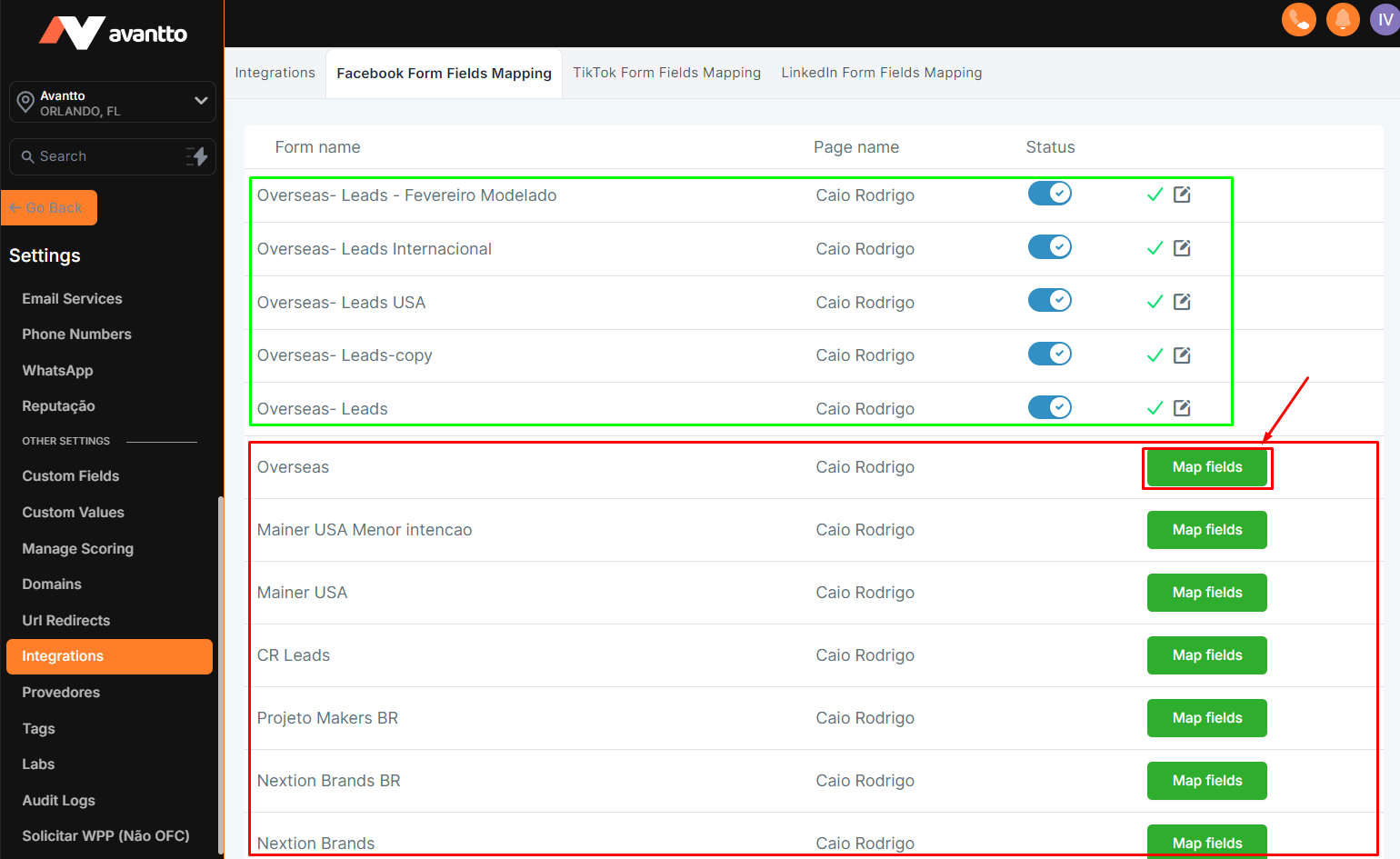
2.2 In this tab, you will see all the forms from your Facebook account. In the example below, the forms circled in green have already been integrated and mapped, therefore, they have the option to disable the connection by changing their status. To change the integration data, click on the pencil on the right side of the form. The forms in red have not yet been connected. To integrate them with Avantto, click on Map Fields.
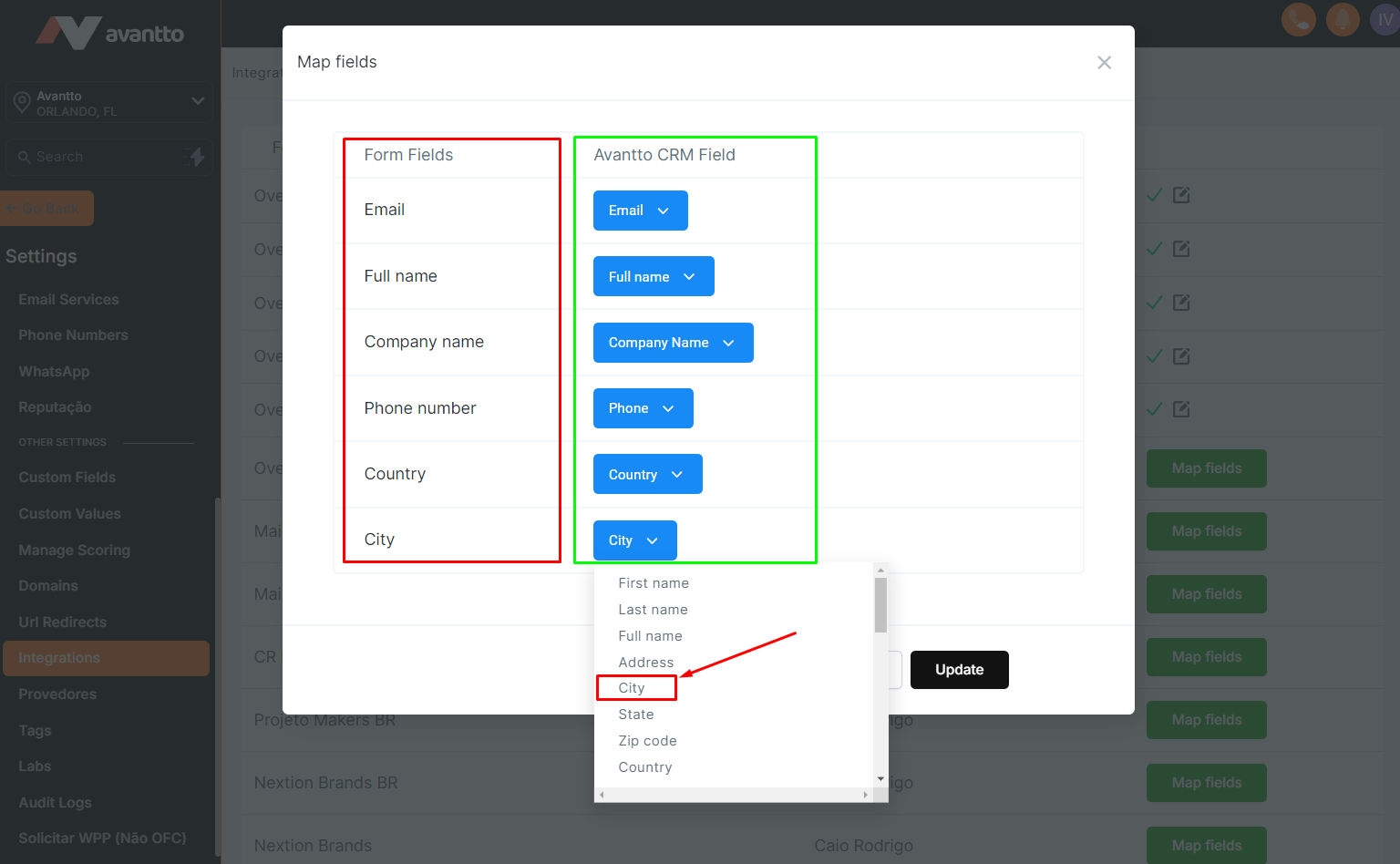
2.3 After clicking on Map Fields, a pop-up will be displayed for you to map the fields of your form with the fields present in Avantto, as shown in the screenshot below. Connect all the fields and click on Update to finalize the integration and configuration of the form.
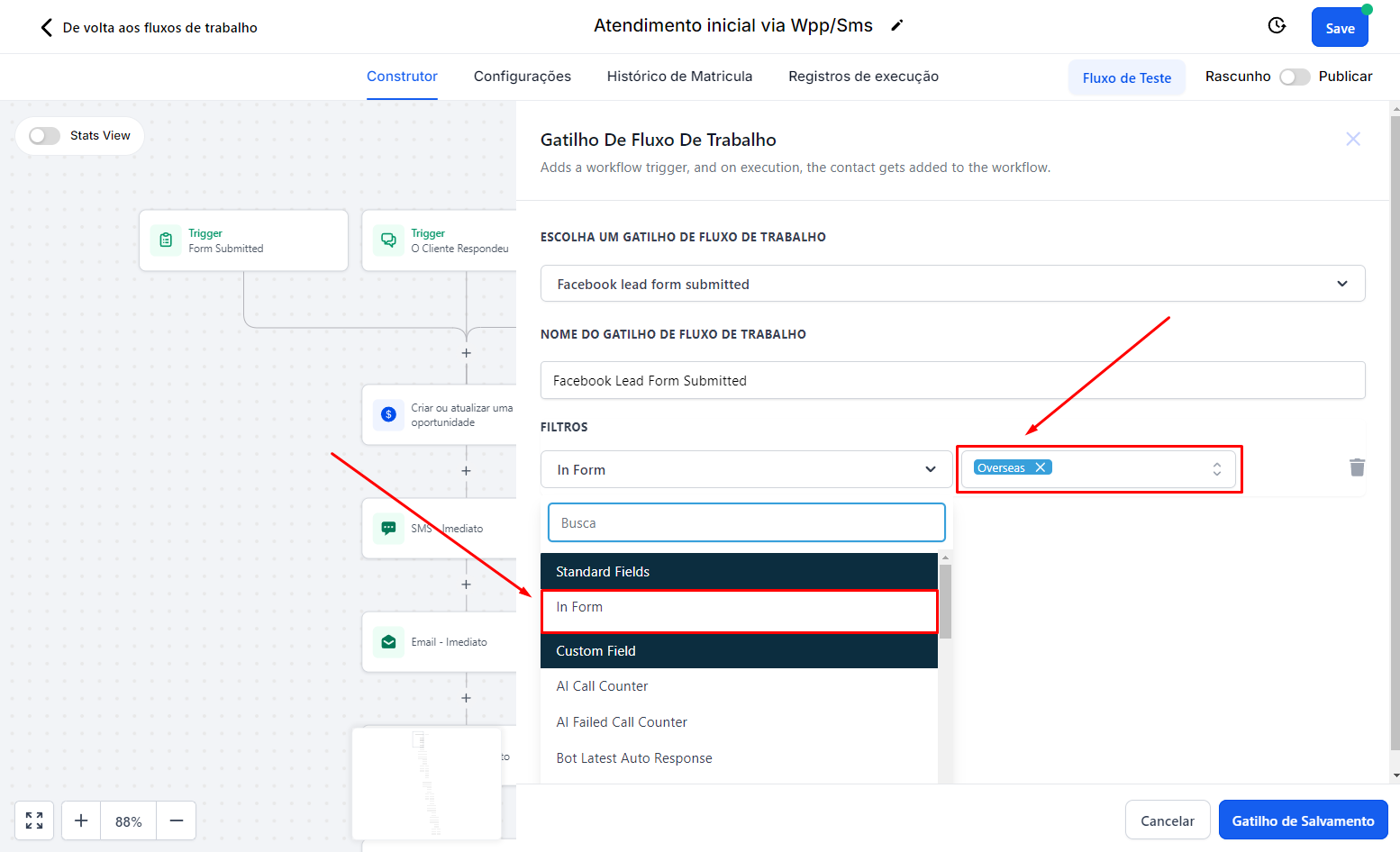
3.1 If you want to use the leads who filled out the forms in a specific automation, add the trigger Facebook Lead Form Submitted and save the trigger without adding any additional filters.
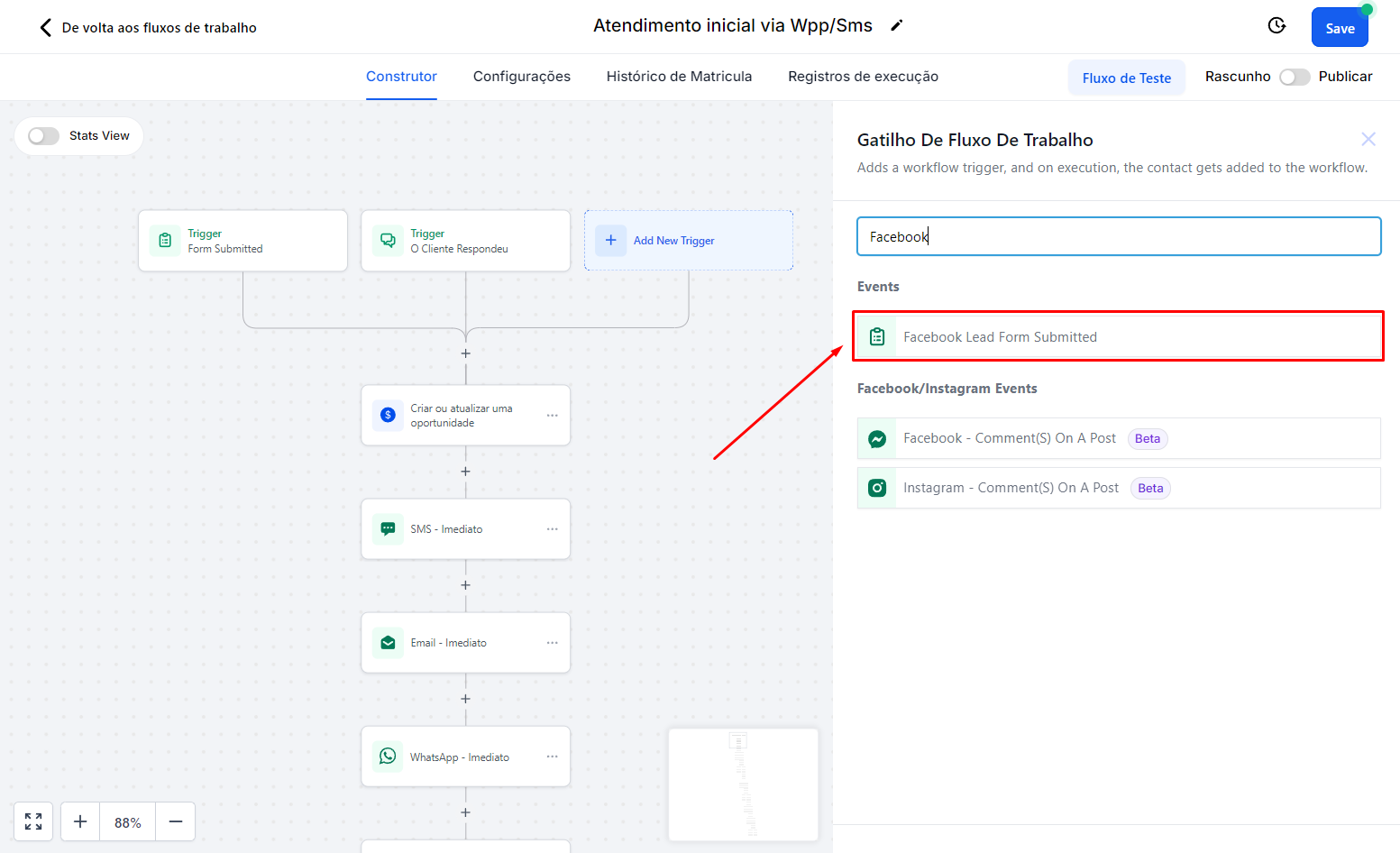
3.2 If you want to use leads that filled out SPECIFIC forms within an automation, add the trigger Facebook Lead Form Submitted, add the filter Forms is and choose the form(s) you want to include in the automation.