This guide addresses the verification process for using A2P (Application-to-Person) messaging in the United States and purchasing numbers with specific Area Codes within the Avantto platform. The main points include:
Definition of the Verification Method: Choose between A2P or Toll Free number, depending on the presence of an Employer Identification Number (EIN). A2P offers more content freedom, while Toll Free may have some restrictions.
Number Purchase: Detailed instructions on how to acquire a number on Avantto, including selecting the country, area code, and type of number.
A2P Registration: Step-by-step guide to register the A2P number, which includes customizing company values, domain integration, publishing landing pages, and filling out the verification form. It is essential to provide links to the Privacy Policy and Terms and Conditions.
Form Filling: Instructions on how to fill out the form with company information, including legal name, address, and contact details. The brand type should be selected based on the size of the company.
Message Examples: Creation of descriptions and practical examples of the messages that will be sent to end users, ensuring that all fields are filled out correctly.
Submission and Approval: After filling out all the necessary fields, the form must be submitted, and the status will change to "Approved" after an average of 3 to 7 days.
To define which verification method to use, follow these guidelines: if the company has an Employer Identification Number (EIN), it can opt for verification via A2P, which offers greater freedom regarding the content sent. Otherwise, it will be necessary to use a Toll Free number. Although the latter does not present as many limitations, it is important to note that some message topics may be canceled, resulting in errors 30032 or 30007.
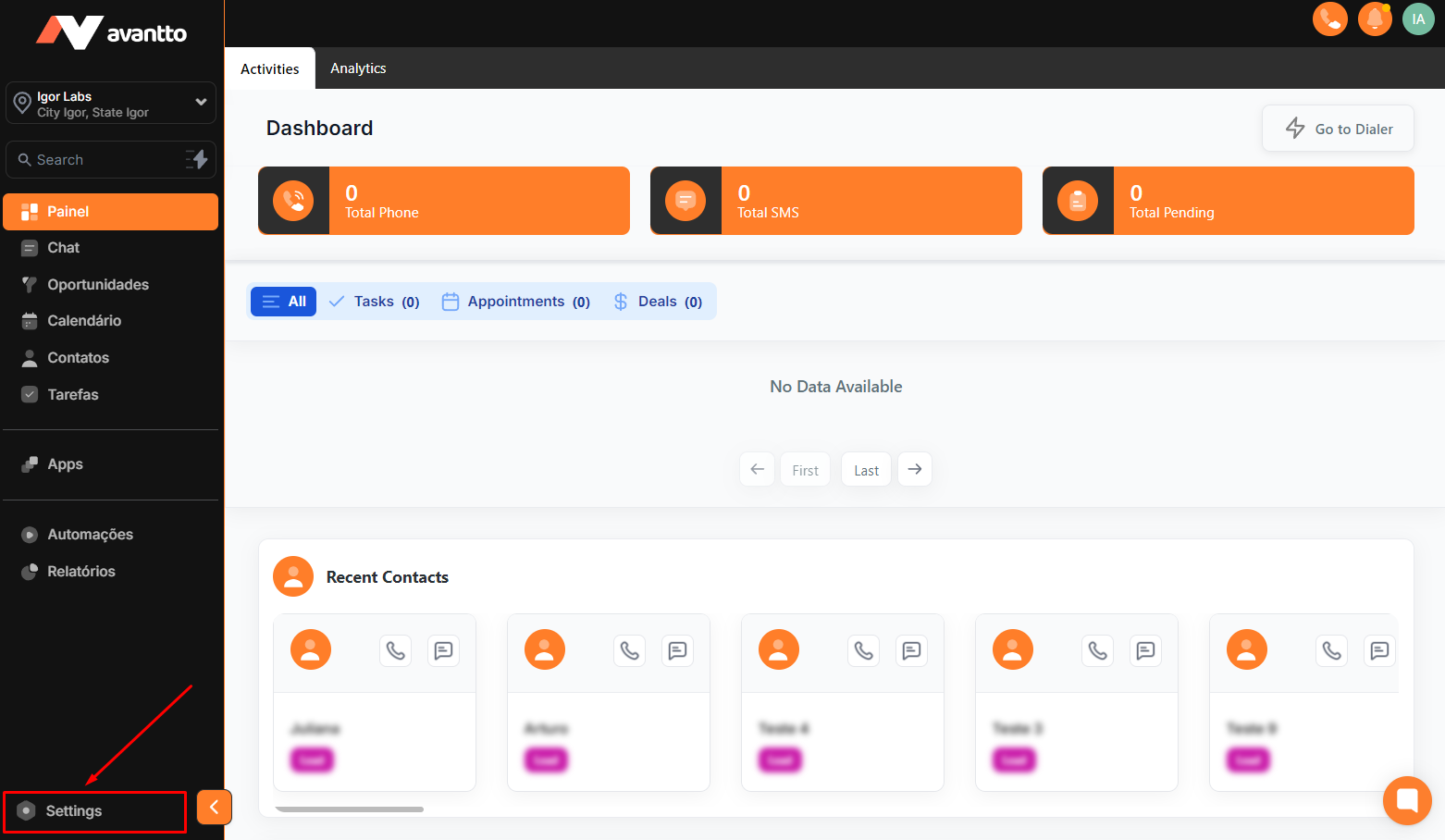
2.1 Click on "Settings" in the menu on the left side.
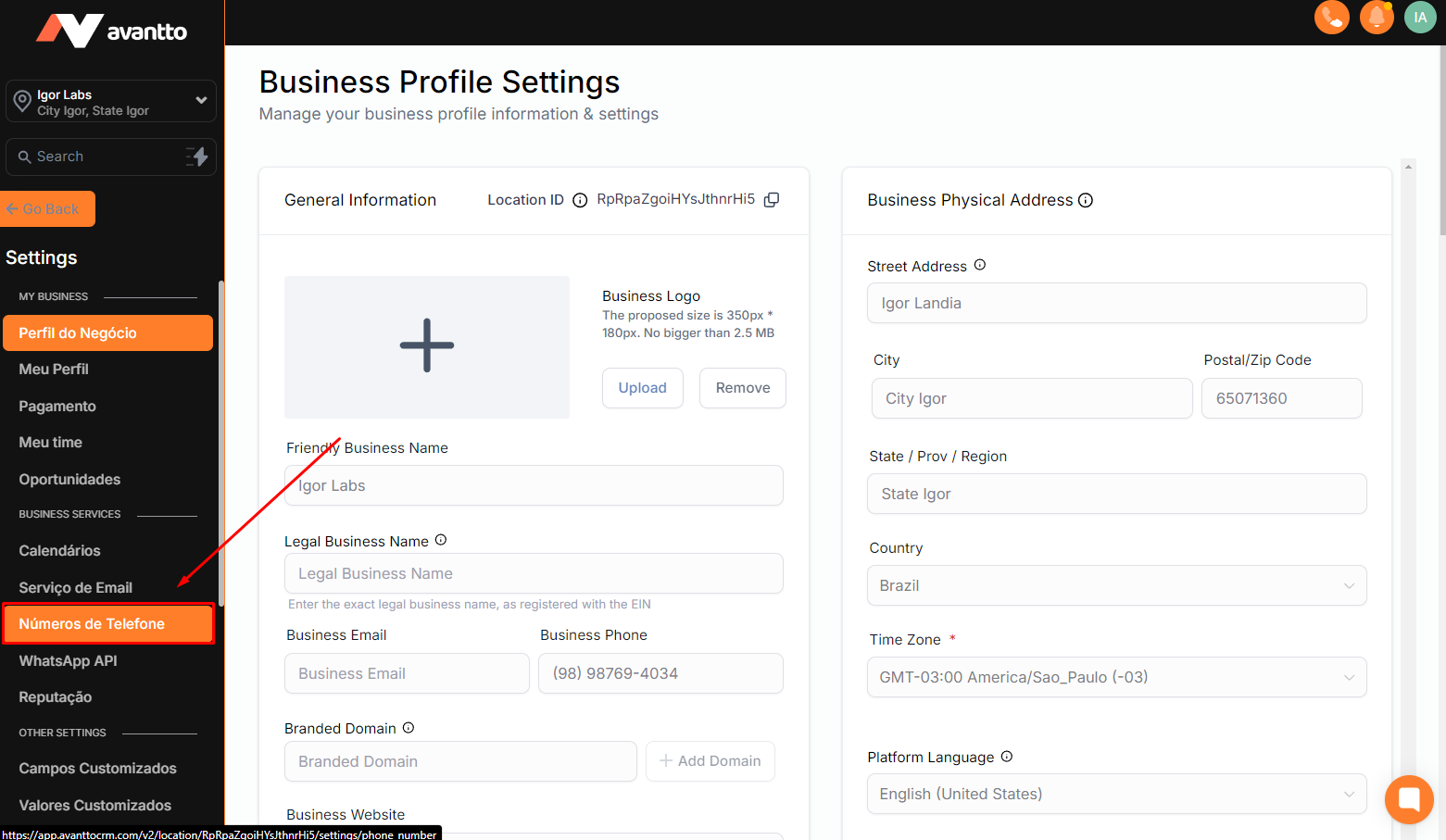
2.2 Further down in the left side menu, find "Phone Numbers" and click.
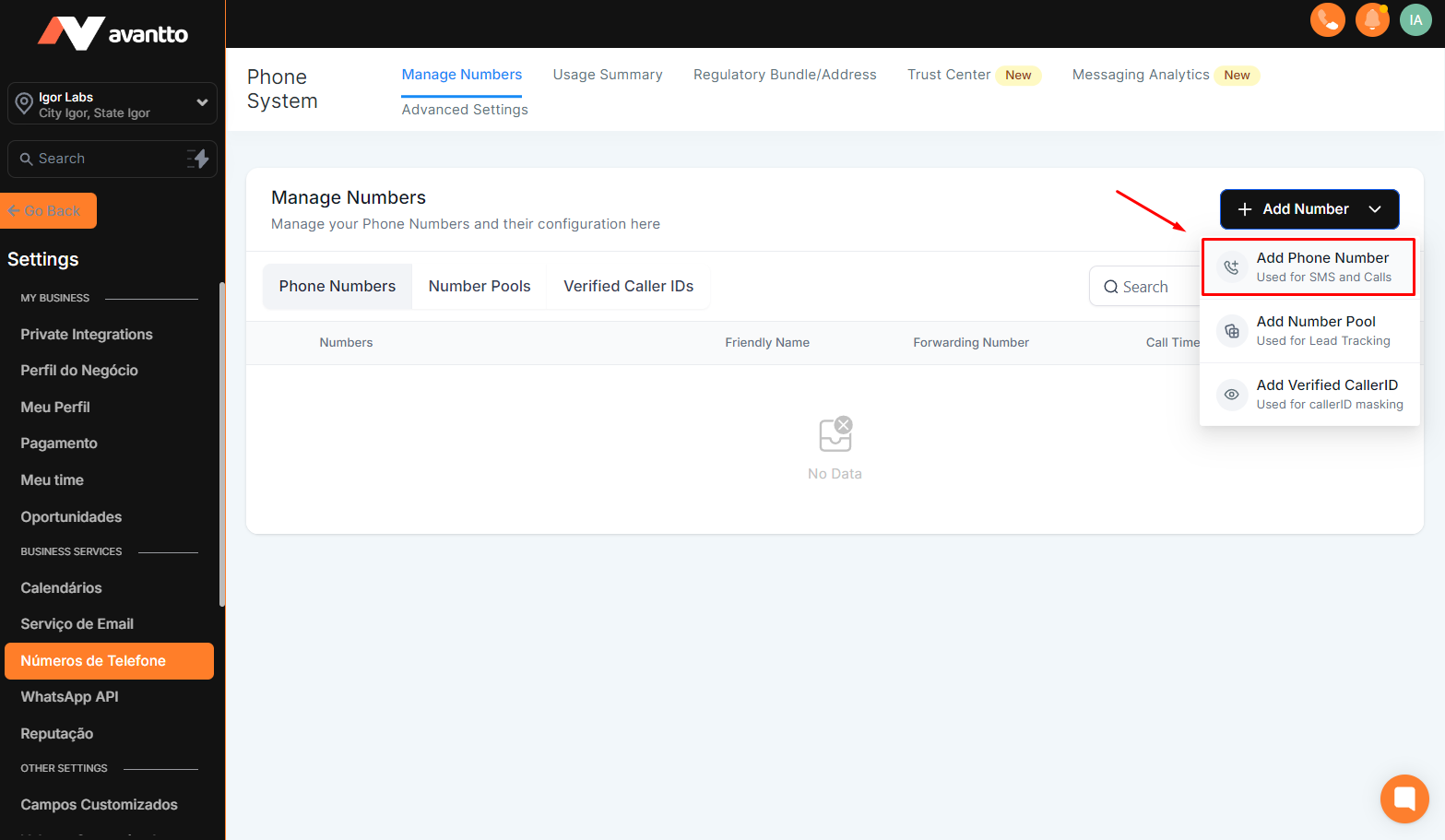
2.3 In "Phone Numbers" click on "Add Number" and then on "Add Phone Number".
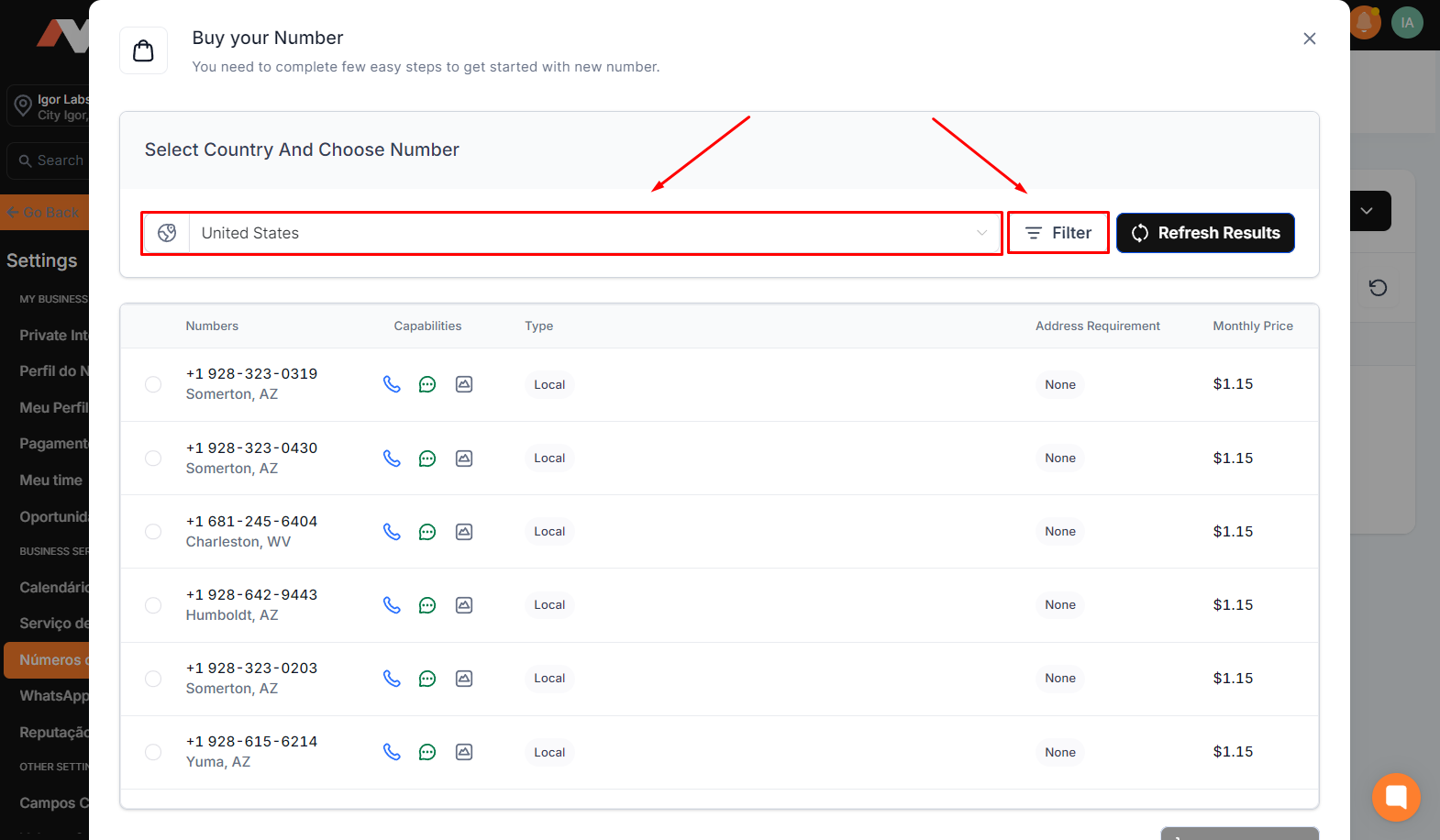
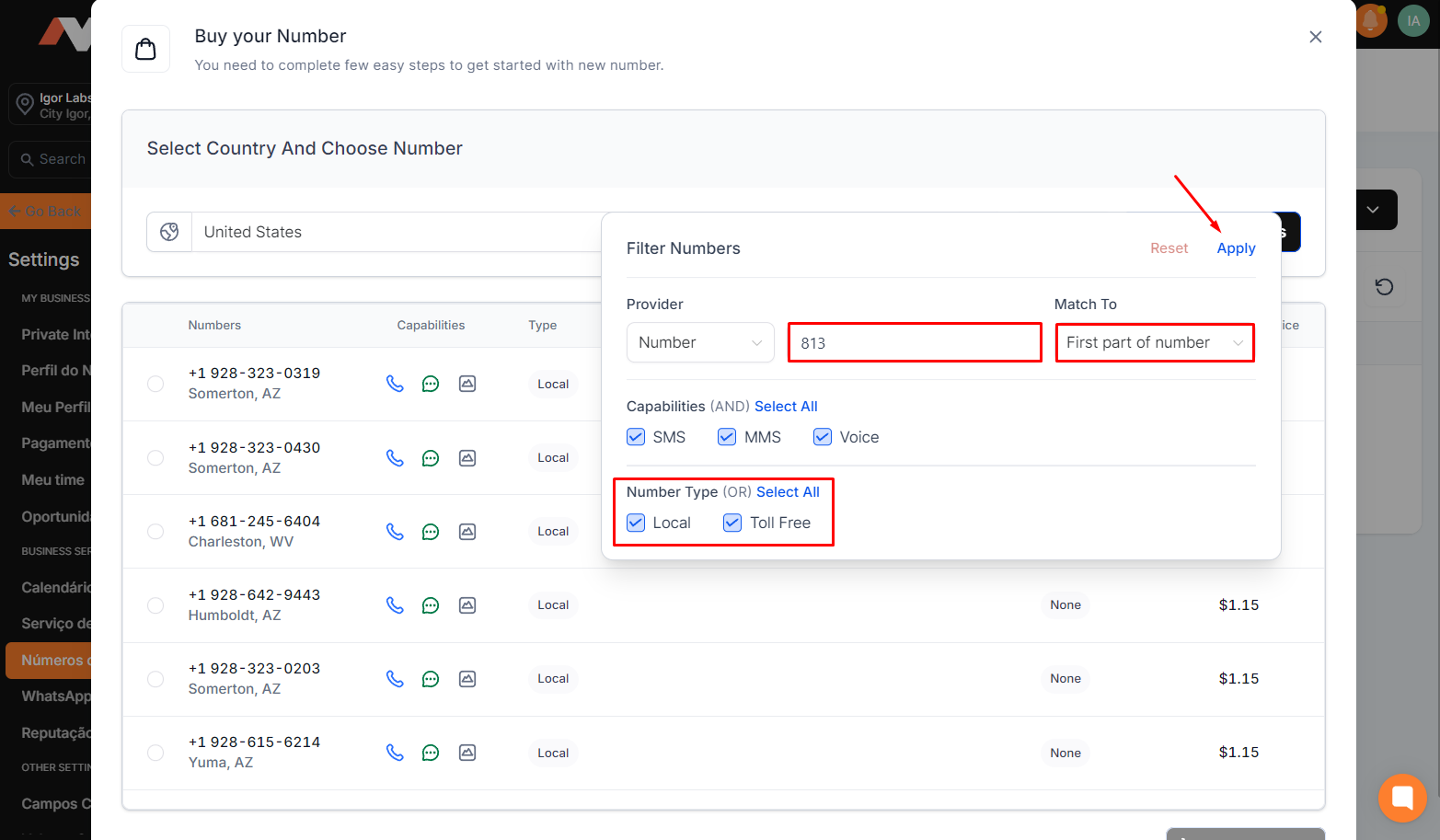
2.4 With the screen for choosing the number open, select the desired country for purchase — in this case, the United States. Then, click on "Filter" to choose the area code of the number you wish to acquire.
2.5 To find the number with the desired area code, in "Match To", select "First part of number" and enter the code in the box on the left (for example, 813 for Tampa FL). In choosing the type of number, select according to your verification method; if it's A2P, check only "Local"; if it's Toll Free, select that option. After the settings, click "Apply".
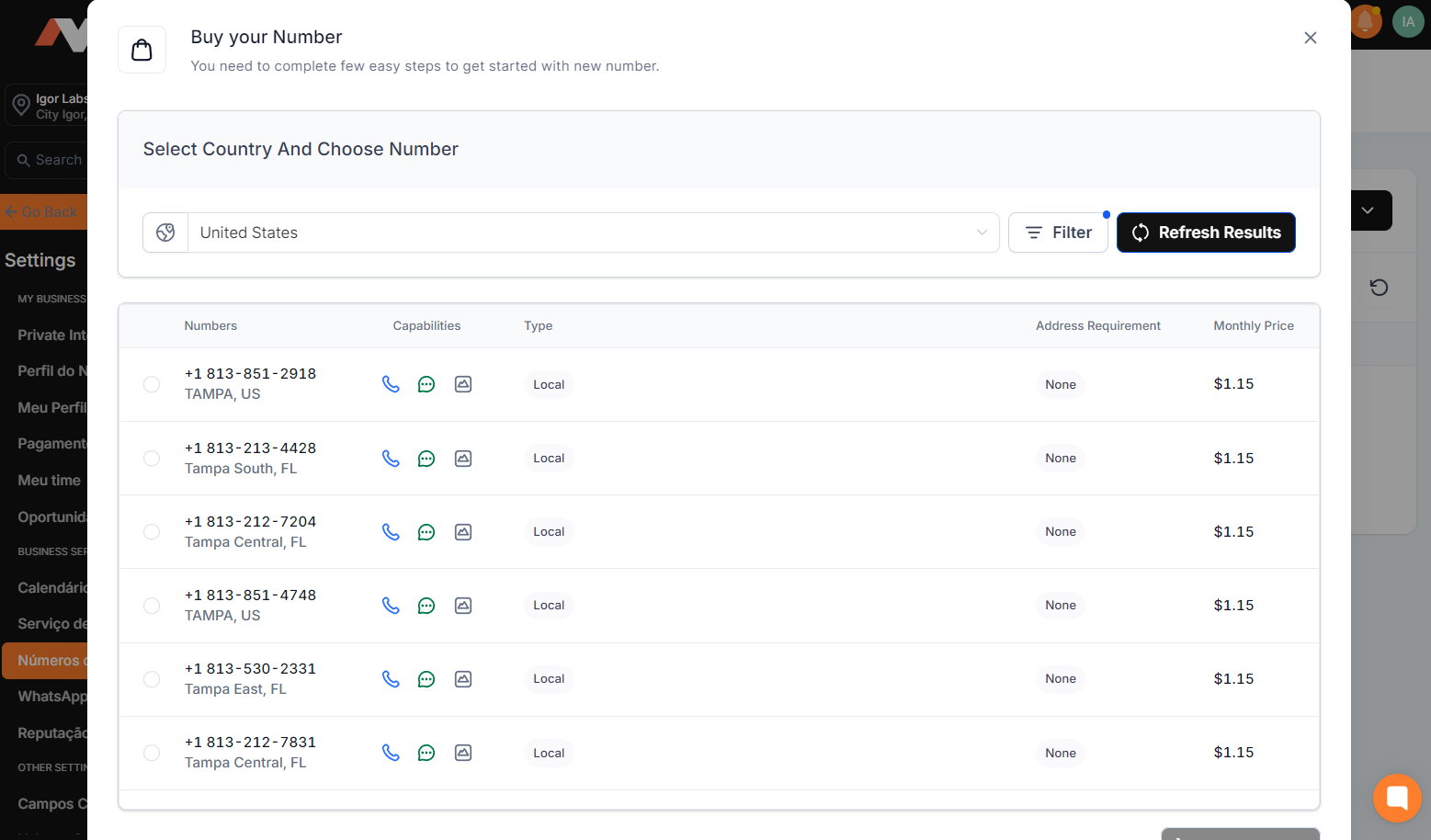
2.6 You will only see numbers with the desired area code and the chosen type, along with the monthly fee for using that number. Choose the number or numbers you want to purchase and click the "Buy" button at the bottom right.
Before starting to fill out the A2P form, it is necessary to complete some steps: fill in the Custom Values with the company's data, integrate the client's domain or subdomain in Avantto, and publish the standard landing pages for A2P verification.
3.1 Start by filling in the company's custom values as demonstrated in the video below.

Update Custom Values/Custom Values
3.2 Proceed to the integration of the domain or subdomain as shown in the video below.
Link Domain/Subdomain in Avantto
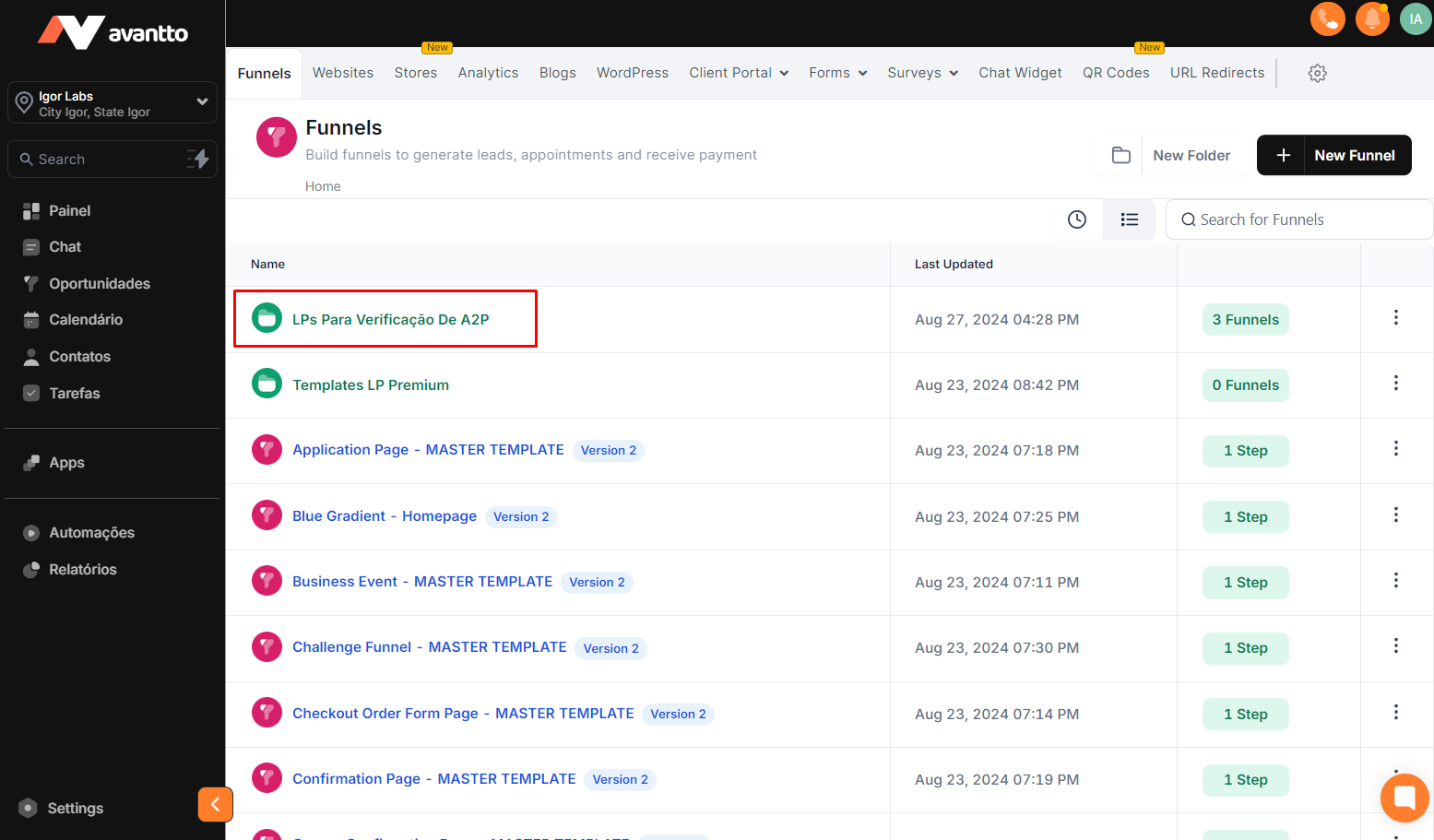
3.3 After integrating the subdomain, publish all landing pages from the "LPs for A2P verification" folder, available in "Apps > Funnels/Landing Pages". You can change the URL snippet if you wish; however, this is not necessary.
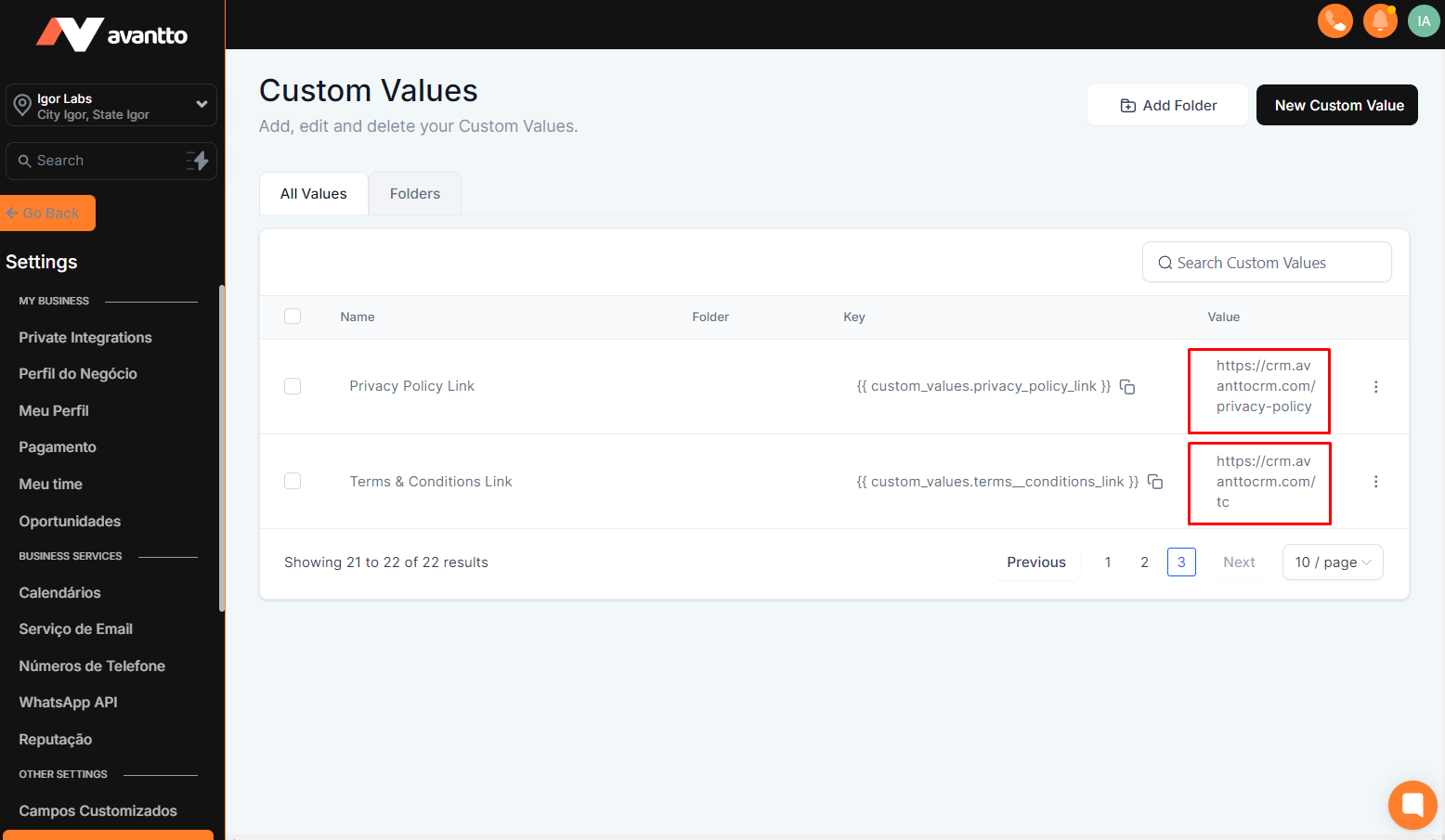
3.4 After publishing the mentioned pages, update the Custom Values of the "Privacy Policy Link" and "Terms & Conditions Link" with the respective links of the published pages.
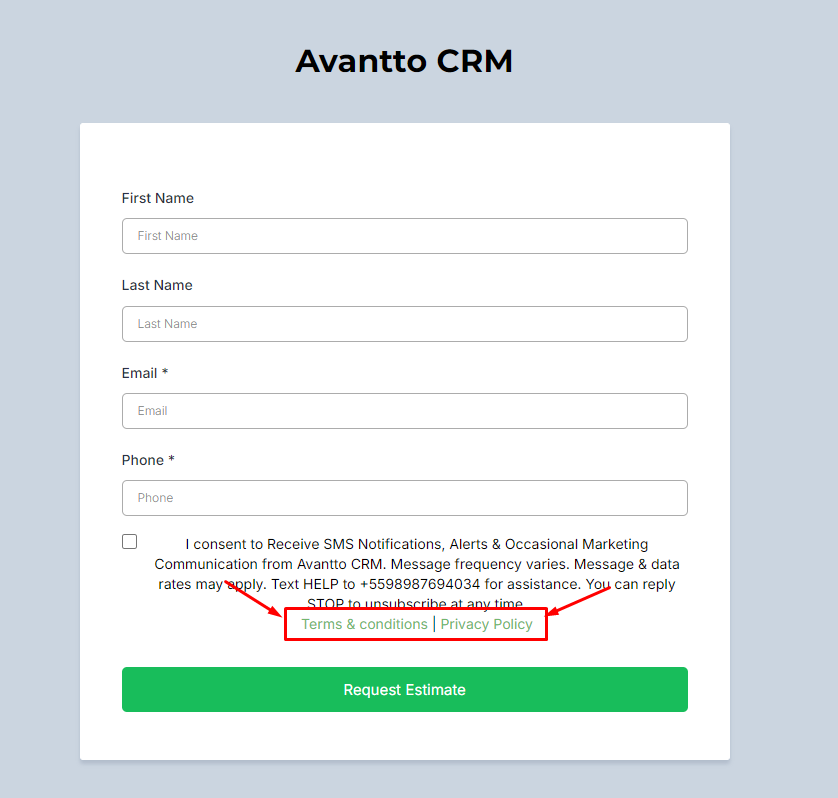
3.5 On the "FORMS FOR A2P" page, check if the links to the "Privacy Policy Link" and "Terms & Conditions Link" pages correctly direct to the respective pages. It is essential that the form contains these links and a button to accept the terms for the A2P verification to be accepted.
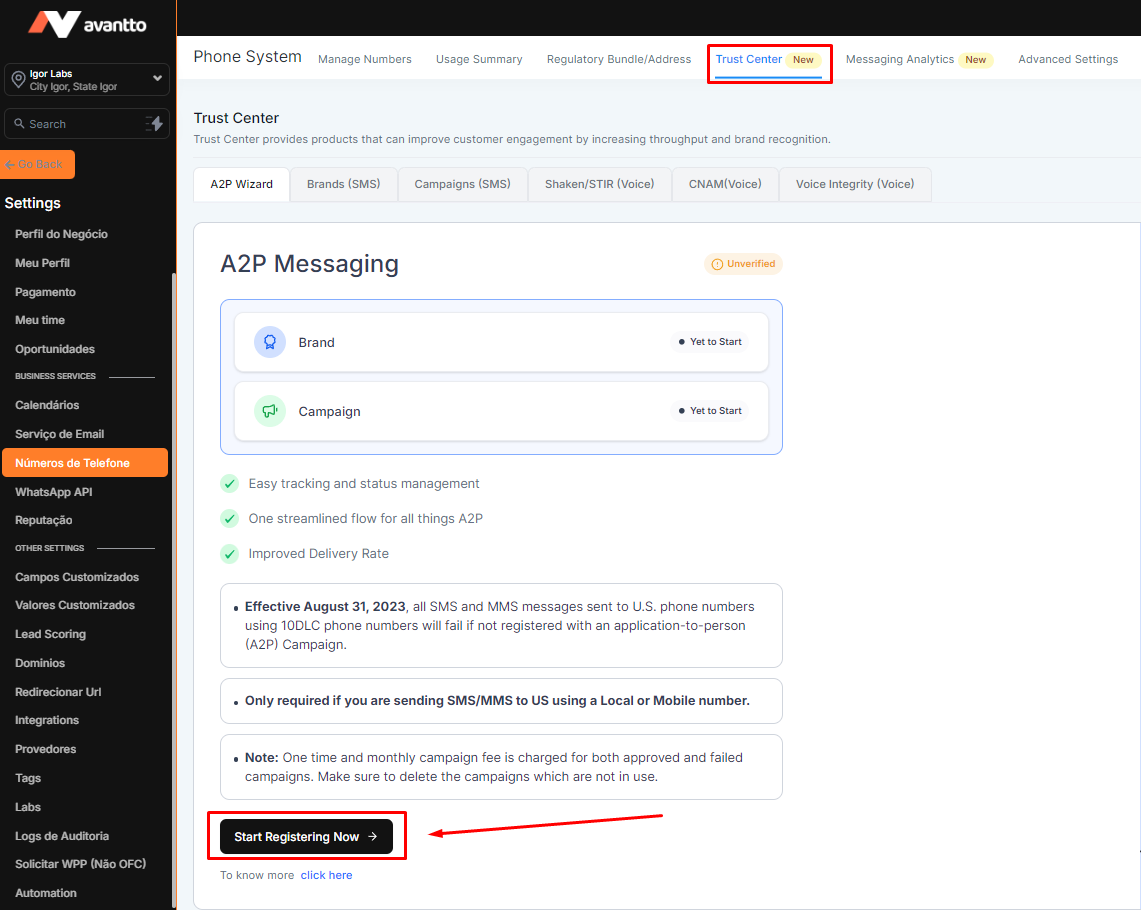
3.6 Once the above configurations are done, go to "Settings > Phone Numbers > Trust Center > Start Registering Now" to fill out the A2P verification form.
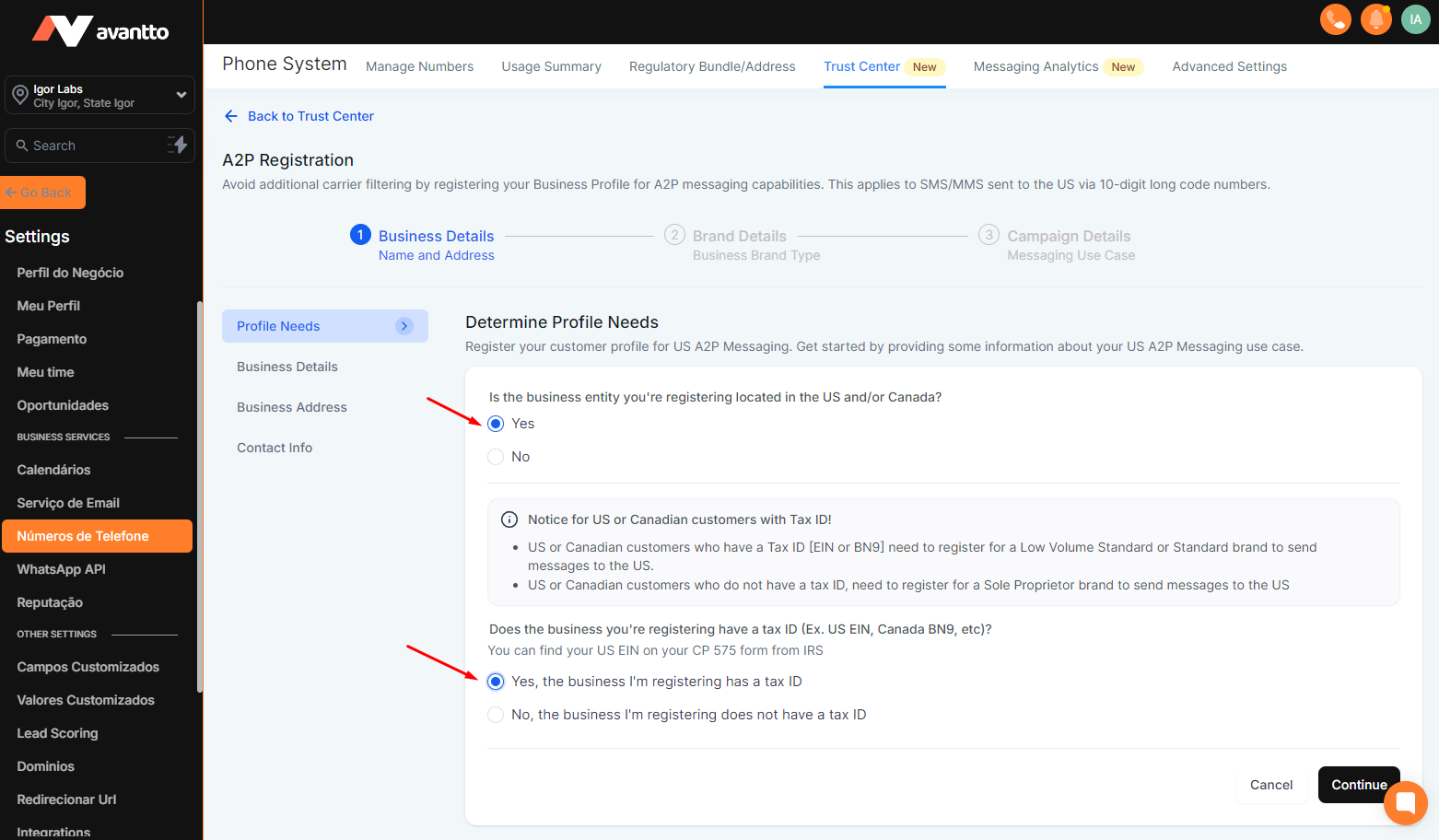
3.7 In the first step of filling out the form, state that the company is located in the USA and has a Tax ID (EIN).
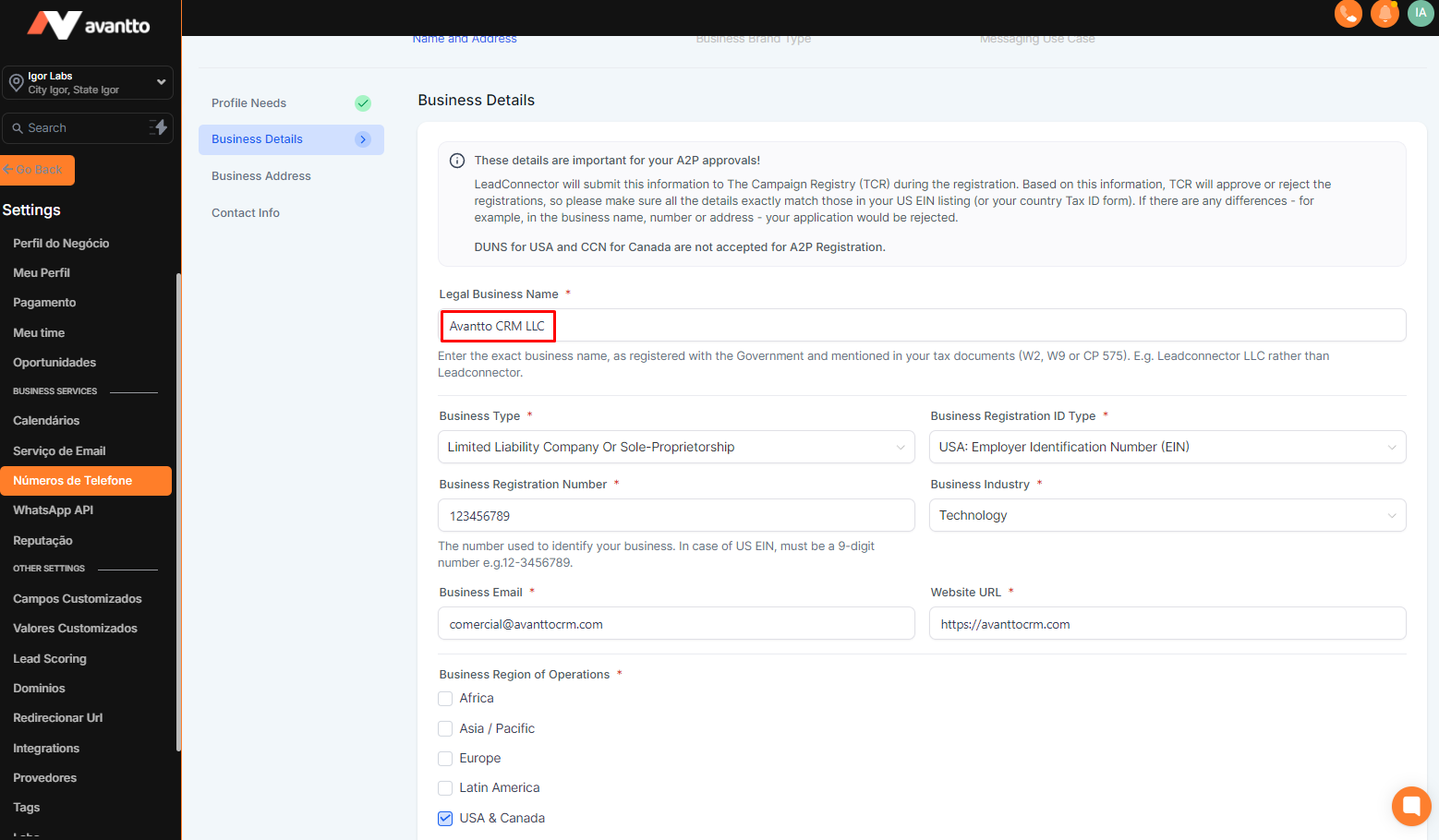
3.8 In the next step, fill in more specific information about the company; special attention should be given to the "Legal Business Name" field, which must exactly match the name registered in the documents.
3.9 Then, fill in the company's address as it appears in the official documents.
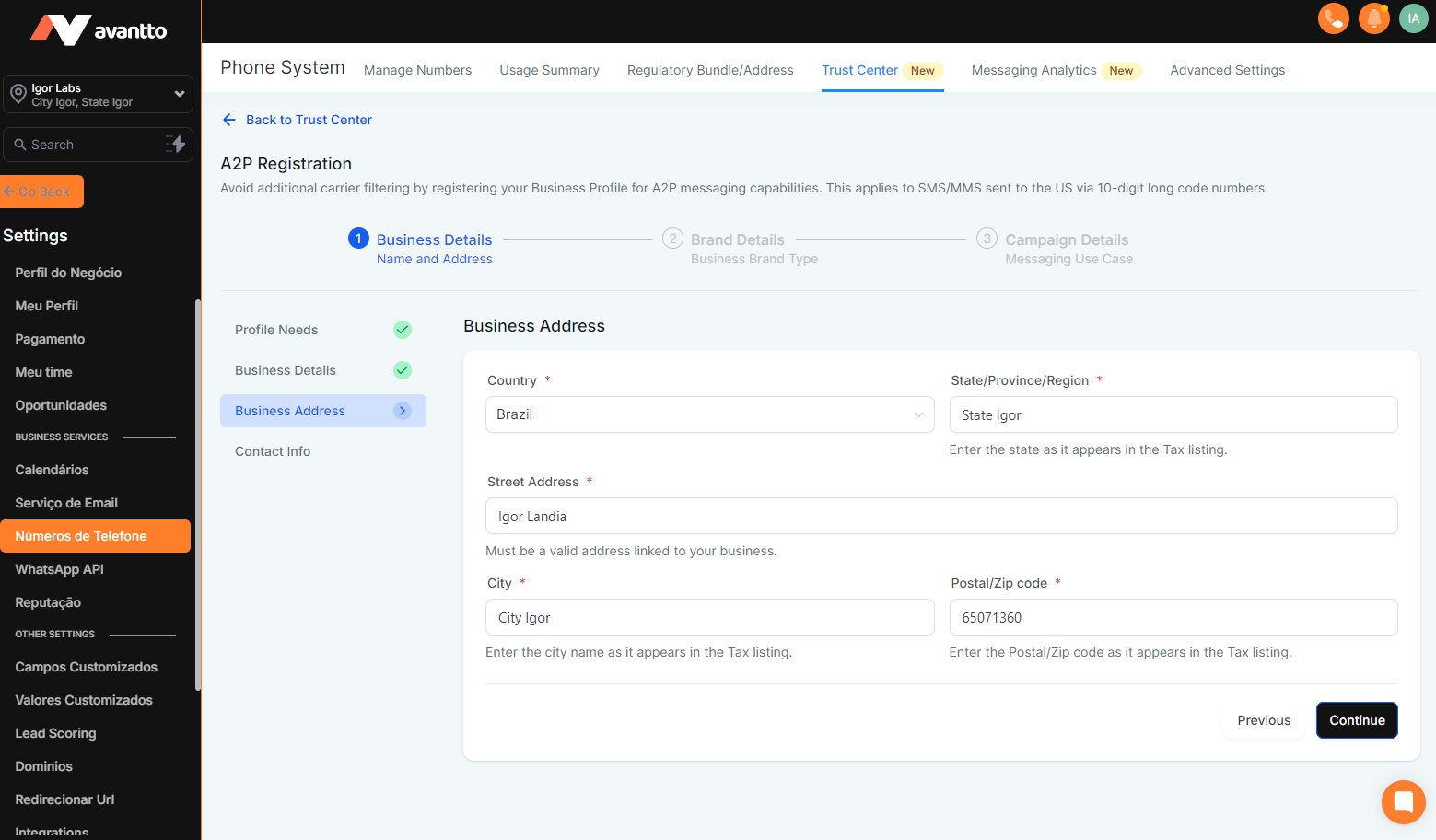
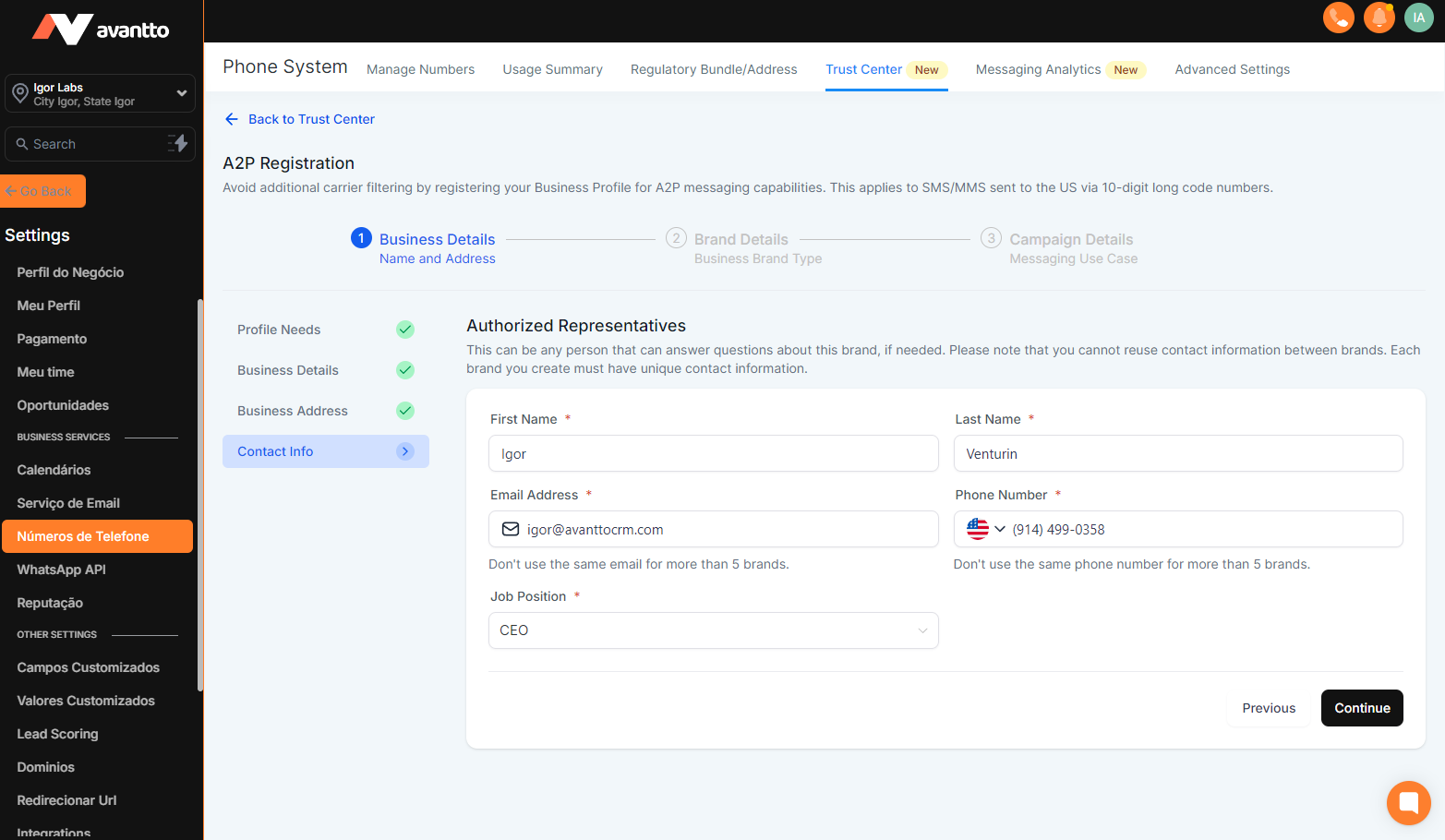
3.10 In the "Contact Info" step, enter the details of a company representative; pay special attention to the number provided, as a confirmation SMS will be sent to this contact.
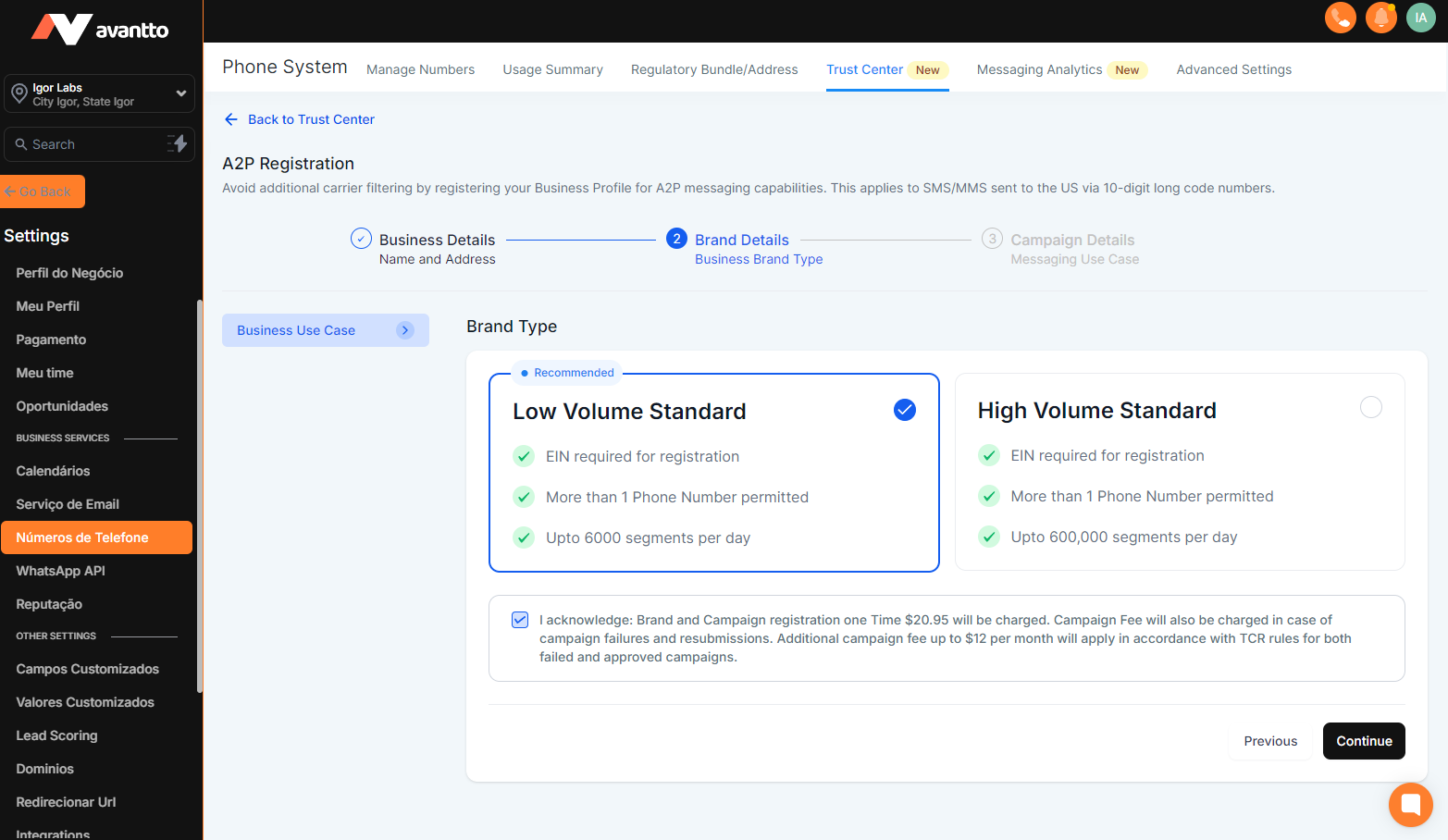
3.11 In the next step, select the "Brand Type" form according to the size of your company; the first option generally allows up to 600,000 SMS per day. It is worth noting that there is a one-time variable fee currently set at $20.95 for A2P verification. Select the "Brand Type", check the box acknowledging the terms, and click continue.
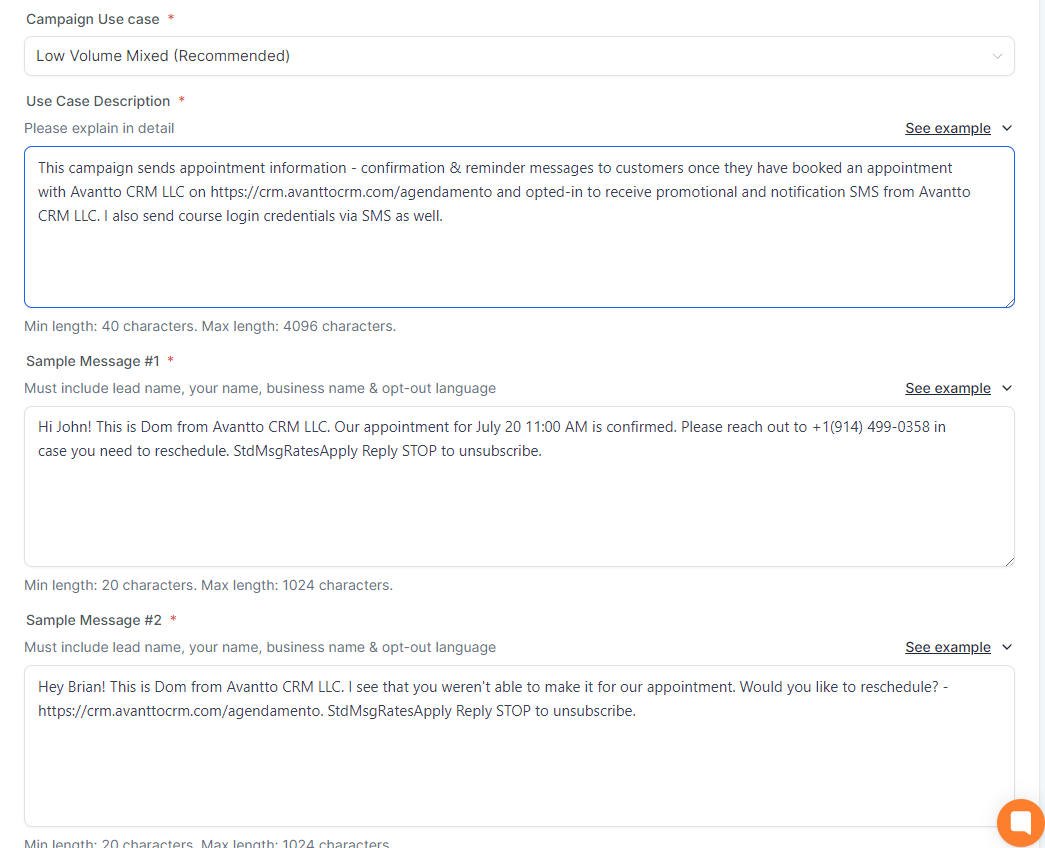
3.11 Now you will fill in the campaign details and examples of campaign usage. In all fields, click "See example", copy the presented text and replace it with the values corresponding to the client's company, for example where it says company_name put Avantto CRM LLC and where it says phone number put the company's number, as well as in the example texts below the image below. A crucial point is to replace the fields related to the “website” with the link to the “FORMS FOR A2P” page that we configured earlier and add “StdMsgRatesApply” at the end of the corresponding text.
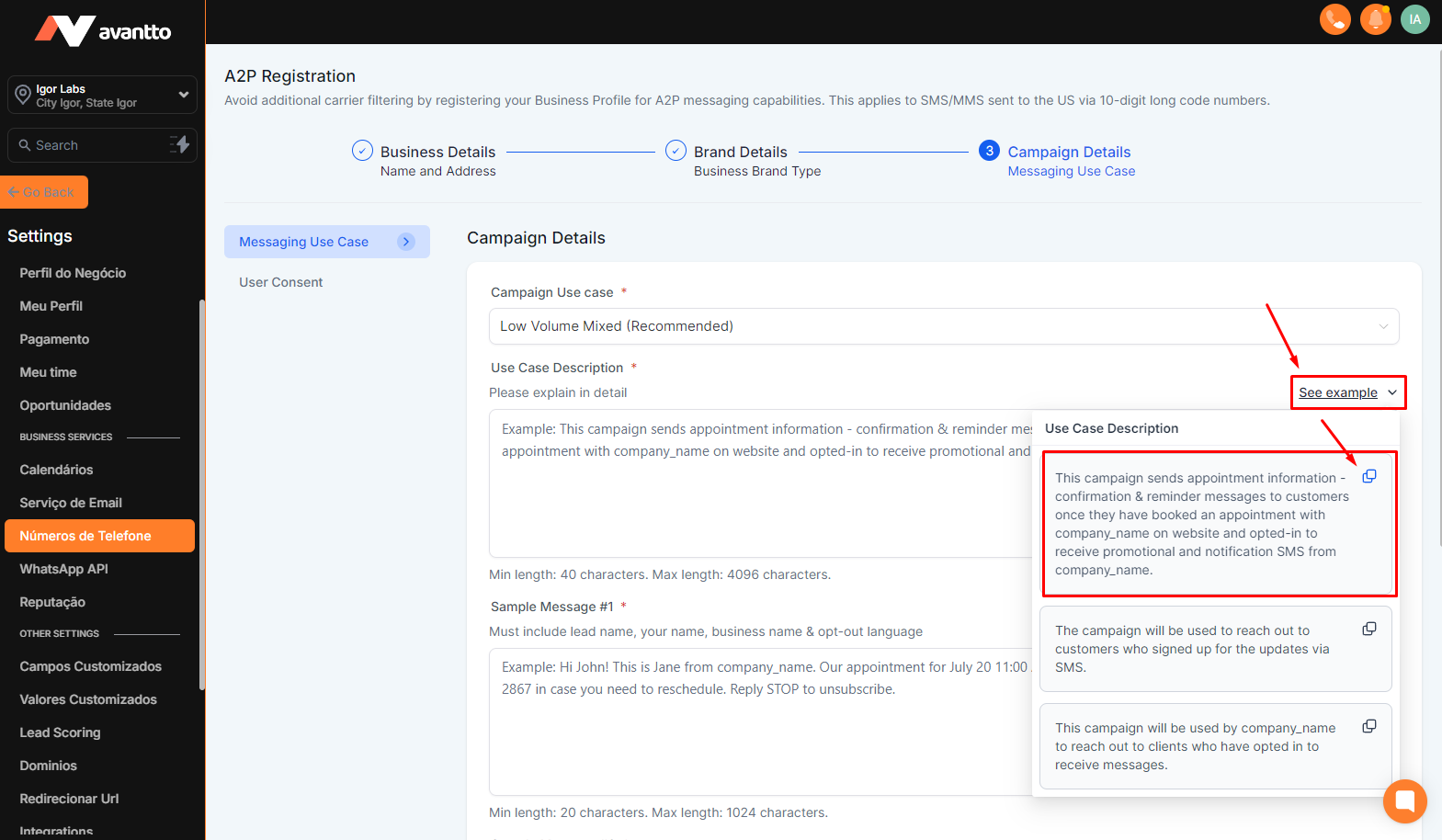
Use Case Description
"This campaign sends appointment information - confirmation & reminder messages to customers once they have booked an appointment with Avantto CRM LLC on https://crm.avanttocrm.com/agendamento and opted-in to receive promotional and notification SMS from Avantto CRM LLC. I also send course login credentials via SMS as well."
Sample Message #1
"Hi John! This is Dom from Avantto CRM LLC. Our appointment for July 20 11:00 AM is confirmed. Please reach out to +1(914) 499-0358 in case you need to reschedule. StdMsgRatesApply Reply STOP to unsubscribe. "
Sample Message #2
"Hey Brian! This is Dom from Avantto CRM LLC. I see that you weren't able to make it for our appointment. Would you like to reschedule? - https://crm.avanttocrm.com/agendamento. StdMsgRatesApply Reply STOP to unsubscribe."
How do lead/contacts consent to receive messages?
"End users opt-in by visiting - https://crm.avanttocrm.com/agendamento and filling in their details. Users check a box to receive notifications & promotional messages to provide their consent."
Opt-in Message
"You have successfully opted-in to receive notification and promotional SMS from Avantto CRM LLC. Please reply STOP if you need to Opt-out in the future. StdMsgRatesApply."
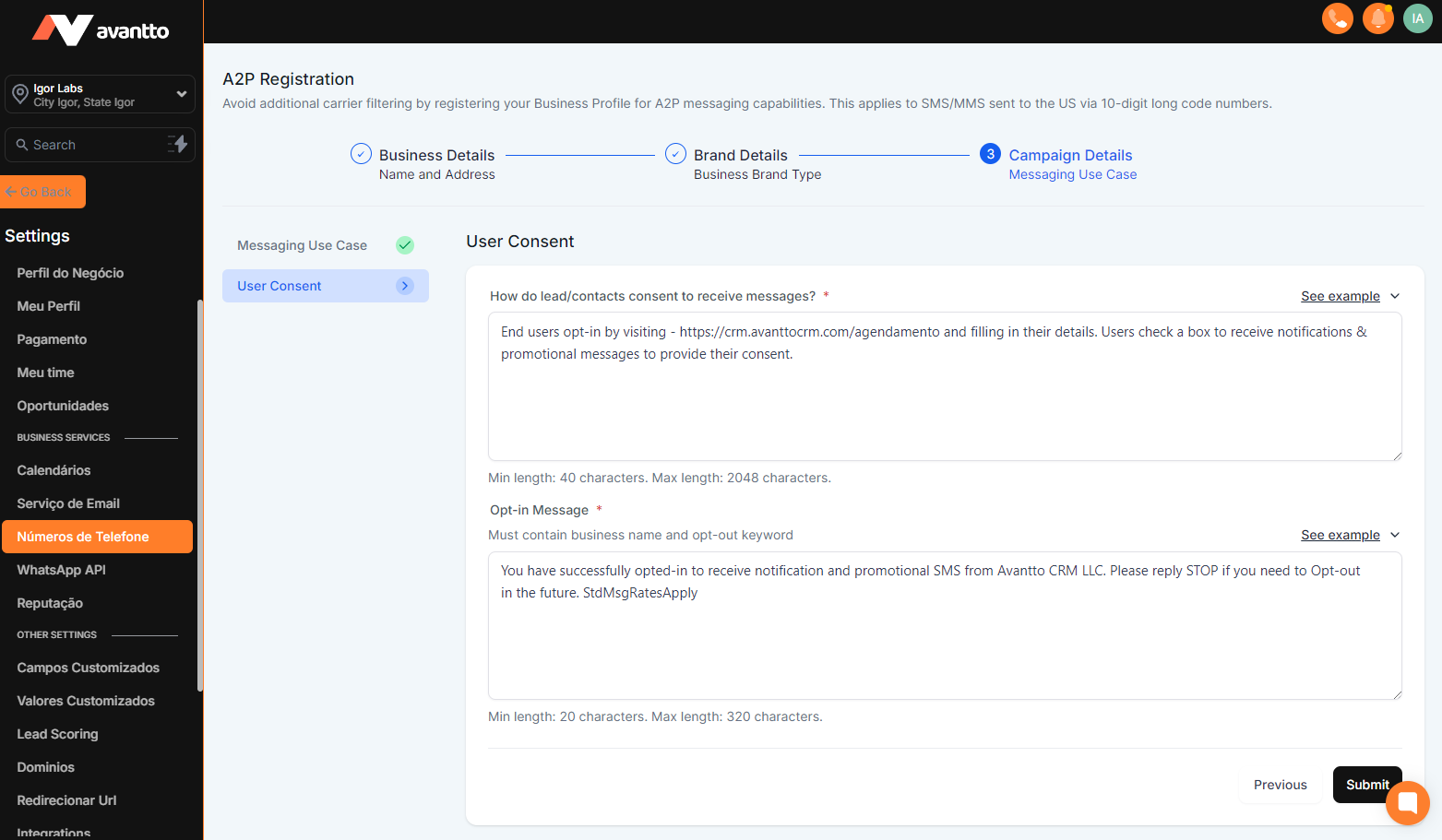
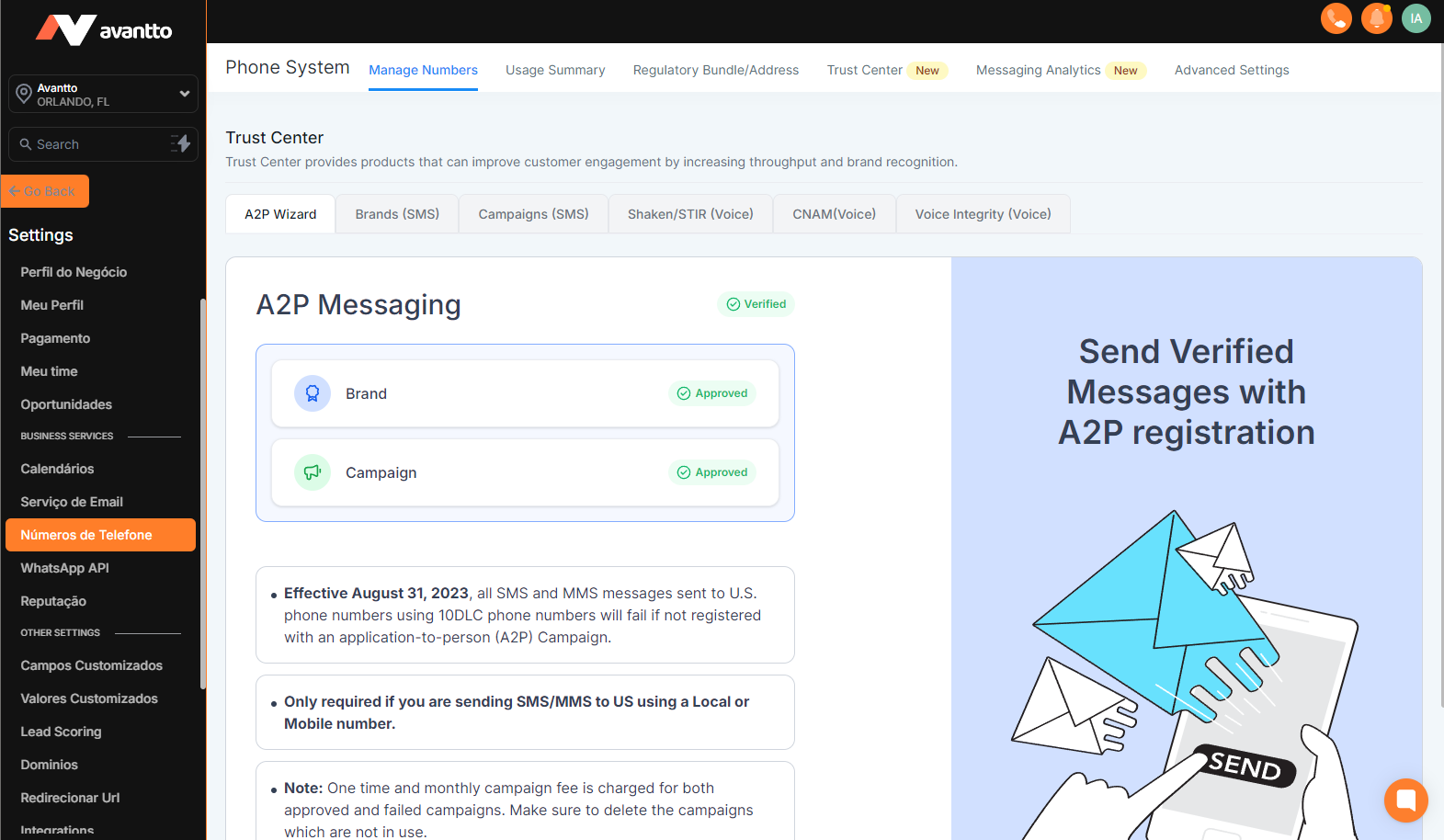
3.12 After filling in all the fields as per the examples above, click “Submit” and wait for the A2P status to change to “Approved”, as demonstrated earlier. The process takes on average between 3 to 7 days to be approved; it first goes through the “Brand” verification before the “Campaign”, being updated as each stage is approved.
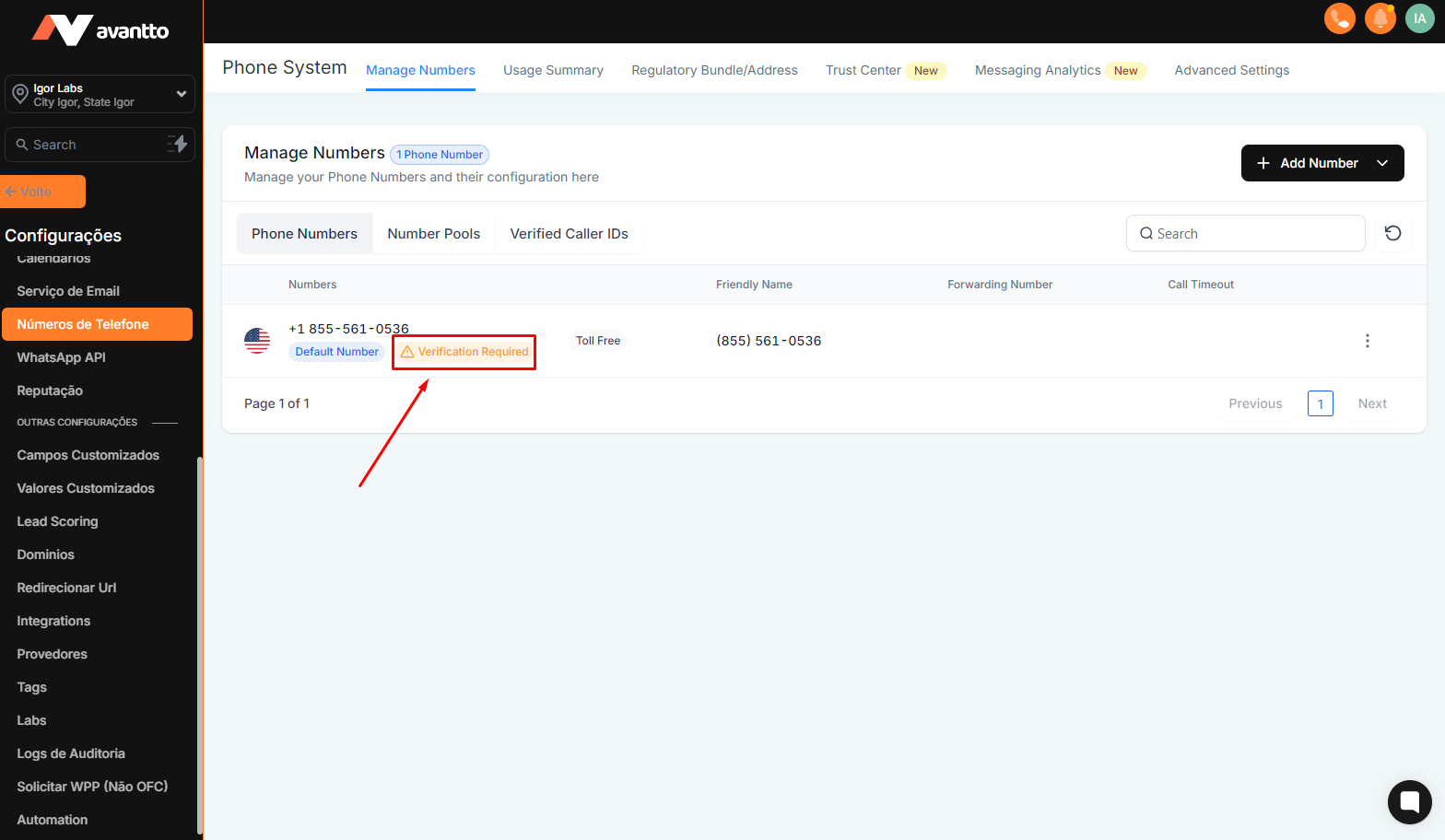
1.1 After purchasing the "Toll Free" number as shown in Step 2, go to the Manage Numbers page (visible only to administrators and agency users). Remember that you will face verification delays if you omit any information.
1.2 Click on "Verification Required."
1.3 Fill in the fields below:
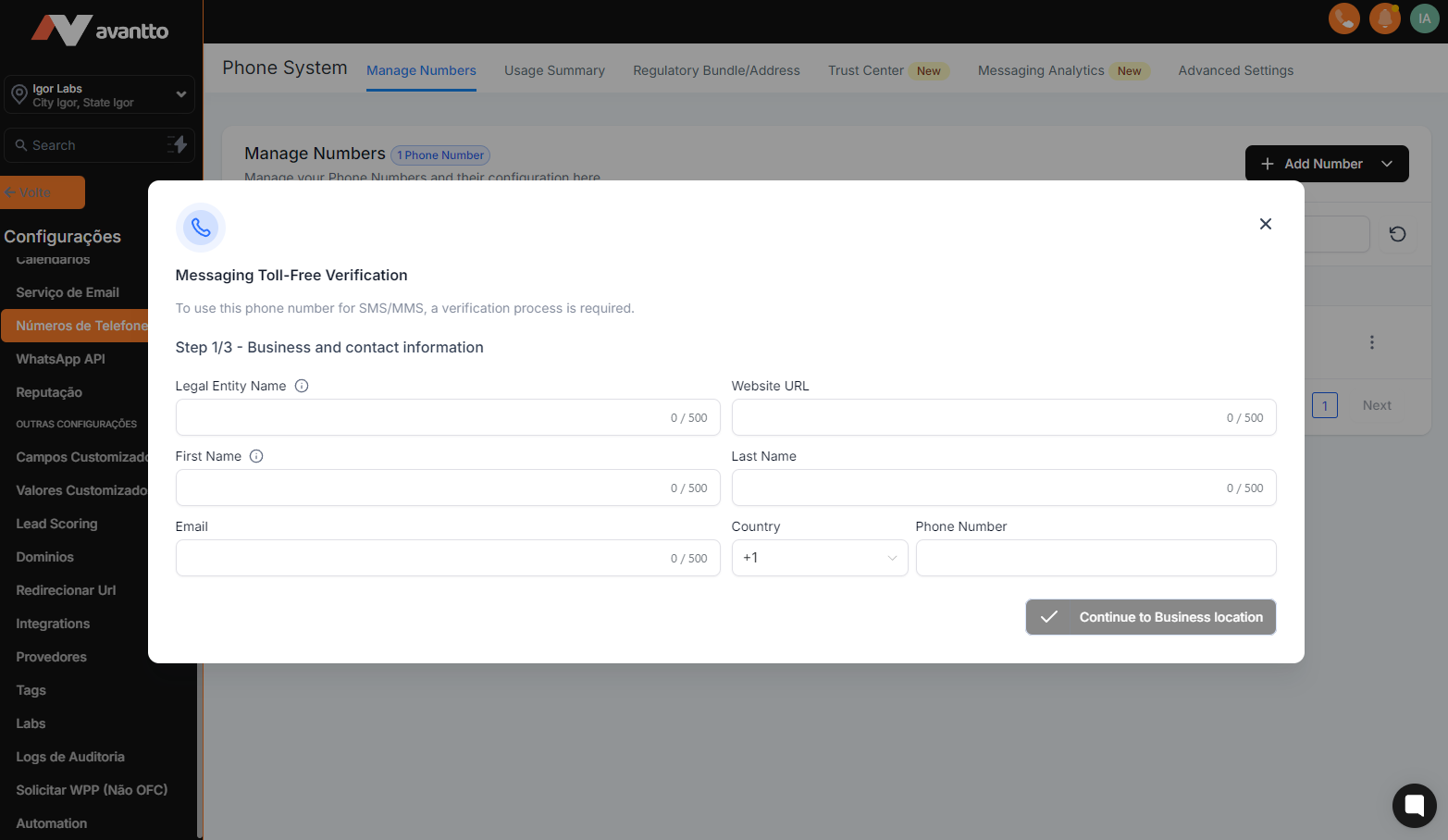
Legal Entity Name
Approved Examples: John's Coffee Shop LLC
The example includes the final company that will send the SMS messages with which the customer/mobile device is interacting.
Rejected Examples: Jhon's, N/A
If the end user's company information is not provided, it will be rejected, as toll-free number verification requests must provide end user's company information to be reviewed.
Company Website
In this field, you will use the link to the "FORMS FOR A2P" page published earlier in Step 3.
Example: https://crm.avanttocrm.com/agendamento
Name, Email, and Phone of a Legal Company Representative
In these fields, fill in the respective data of a contact point who is a legal representative of the company, as the number will receive a confirmation SMS.
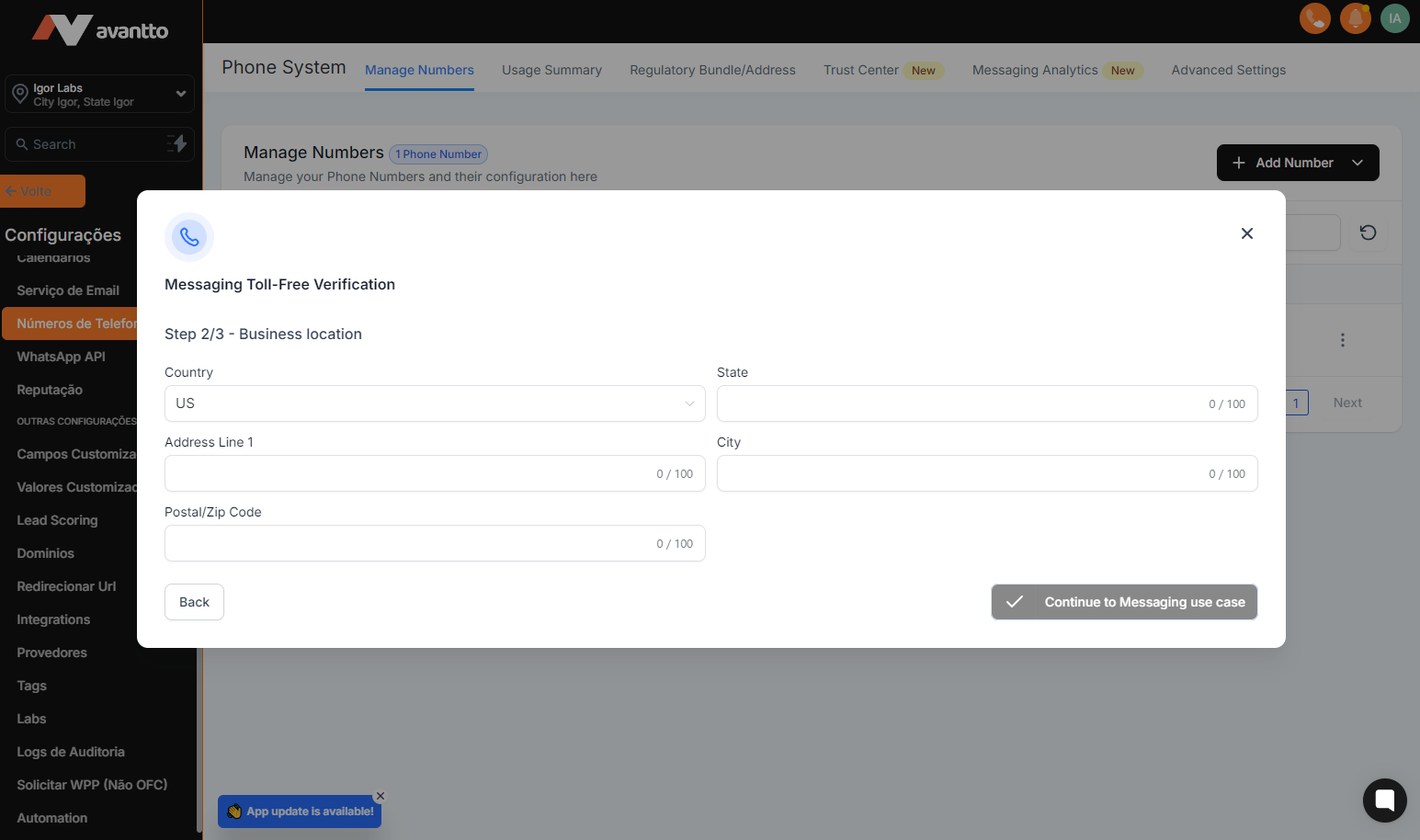
Business Address
The address of the final company with which the consumer is interacting. This should be the physical location of the final company.
Approved Examples: 123 Main St, Seattle, WA, 98119
The full address of the company includes: street, city, state, and postal code of the company that will send the SMS messages with which the customer/mobile device is interacting. This would be the physical location of the company or organization.
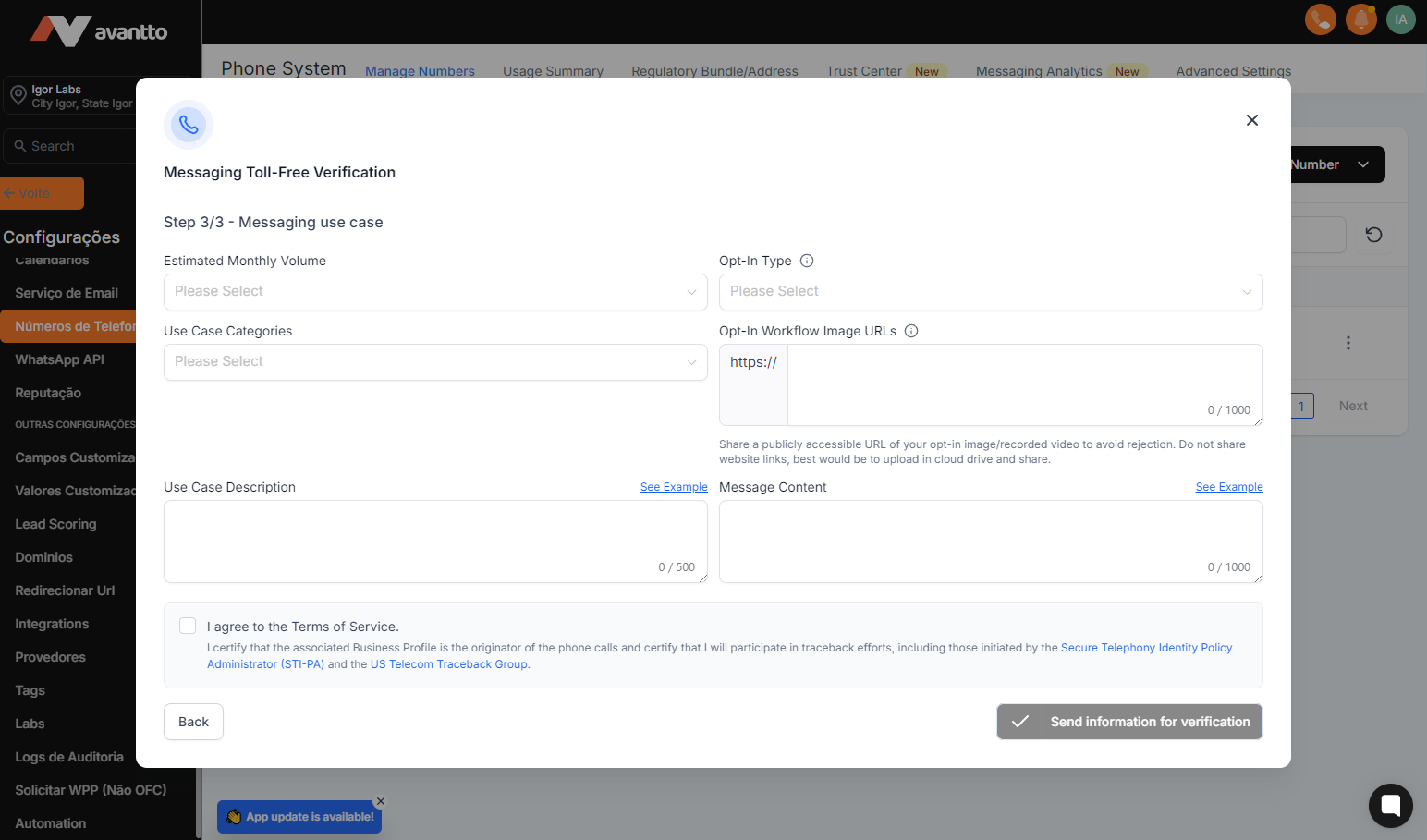
Estimated Monthly Volume
Choose the volume according to your company's usage.
Opt-in Type
Opt-in refers to the process of obtaining permission from the end user to send text messages. Choose what suits your company's process.
Use Case Category
Select the use case you believe best fits your client's traffic pattern. This should be the use case that best fits the types of messages sent by this toll-free number.
Opt-in Workflow Image URLs
One or more URLs containing screenshots or captures of the form or site where customers enter information to opt-in. Enter one URL per line.
Share a publicly accessible URL of your recorded image/video to avoid rejection. Do not share links from websites, it would be best to upload to the cloud and share.
Use Case Description
The explanation of how the message is used in this toll-free number by the company or organization. The more detailed the information provided for the use case/summary, the better.
Approved Examples: This number is used to send promotional offers and coupons to customers of John's Coffee Shop.
Or: We send appointment confirmations, message notifications, and offers for chiropractic adjustments to existing patients or new patients who have opted to receive SMS notifications. Communications are sent via in-person POS, website forms, or web chat. End users opt-in through a form on the website: https://www.abccompany.com/contact-us, via chat widget on the website and also through our POS system at our office, with consent language similar to that on our website. The more details the better for the use case/summary!
Rejected Examples: Marketing.
The rejected example does not specify what type of marketing the number is used for or what the end user/mobile device will be receiving from the end user's company. For the Free Verification review, the approximate amount of messages is required as part of the review process.
Message Content
Refers to the sample message(s) that the end company will send to the end user/mobile device.
Approved Examples: “Thank you for being a loyal customer of John's Coffee Shop. Enjoy 10% off your next purchase. Reply STOP to cancel.” "David, this is Kate from ABC Company. Thank you for opting to receive SMS notifications. I have scheduled an appointment for you on Thursday, June 15, 2023, at 4:00 PM and will see you then! If anything changes, let me know. If you need to cancel, reply STOP." This should be a sample message of the content that the end user/mobile device will receive in the SMS.
Rejected Examples: “Your appointment is today at 10:00 AM” The sample message content must match the provided use case i.e., Marketing.
Type of Opt-In Opt-in refers to the process of obtaining permission from the end user to send text messages to them. According to the TCPA law, companies must have "express written consent" from the end user before sending text messages.
Send information for verification
After filling in the data and accepting the terms and conditions, just click to send the information for verification and track the verification status in the number management tab. Once approved, the status will be changed to "Verified".
