This guide addresses the process of acquiring and configuring phone numbers on the Avantto platform, essential for effective company communication. The first step is to locate the "Phone System" field by accessing Settings and then the "Phone Numbers" tab, where you can view all the numbers already purchased and acquire new ones. In the second step, by clicking "Add Number," the user can start purchasing a new number, filtering by the desired location, such as Brazil, and specifying the area code to find local numbers. The search can be refined by different parts of the number, ensuring that the user finds a number that meets their specific needs. After applying the filters and viewing the available options, the user can select a number and proceed with the purchase. The third step involves configuring the acquired numbers, allowing the user to rename the number, assign it to specific users, and set up call forwarding for unanswered calls. The main objective of this procedure is to facilitate the management of phone numbers on Avantto, ensuring that the company's communication is efficient and well-organized.
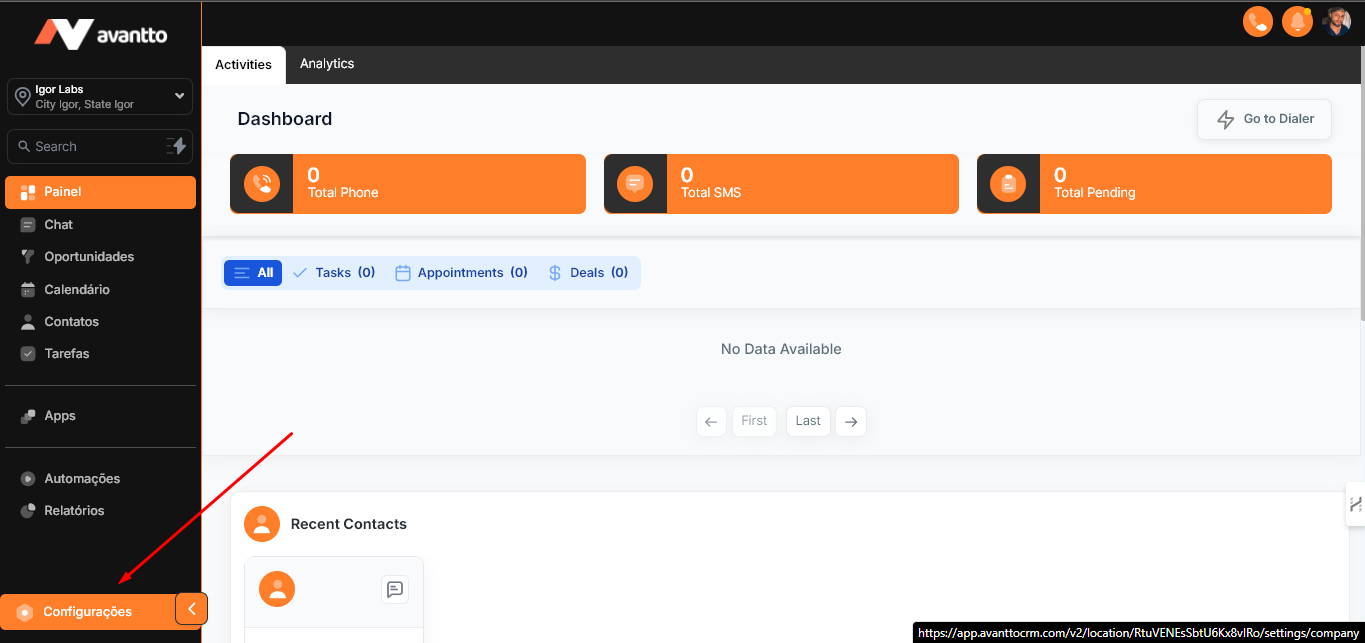
1.1 To start, access the left side menu and click on Settings.
1.2 Access Phone Numbers.
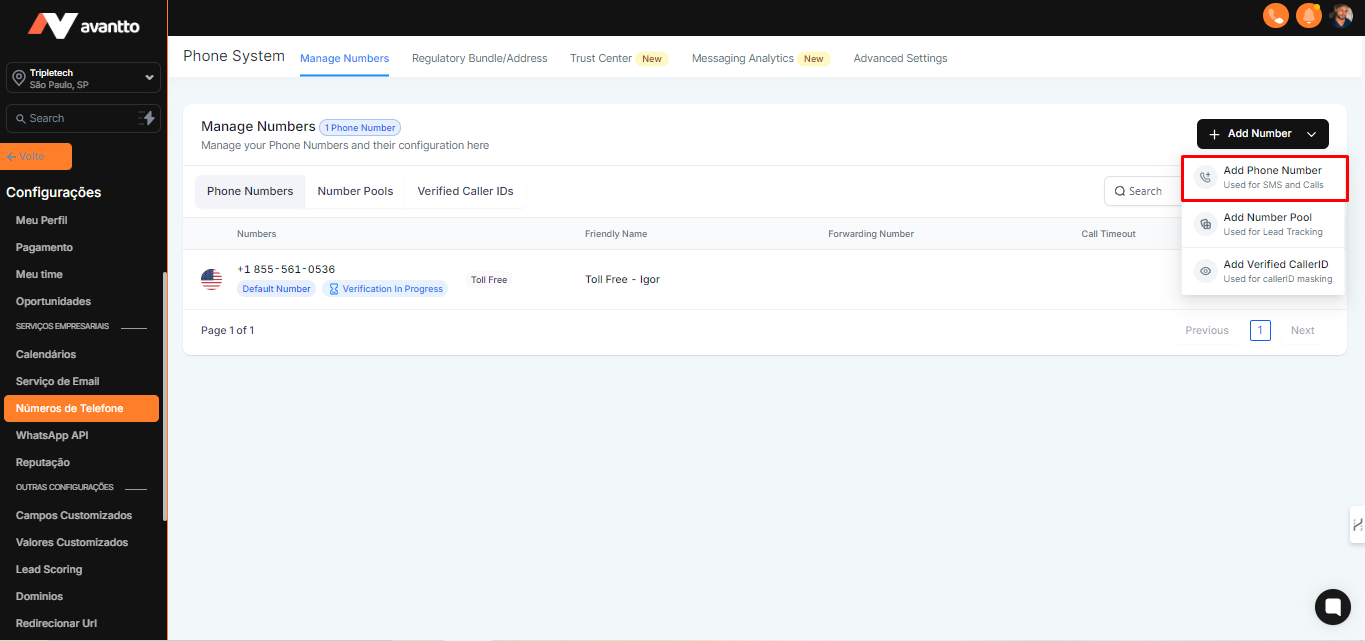
In this tab, you will find all purchased numbers, as well as the option to acquire new numbers by clicking on "Add Number".
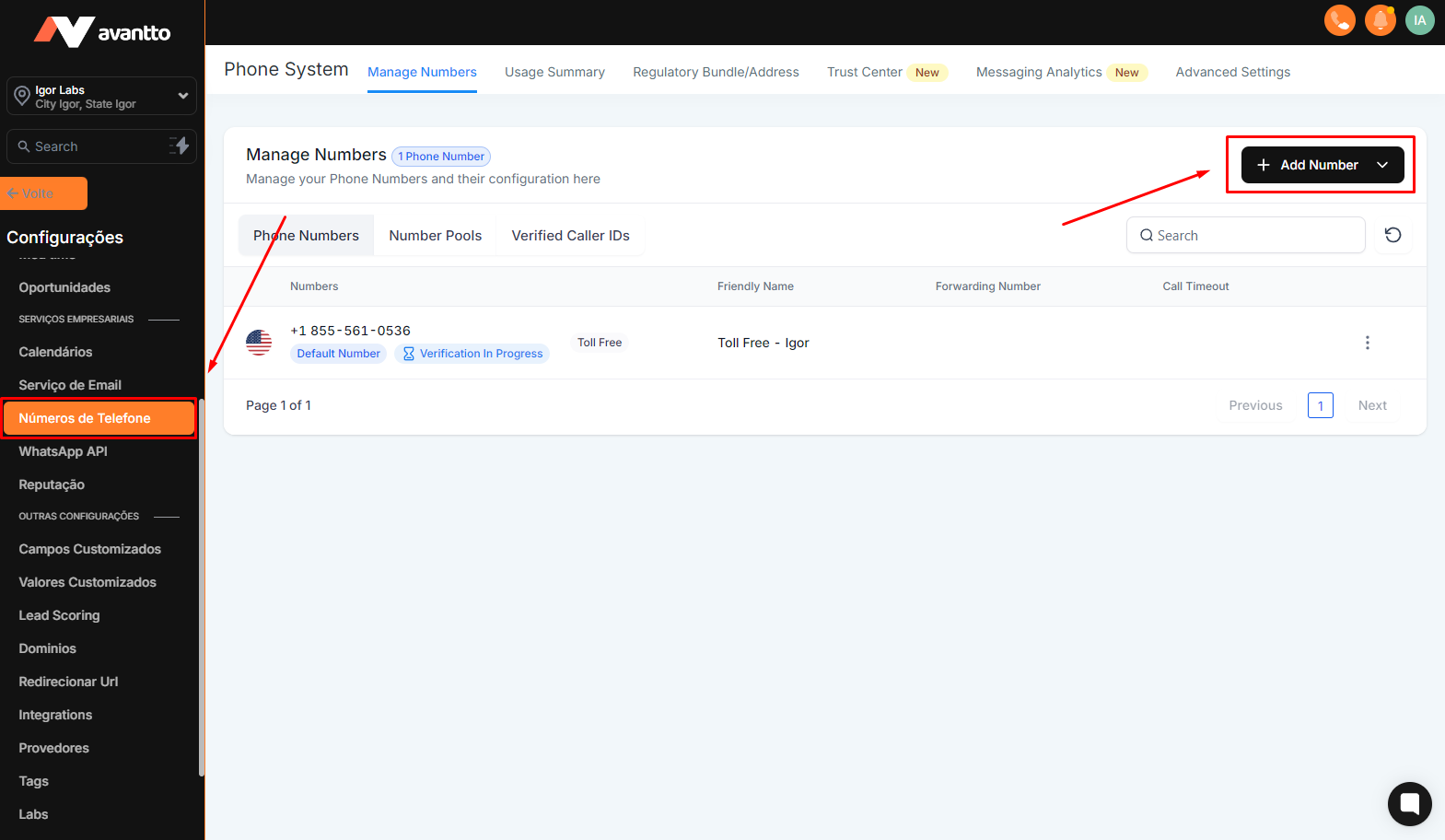
2.1 After clicking on "Add Number", choose the option "Add Phone Number". This action will allow you to start the process of acquiring a new phone number for your account.
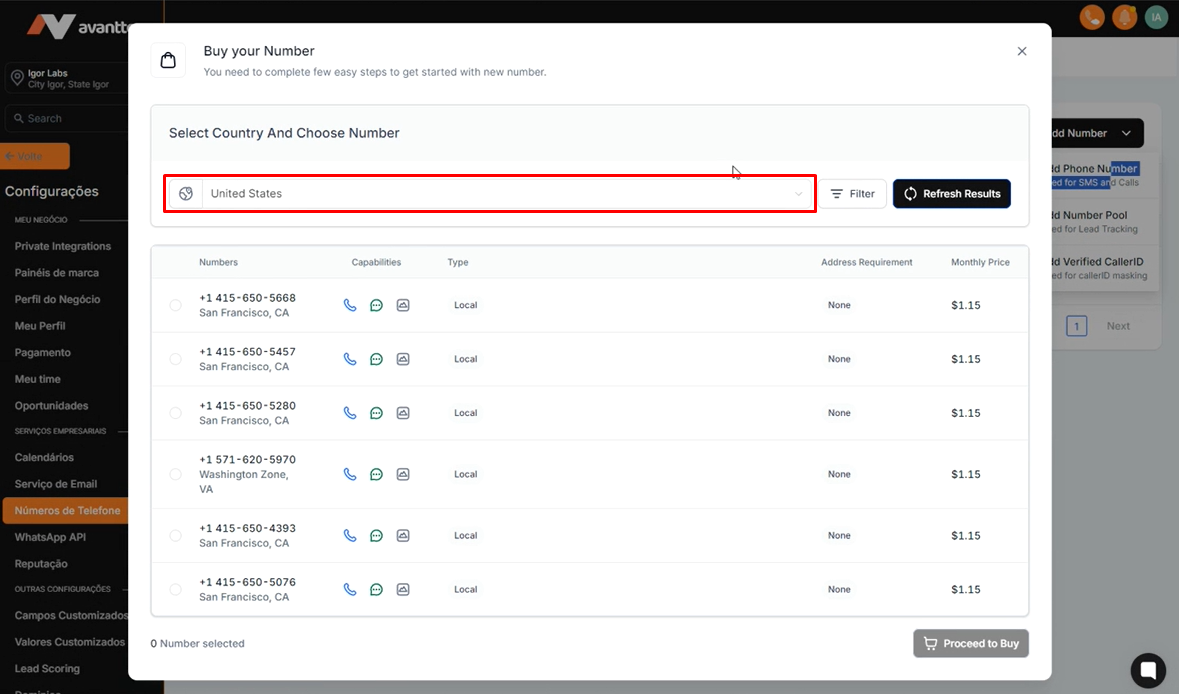
2.2 In this tab, you will find the option of filters, which, by default, will be set to United States.
These filters allow you to refine your search and select phone numbers according to the desired location.
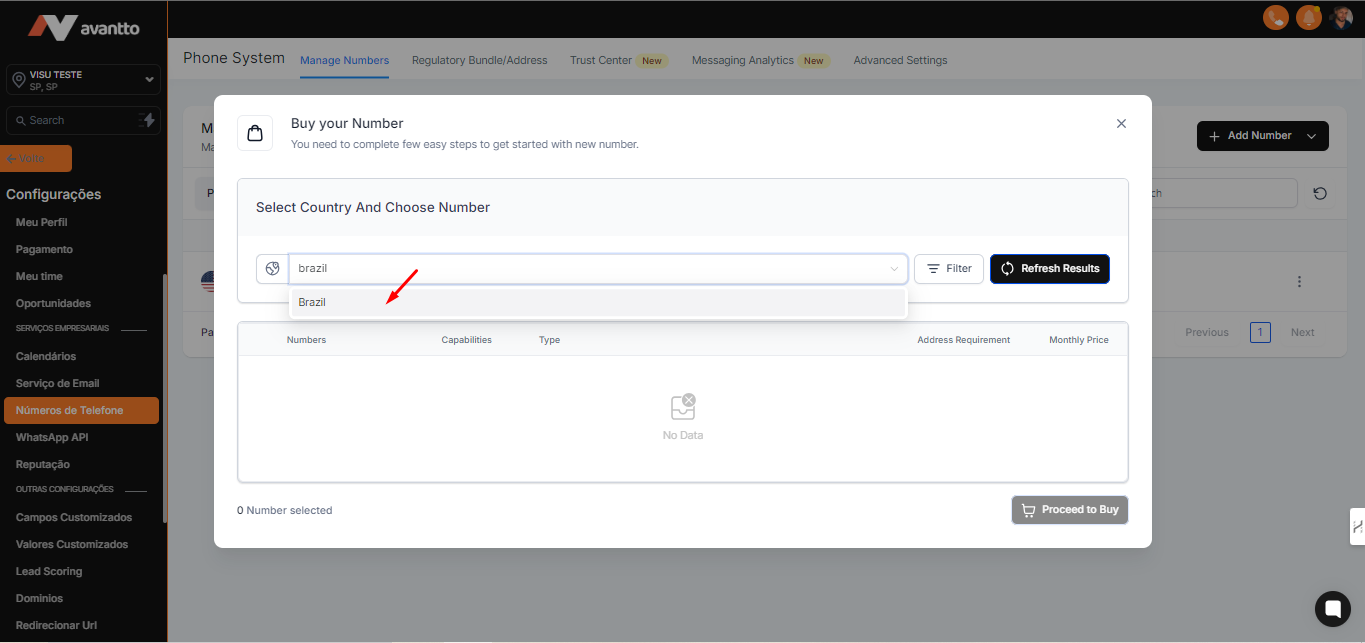
2.3 To buy a Brazil number with DDD, search for "Brazil" and select the corresponding option, as illustrated in the image below. This will allow you to find specific phone numbers for the desired location.
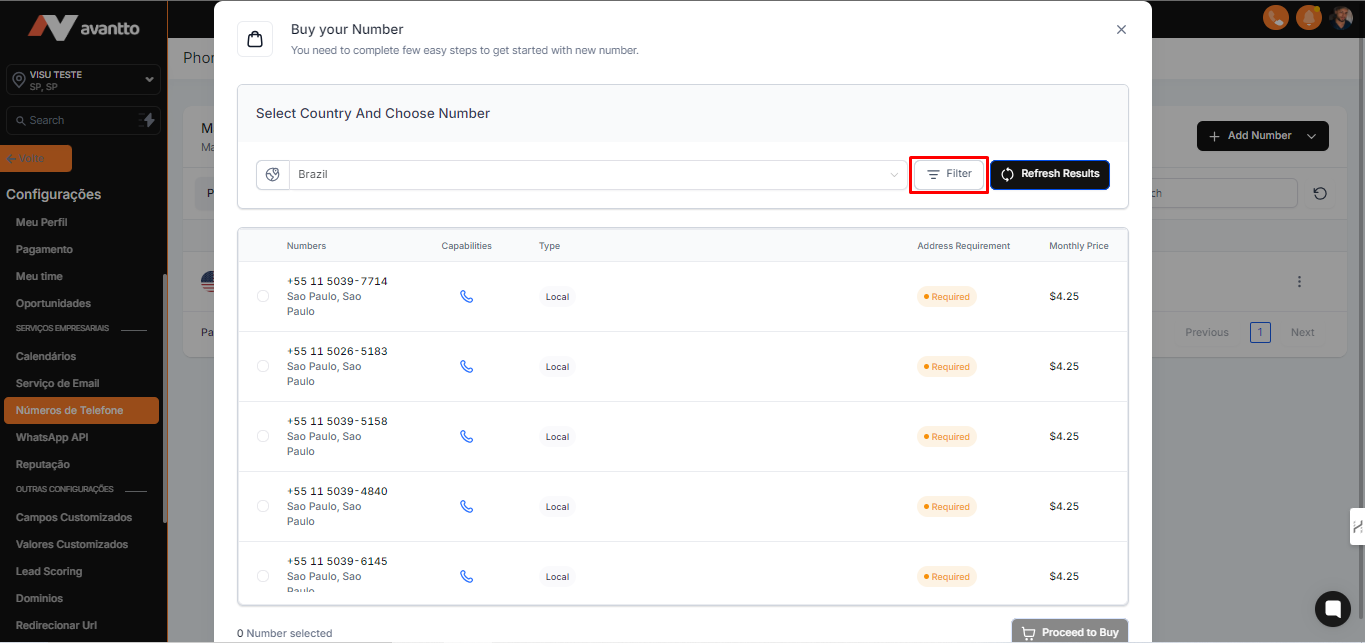
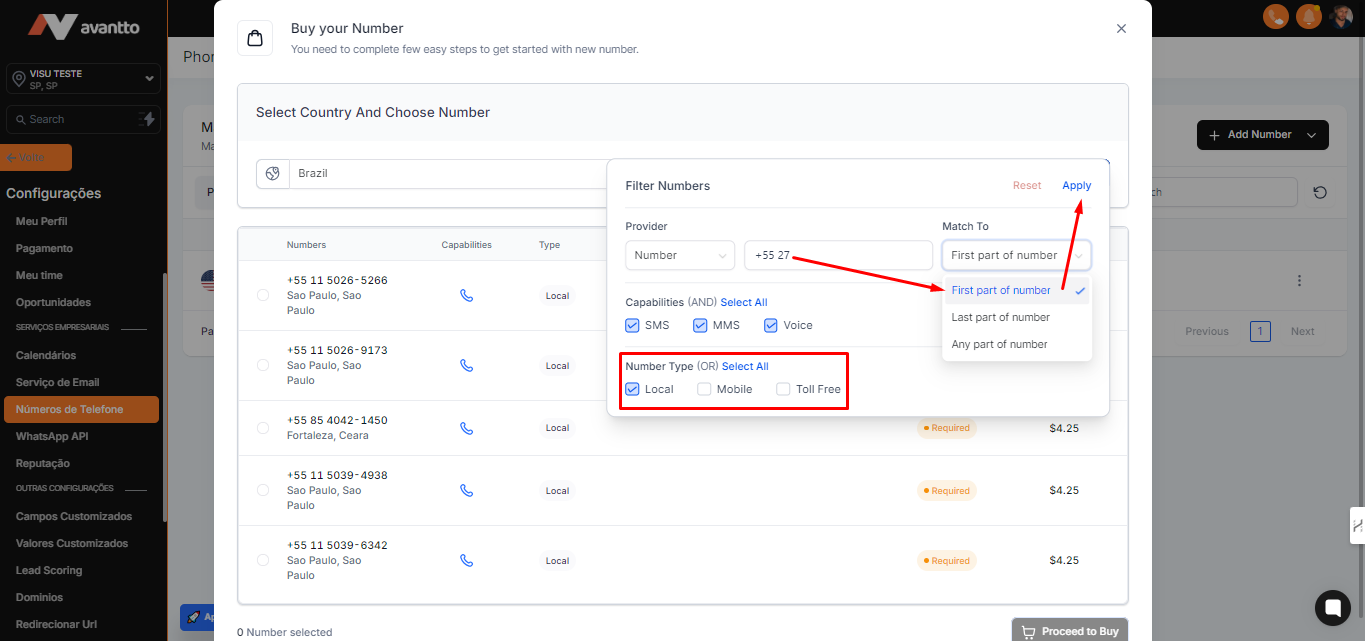
2.4 By clicking on "Filter", you will have the option to filter the numbers by the initial part (DDD), the final part, or any other part of the number. This makes it easier to search for specific numbers that meet your needs.
For example: To find numbers with the DDD 27 (Espírito Santo), follow these steps:
Type "+55 27" in the search field. It is important to fill in with the country code, as in the case of Brazil +55.
Select the option "First of Part Number" to ensure that the search only considers numbers that start with this area code.
In the "Number Type" field, leave only the "Local" option selected, as it is the most recommended for numbers in Brazil.
Finally, click on "Apply" to apply the filter and view the results.
The same procedure applies if you want to find a number from the United States. Just change the country, enter the desired area code, and follow the same steps to filter and check availability.
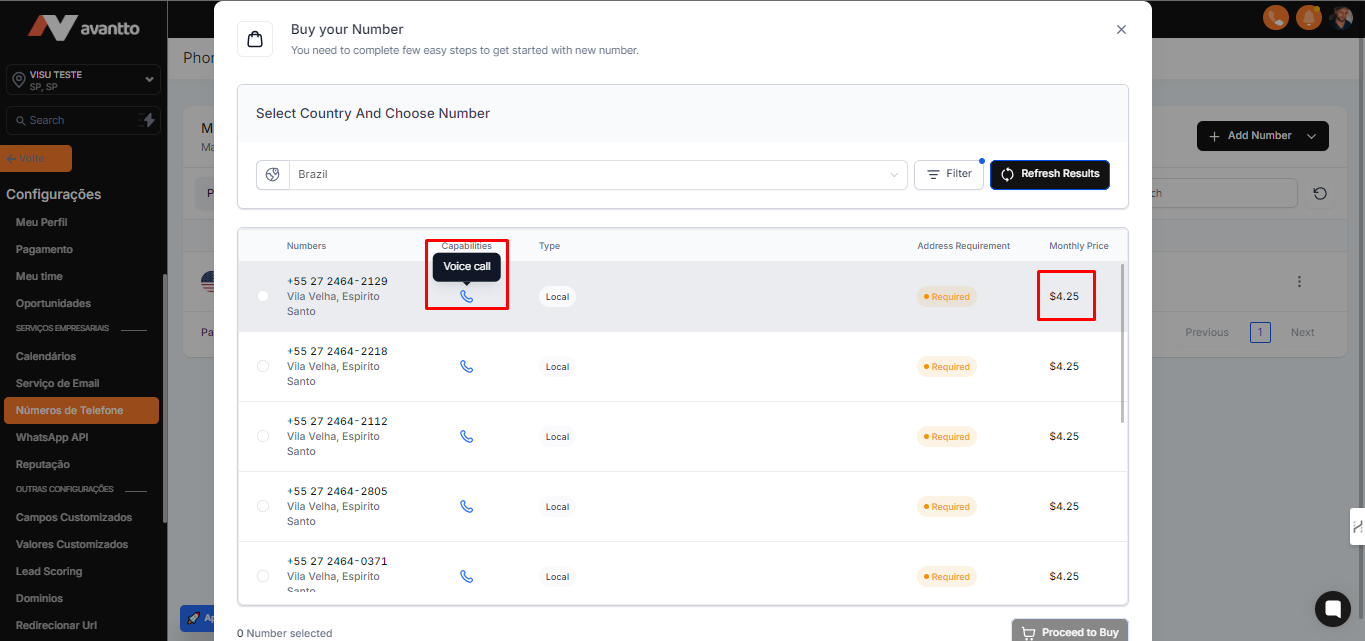
2.5 After applying the filter, it will be possible to view the list of available numbers.
In this list, you can check the applicability of each number, which indicates whether it can be used only for calls or also SMS and voicemail, as well as the monthly value associated with each number.
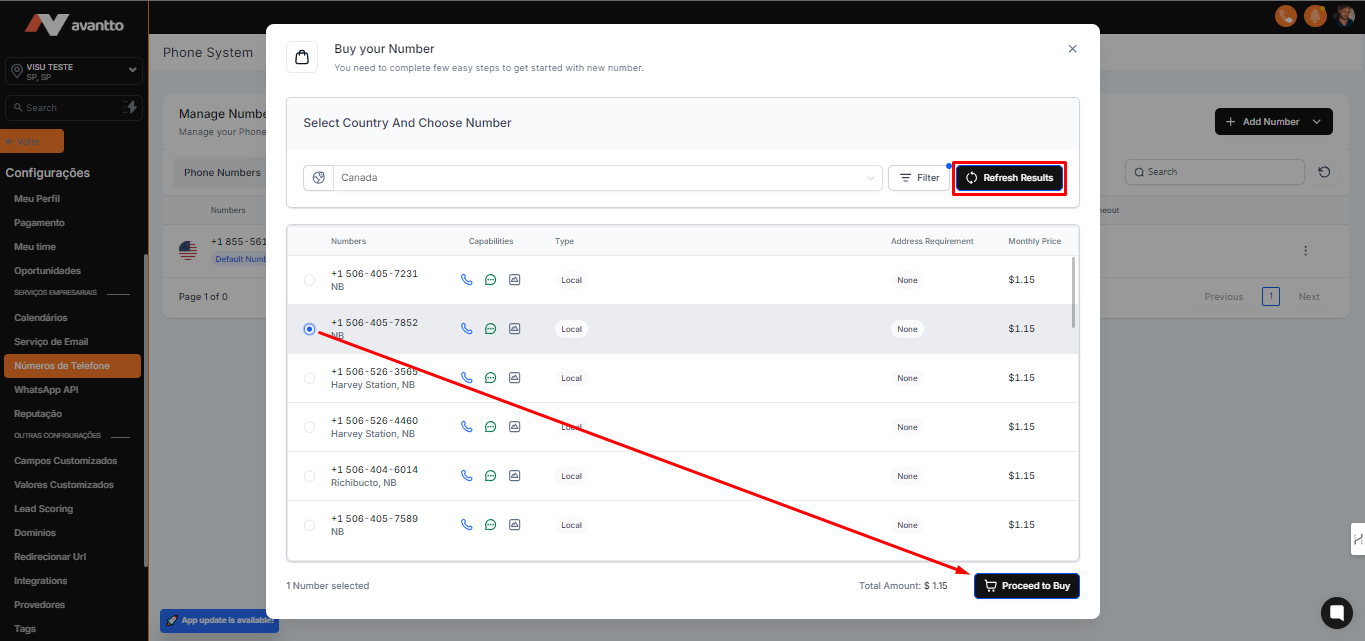
2.6 If you don't like any of the numbers offered, click "Refresh" to generate other options.
After choosing the desired number, just select it (one at a time to make the purchase) and click "Proceed to Buy". The number will be acquired automatically.
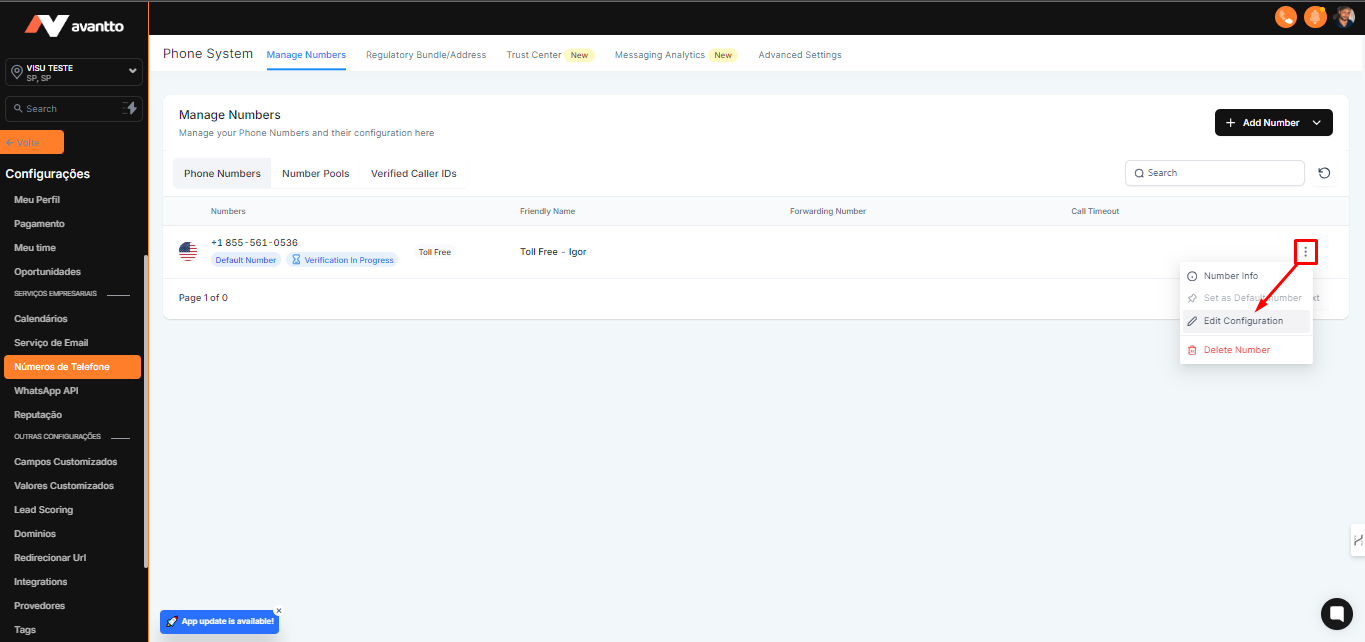
3.1 In the Purchased Numbers tab (as mentioned in step 1.2), click on the three dots next to the desired number and select "Edit Settings".
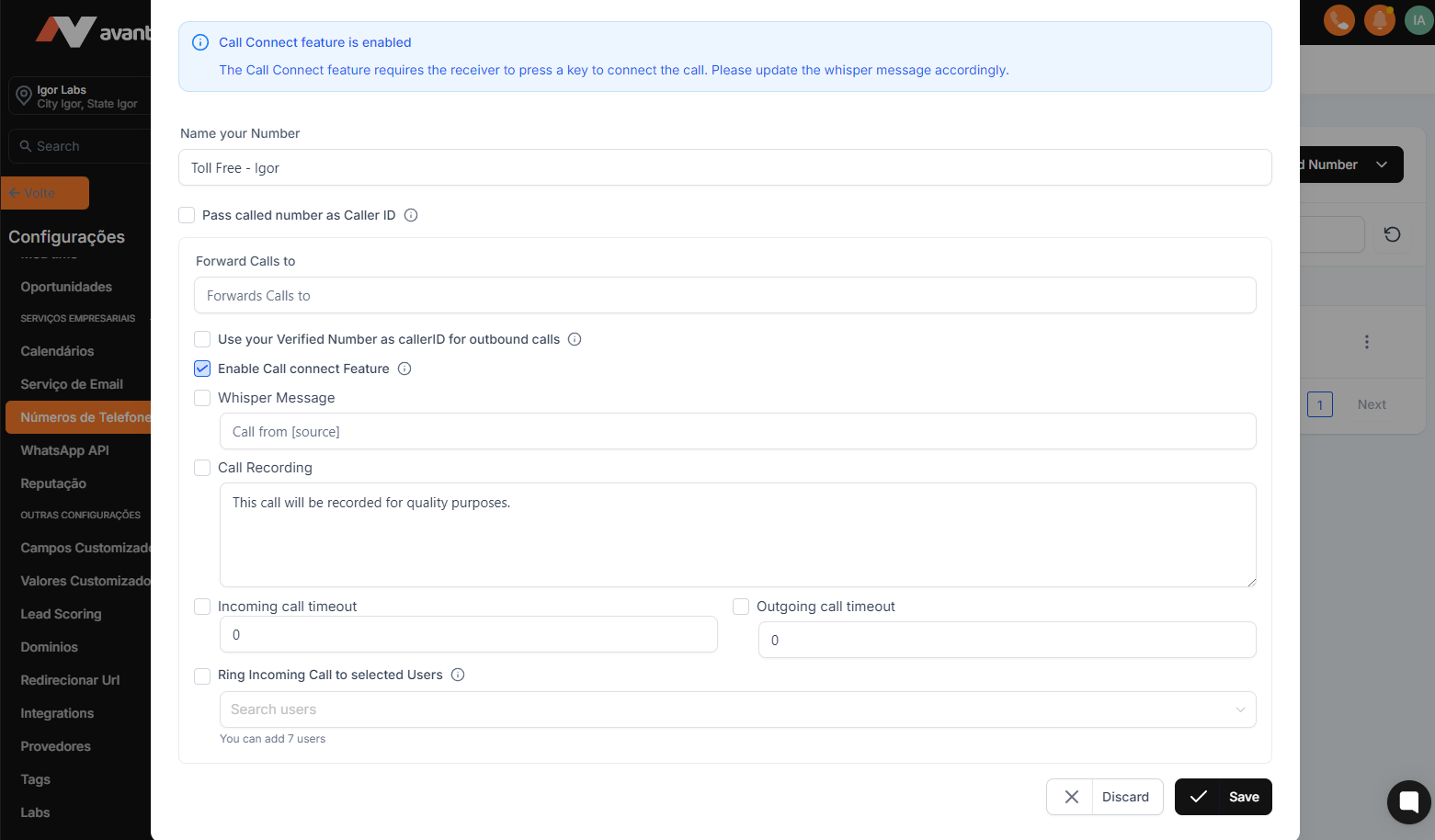
3.2 In this tab, you can rename the number in the "Name Your Number" section and assign it to Avantto users in the "Ring Incoming Call to Selected Users" field. If you want to forward unanswered calls within Avantto, you can add a number in "Forwards Calls To". It is also possible to configure how long it will take for the forwarding to be done by changing the options in "Incoming Call Timeout" below.